
SAP Grants Management (GM) T-code Basic Instructions
Table of Contents
NAV 100 – SAP Basics & Navigation Objectives 4
Project Financial Report (FSSR)- Z_FSSR_PROJFIN 5
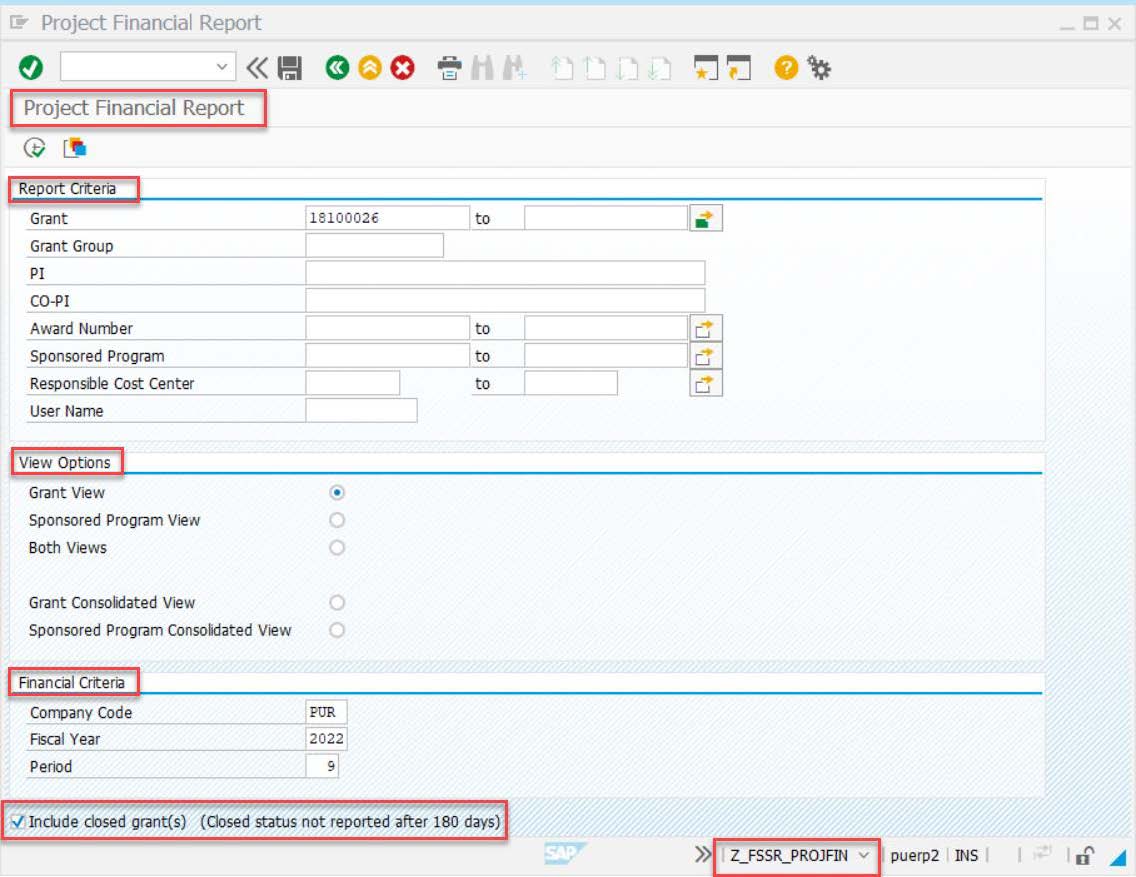
Project Financial Report Selection Criteria Screen 6
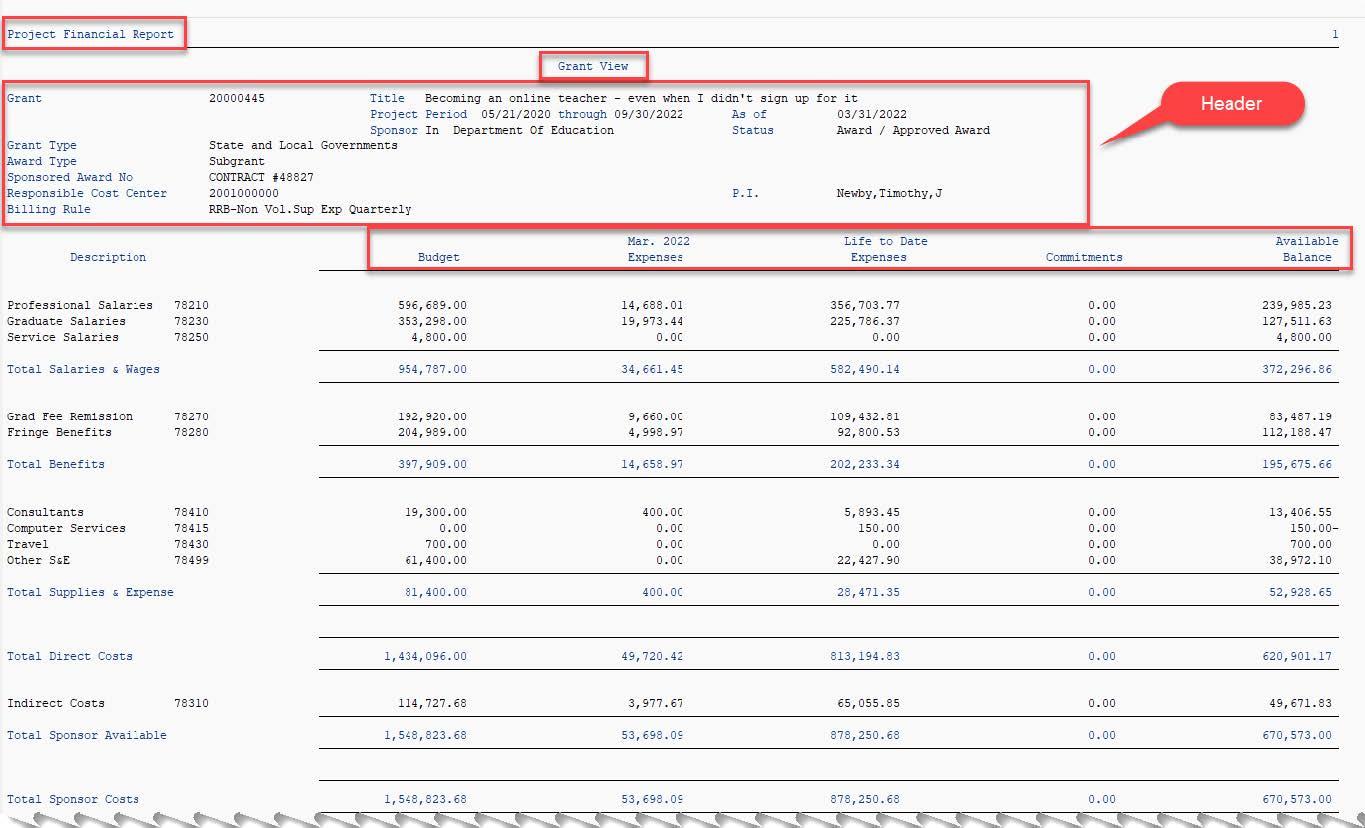
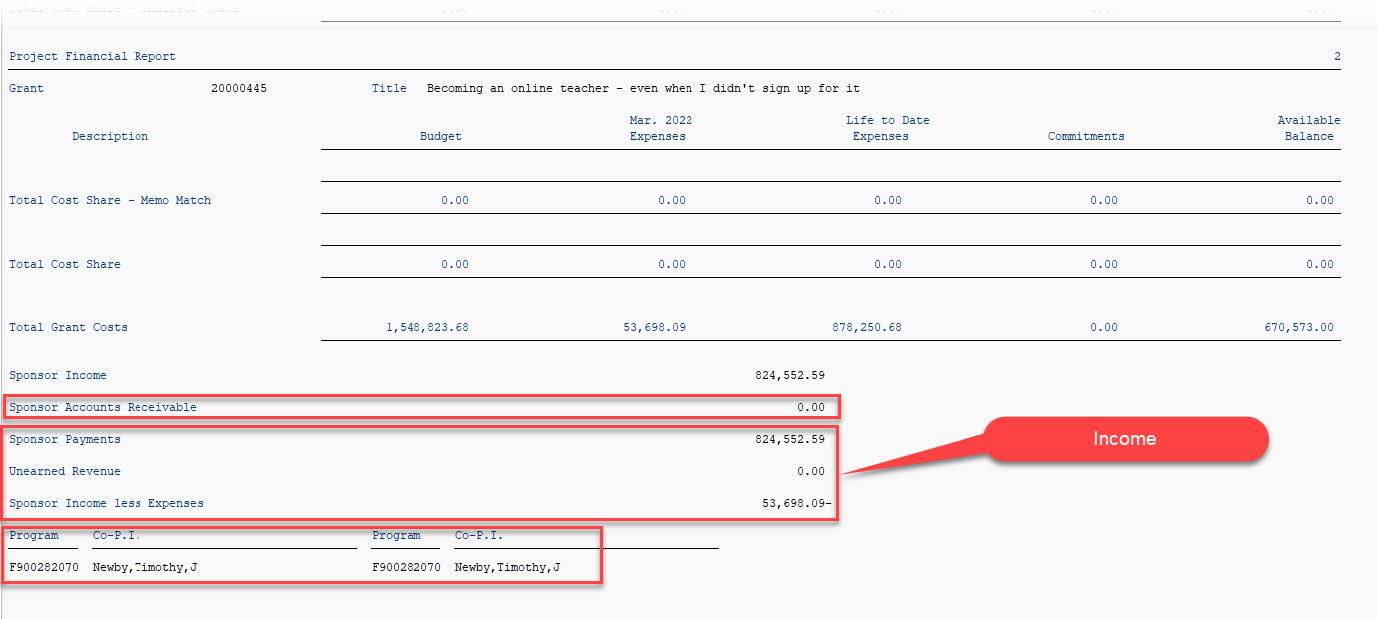
Sample Report - Project Financial Report Sample 7
Master Data Index for Grant—S_ALN_01000079 9
Selection Criteria for Master Data Index for Grant 9
Sample Report - Master Data Index for Grant 11
Grants Management Line-item Display—S_PLN_16000269 12
Grants Management Line-item Display Selection Criteria 12
Sample 1 - Grants Management Line-item Display Report - Summarized 15
Sample 2 - Grants Management Line-item Display Report - Detailed 16
FBL5N – Customer Line-Item Display 17
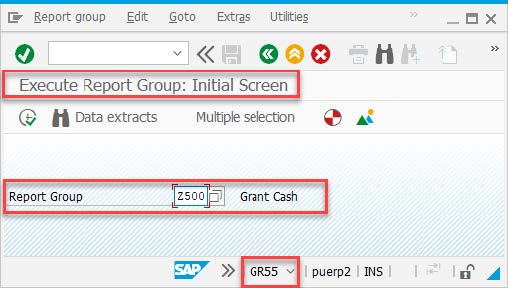
GR55 Report Group Selection 20
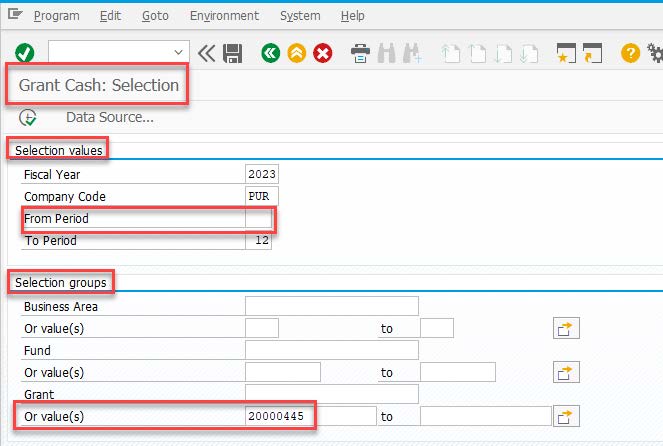
GR55 Z500 Selection Criteria 20
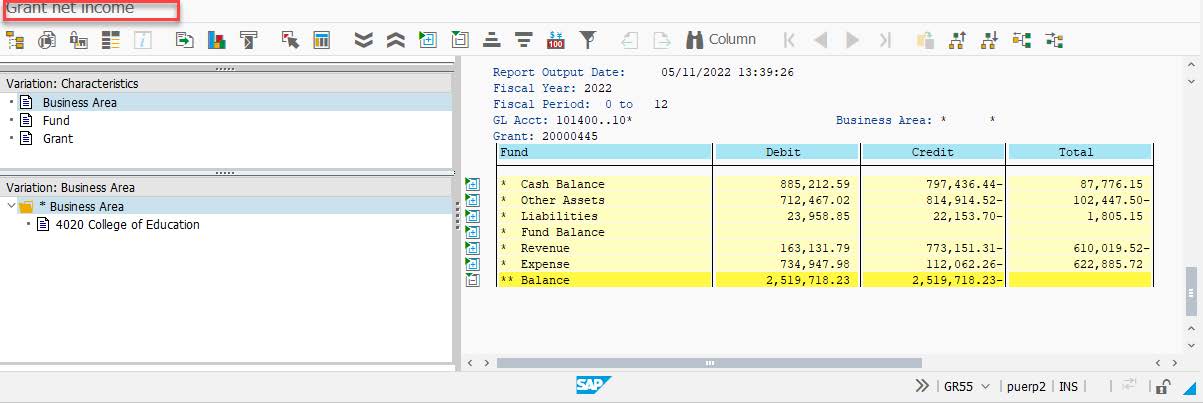
GR55 Z500 Grant Cash Report 21
Appendix A – SAP Icons, Layouts, Filters, Totaling and Subtotaling 22
Change Layout Functionality 24
Change Layout > Sort Order Example 1 – Master Data Indexes 25
Change Layout > Sort Order Example 2 – Line-item Display 26
Appendix B – Common Fields Glossary 29
NAV 100 – SAP Basics & Navigation Objectives
Before using this Grants Management t-code guide, users should review SAP Basics and Navigation (NAV 100) to understand the basics of navigating in SAP. The NAV 100 course covers the items listed below which may be useful with the t-codes covered in this document. Some of the functionality from NAV 100 will be covered within this document, but for full details please take the course.
-
Basic SAP Concepts
-
Selection Criteria
-
Dynamic Selection
-
-
Variants
-
Layouts
-
Editing and creating
-
-
Running reports or lists in the background
-
Output Options
Other navigation basics can be found in Appendix A – SAP Icons, Layouts, Filters, Totaling and Subtotaling.
Introduction to Grants Management Master Data
Users may also benefit from taking Introduction to Grants Management Master Data course before reviewing this document.
Project Financial Report (FSSR)-Z_FSSR_PROJFIN
The Project Financial Report, frequently referred to as the FSSR, t-code (Z_FSSR_PROJFIN) is a custom transaction code created for Purdue University that provides data in real time (if current fiscal year period is chosen).
|
Subject |
Description |
|
Audience |
SPS Post Award Staff, Business Office Staff |
|
Report Fields |
Budget, Current Months Expenses, Life to Date Expenses, Commitments and Available Balance |
|
Example Uses |
Grant or Sponsored Program account balances Budget Monthly expenses Life to date expenses Commitments Budget variances |
Different views (listed below) are available. This report provides information like the Aims Account Summary report in Cognos.
|
Subject |
Description |
|
Grant View |
This is a consolidated view from the grant perspective. This view includes data from all sponsored programs associated with the grant entered in the selection criteria. If multiple grants are entered in the selection criteria, they will be displayed grant by grant in the output. |
|
Sponsored Program View |
This report contains data for just the sponsored program(s) listed in the selection criteria. If there is more than one sponsored program requested in the selection criteria, a separate report for each sponsored program will appear, one after the other. |
|
Both |
This will produce both the Grant View and Sponsored Program View for each selected grant/sponsored program entered in the selection criteria. The order will be Grant 1, Sponsored Program 1, Sponsored Program 2, Grant 2, Sponsored Program 3, Sponsored Program 4, etc. |
|
Grant Consolidated View |
This view will add all Grants entered in the selection criteria into one consolidated report. This might be helpful for cost sharing reporting if the memo match cost sharing is tracked in a separate grant. |
|
Sponsored Program Consolidated View |
This view will add all Sponsored Programs entered in the selection criteria into one consolidated report. |
Project Financial Report Selection Criteria Screen
Sample Report - Project Financial Report Sample
Master Data Index for Grant—S_ALN_01000079
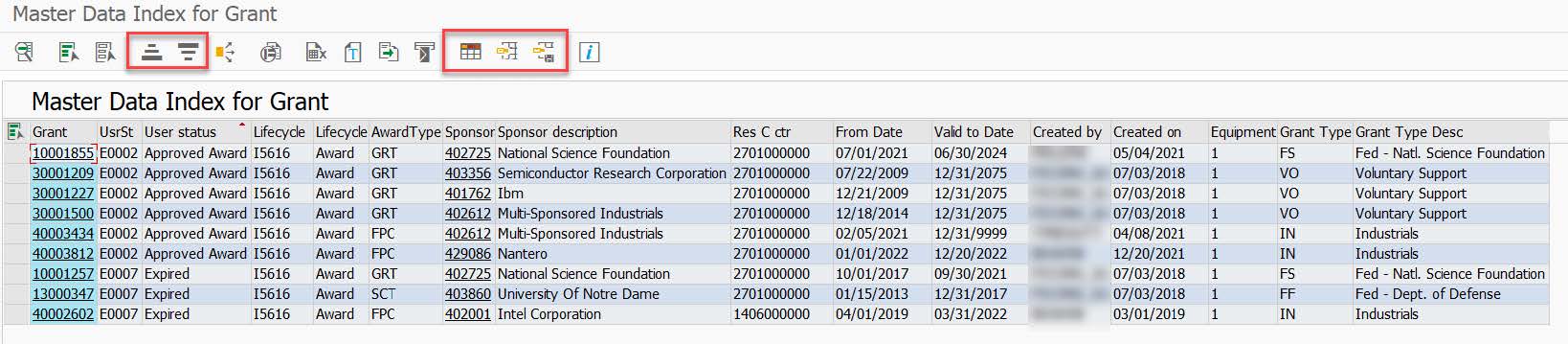
The Master Data Index for Grants (S_ALN_01000079) is a standard SAP transaction code available within SAP. This t-code allows users to create a list of grants based on basic Grant master data such as Grant number, Grant Group, External Reference (Sponsor Award #), or PI. You can double click on Grant field in the report to go to GMGRANTD to see full details.
|
Subject |
Description |
|
Audience |
SPS Post Award Staff, Business Office Staff |
|
Report Fields |
The Change Layout functionality allows users to add many different GM Grant master data fields such as Grant, Grant Name, Sponsor (number), Valid from Date, Valid to Date, Created On and many other fields. Some custom grant master data fields may show up as Char 255. By pulling the field into your report you can see values which might help determine which custom field it is. |
|
Example Uses |
Finding a list of Grants for a specific PI Find a list of grants with a specific valid from date Find a list of grants with a specific Lifecycle Status (I5616 – Award, I5617 – Closed) Find a list of grants for your Responsible Cost Center with Memo Match (See layout /Memo Match & Dynamic Selections instructions for RCC below). |
Selection Criteria for Master Data Index for Grant
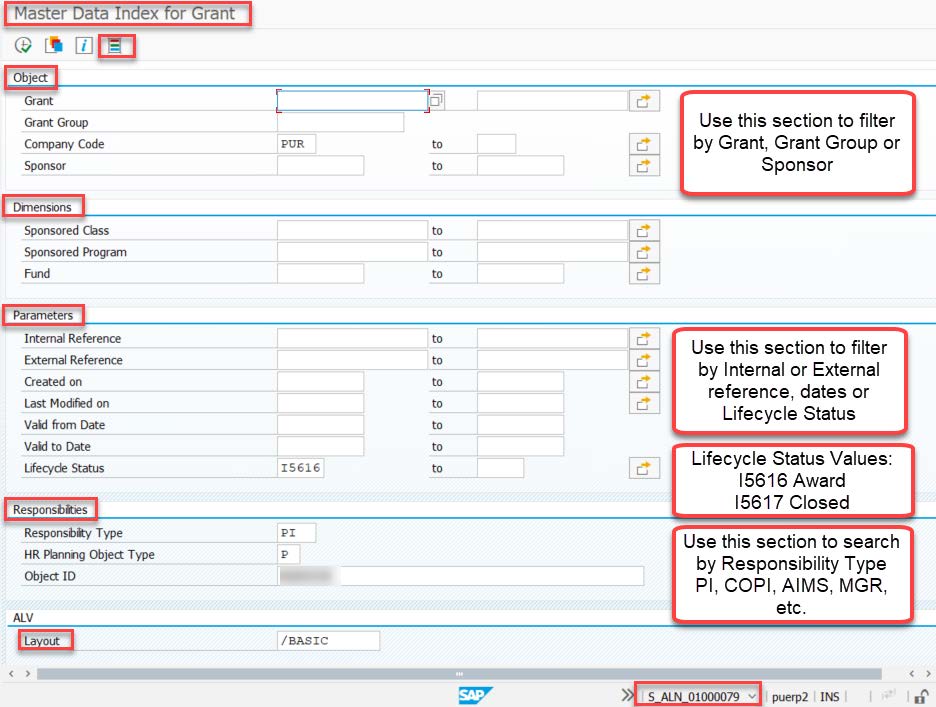
The Dynamic Selections icon  can be used to limit on Responsible Cost Center. Expand the Grant master folder. Scroll down near bottom of list and double-click on Responsible Cost-Center. It should appear on the right, enter the cost-centers you want to filter on (e.g. 40XX00XXXX).
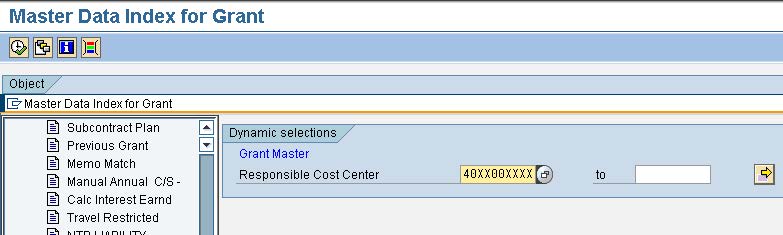
Click the ‘Save’ Icon  . You should revert to the original t-code screen, but now the ‘Dynamic Selections’ Icon should read ‘1 Active’
 .
.
Different layouts can be selected such as /BASIC – Basic Grant or /Memo Match. Use the Change Layout  icon to add or remove fields. See Appendix A – SAP Icons, Layouts, Filters, Totaling and Subtotalingfor details on using the Change Layout icon.
Sample Report - Master Data Index for Grant
Grants Management Line-item Display—S_PLN_16000269
Grants Management Line-item Display (S_PLN_16000269) is a standard SAP transaction code that provides transaction details from the Grants Management module.
|
Subject |
Description |
|
Audience |
SPS Post Award Staff, Business Office Staff |
|
Report Fields |
The Change Layout functionality allows users to add many different GM Grant master data fields as well transaction posting fields. See Appendix B - Common Transaction Fields Glossary for a subset of field specifics. |
|
Example Uses |
Line-item display is a quick way to pull transactions for a specific time frame. It is especially useful for “real time” data, whereas BI/Cognos reports only provide data from the previous day. Reviewing Budget, Revenue or Income, Expense or Commitment transactions Easy filtering and subtotaling Another benefit of Line-item Display is that you can sort and filter on both Entry Date as well as Posting Date. This is sometimes helpful when reviewing F&A, S&W postings or trying to match invoice totals. Exportable data |
Grants Management Line-item Display Selection Criteria
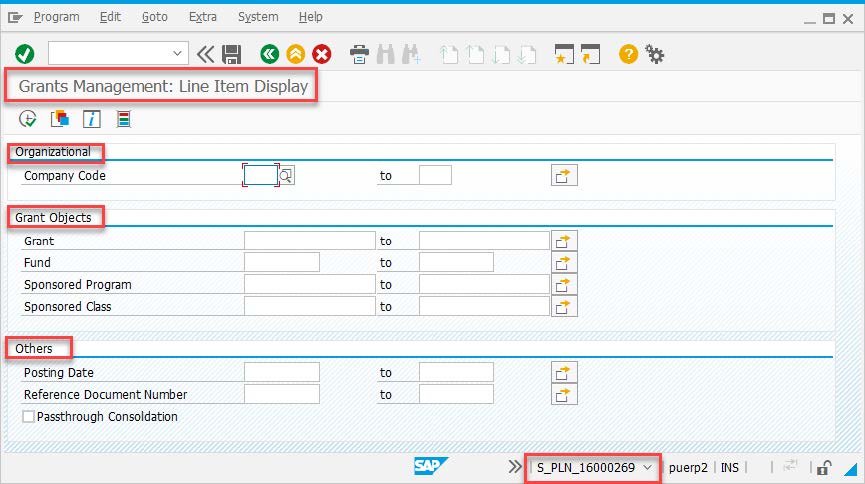
Users may choose to create a layout with all the fields they would like to include and set filters based on the question they are working on at the time. Users can also set up totals and subtotals within layouts. See Appendix A – SAP Icons, Layouts, Filters, Totaling and Subtotaling for details on how to manipulate SAP layouts and data.
The information below can be used to filter the data to desired transactions. Field details can be found in Appendix B - Common Transaction Fields Glossary.
Sample Filters and Layouts
|
Type of Transactions |
Value Types |
Sponsored Class |
Fund |
Statistical Indicator |
Layout Name |
Notes |
|
Budget |
R1 |
|
4* or 2* |
|
/BUDGET |
Cost Share F&A will not show. This is a calculated amount. |
|
Income |
|
6* |
4* |
R |
/INCOME_FSSR |
|
|
Expense |
<> 51, 52, 60 & 81 |
7* |
4* or 2* |
R |
/EXPENSE_FSSI |
|
|
Commitment |
= to 51, 52, 60 & 81 |
7* |
4* or 2* |
R |
/COMMIT VALIDT |
|
|
All Transactions |
=55, 66, 95, 99, Z1, Z2, Z4 |
GL <> 204700 |
|
R |
/ALL TRANSAC |
|
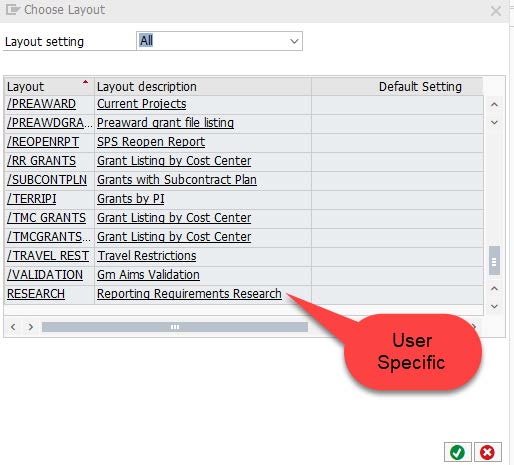
Users can also select from many layouts using the Select Layout  icon. You can use User Specific layouts to save your own layouts and filters. These layouts DO NOT have the “/” symbol in front of them and will show at the bottom of the list. Be careful about saving over current layouts that you have not created or changing the default layout on a non-user specific layout. This affects many users, not just your own.
To ensure your filters are accurate, compare totals to the Project Financial Report or AIMS Account Summary. Keep in mind AIMS data is as of the previous day. Remember that non user specific layouts can be changed by others without your knowledge. It’s always good to validate before using. Review items below when troubleshooting differences.
-
Value Types – are there any value types that should be filtered out, or added back into your layout? See Appendix B - Common Transaction Fields Glossary for details.
-
Should a filter be set on the Statistical Indicator? See Appendix B - Common Transaction Fields Glossary for details.
-
Review the Posting Date vs the Entry Date. These can sometimes be in different fiscal year periods.
-
Review the GL Account vs the Commitment Item. In select cases such as assets, the GL can differ from the Commitment Item.
Users can click on the RefDocument (Reference Document) field and the Display Document (FB03) will open. See FB03 Display Document for more details on using FB03.
When reviewing Commitments on Ariba Orders, RefDocument will be the PO# from Ariba.
Sample 1 - Grants Management Line-item Display Report - Summarized
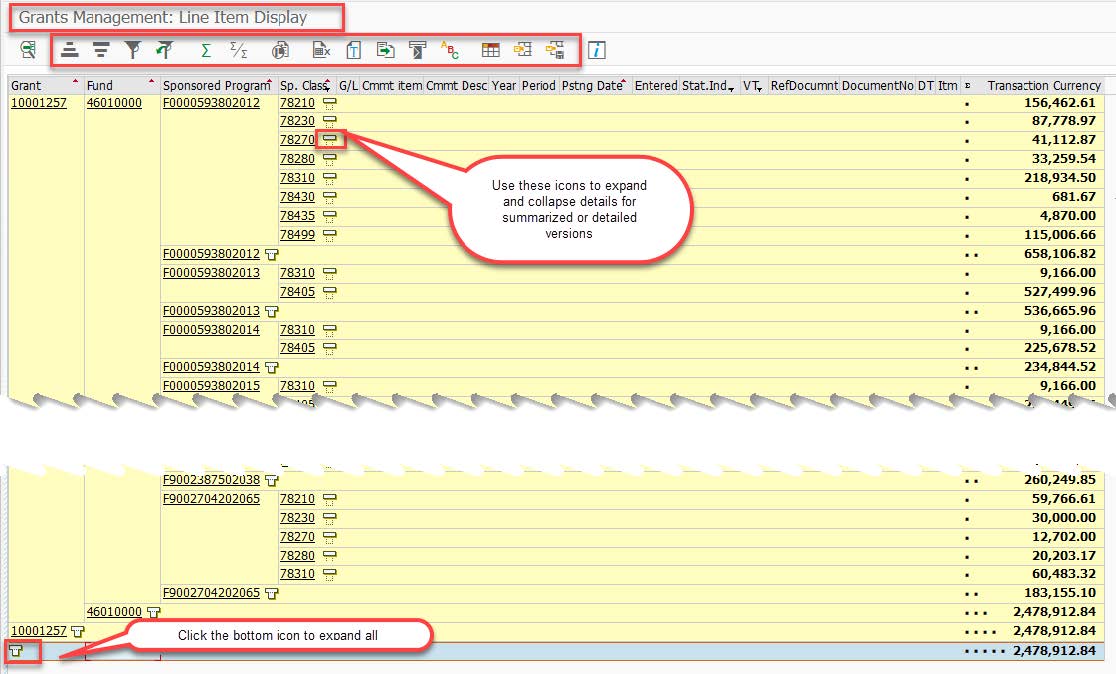
Sample 2 - Grants Management Line-item Display Report - Detailed
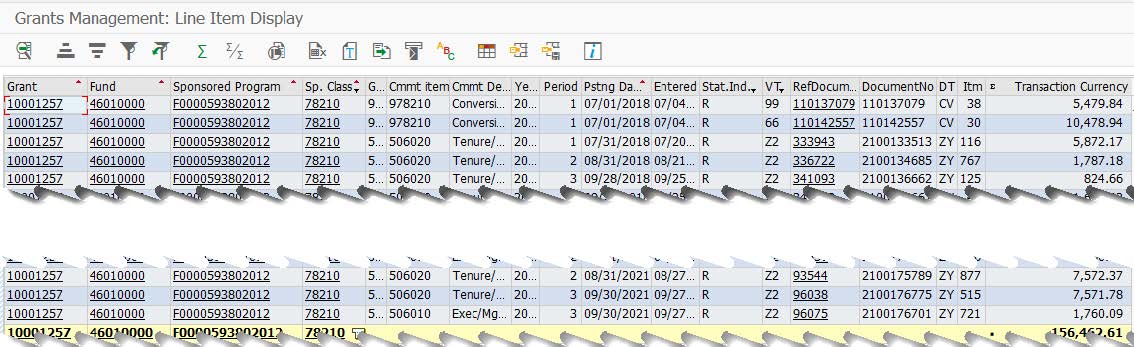
See Appendix A – SAP Icons, Layouts, Filters, Totaling and Subtotaling for more details on how to manipulate results in this t-code.
FBL5N – Customer Line-Item Display
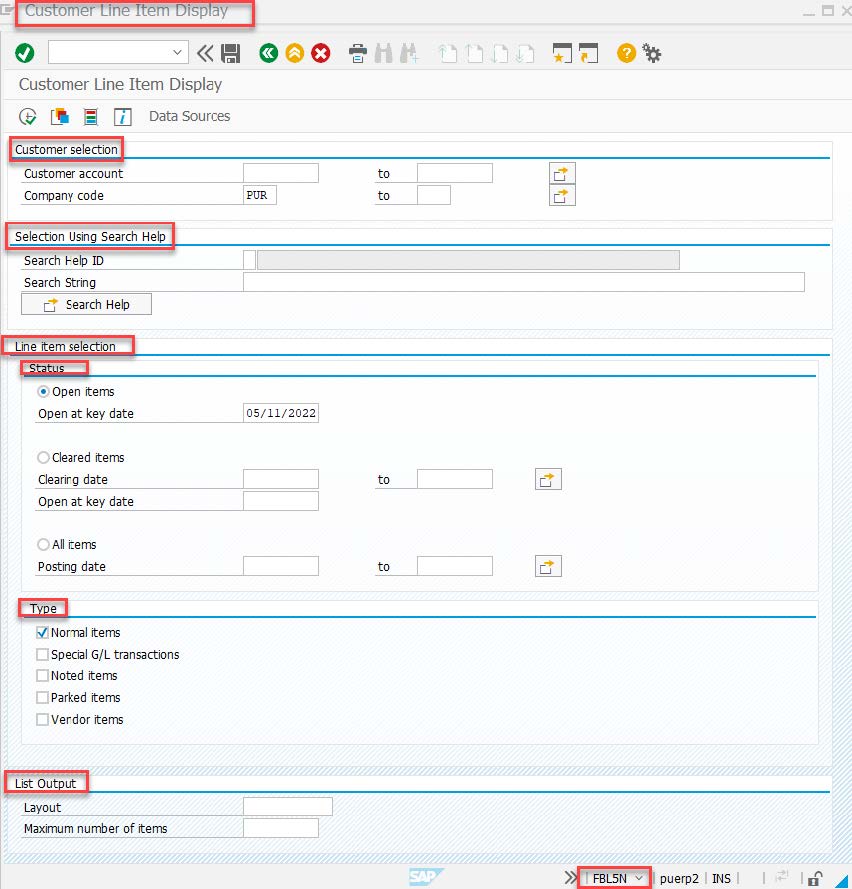
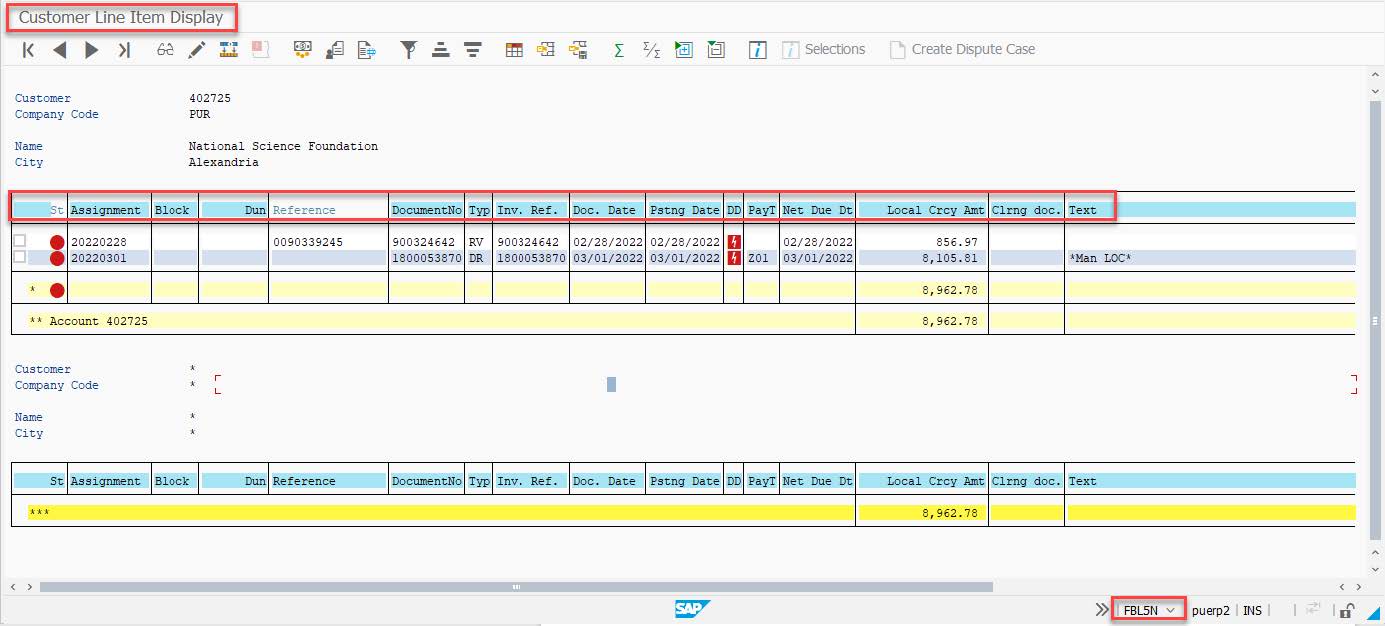
FBL5N Customer Line-Item Display t-code is a standard SAP transaction that allows users to view open (unpaid) receivables by customer.
|
Subject |
Description |
|
Audience |
SPS Billings & Collections Team |
|
Report Fields |
Cleared/Open Items Symbol, Assignment, Reference, Document Number, Document Type, Invoice Reference, Doc Date, Posting Date, Net Due Date, Local Currency Amount, Text |
|
Example Uses |
This t-code can be used by the Billings team to review outstanding invoices for vendors. |
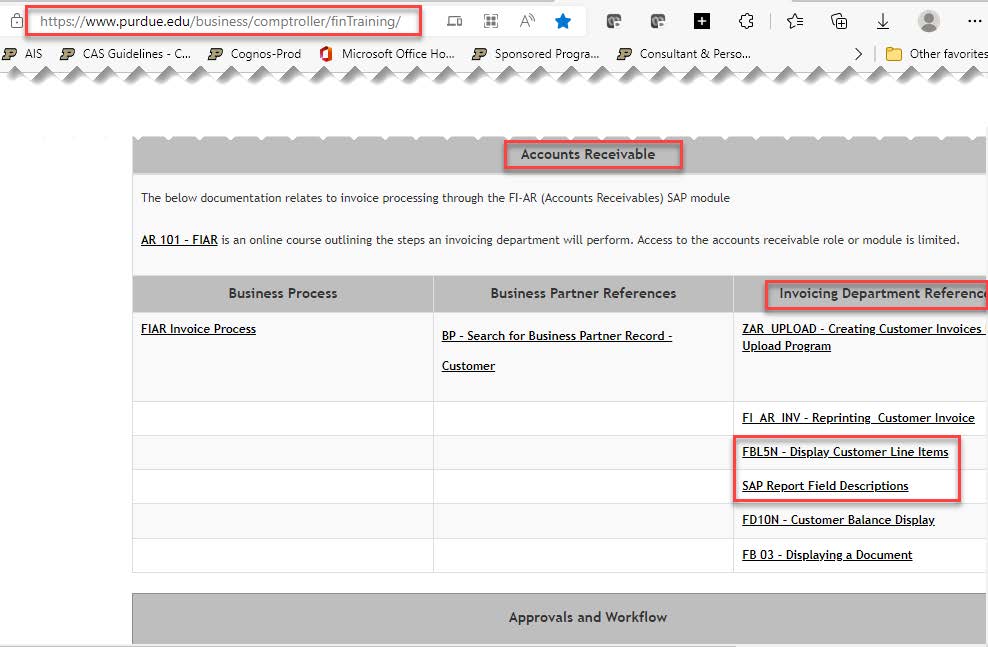
On the Finance Training website, see the Invoicing Department Reference Section and FBL5N – Display Customer Line-items for detailed QRG with step by step instructions for running the t-code.
FBL5N Selection Criteria
FBL5N Report
GR55 Z500 – Grant Cash
The Grant Cash variant for GR55 is a custom layout for Purdue University designed to display cash values at the grant level. This view is from the Finance (FI) module in SAP. See SAP Ledgers – Differences Between on the Accounting Services General Ledger website for details on the differences between modules.
See page 2 of SPS_Grant _Closing_Guide for details on running GR55 Z500 – Grant Cash.
|
Subject |
Description |
|
Audience |
SPS Post Award Staff |
|
Report Fields |
Cash Balance, Other Assets, Revenue and Expense |
|
Example Uses |
Use during the close-out phase of a grant. |
GR55 Report Group Selection
GR55 Z500 Selection Criteria
Be sure to remove the 1 from the From Period and enter the grant number in the Or value(s) field.
GR55 Z500 Grant Cash Report
Cash balance should be zero to close a grant.
To review if there is a cash balance you can follow the steps below:
Click next to Liabilities to expand section.
-
Review Vendor Pay – Recon: if there is a balance then Purdue has received a vendor invoice that is due but has not been paid. This will be zero once the receivable is reconcilled.
-
Review Vendor Pay – GR/IR: if there is a balance then goods have been received and expensed to the grant but an invoice hasn’t been received or the invoice received had a difference from what was ordered and is unresolved. This will be zero once receivable is reconcilled.
Click next to Other Assets to expand section.
-
FI-AR Recon: This should be zero before changing grant to closed/closed. This reflects any outstanding accounts receivable on the grant. This will be zero once receivable is reconcilled.
-
Other Equipment: There can be a balance in Other Equipment. No action needed
Appendix A – SAP Icons, Layouts, Filters, Totaling and Subtotaling
Before using this t-code guide, users should review SAP Basics and Navigation (NAV 100) to understand the basics of navigating in SAP.
Menu Icons
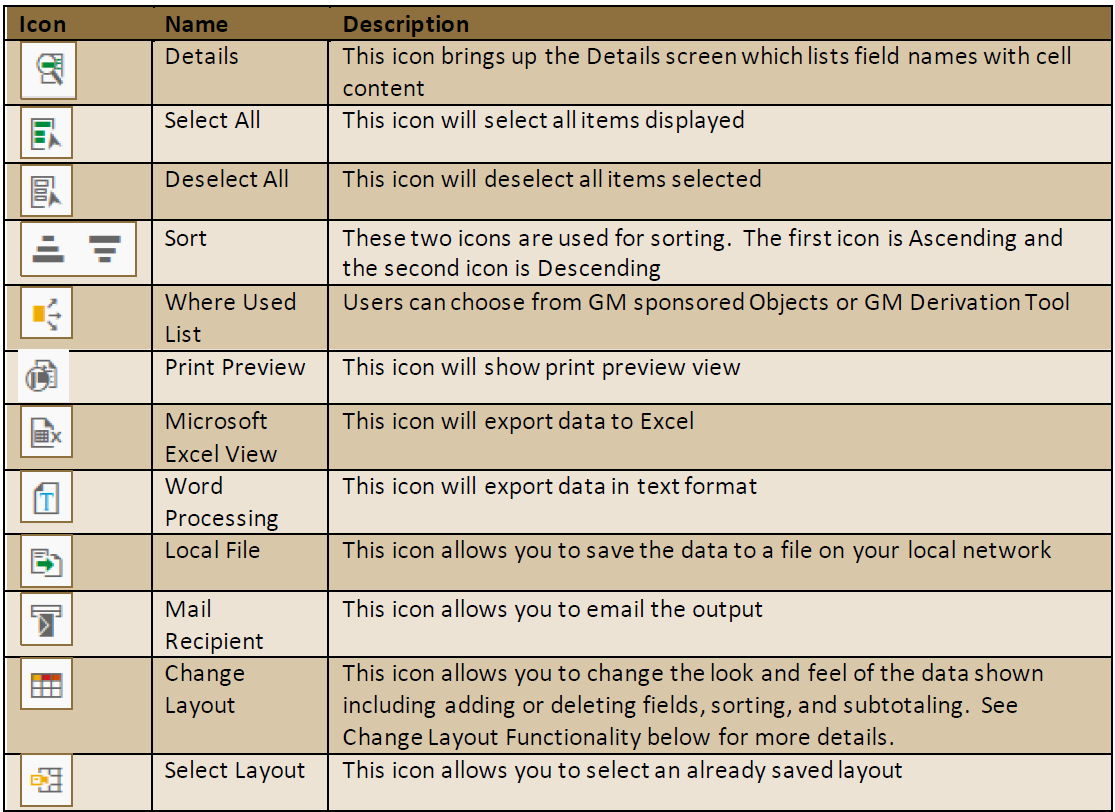
Menu icons will show based on the t-code being used. The screenshots below are from the Grant Master Data Index as well as Line-Item Display t-codes.


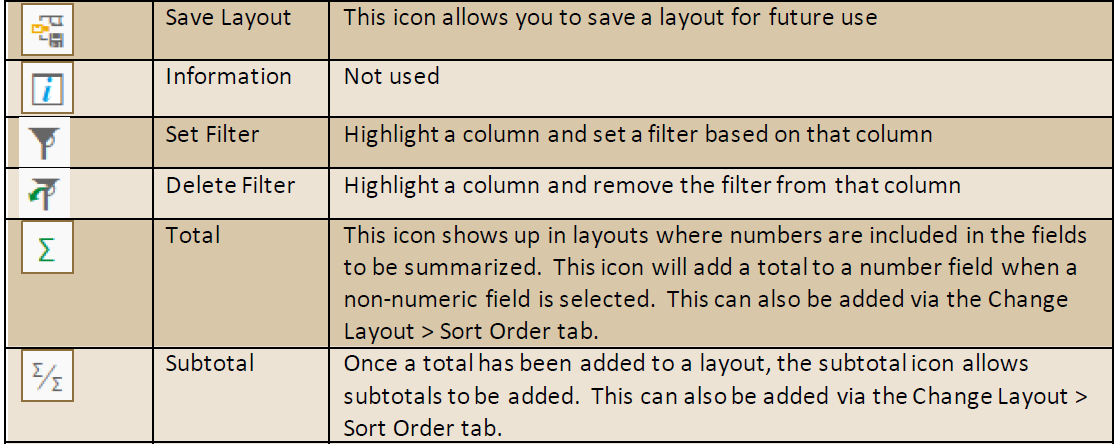
Menu Icon Details
Select Layout Screen
Change Layout Functionality
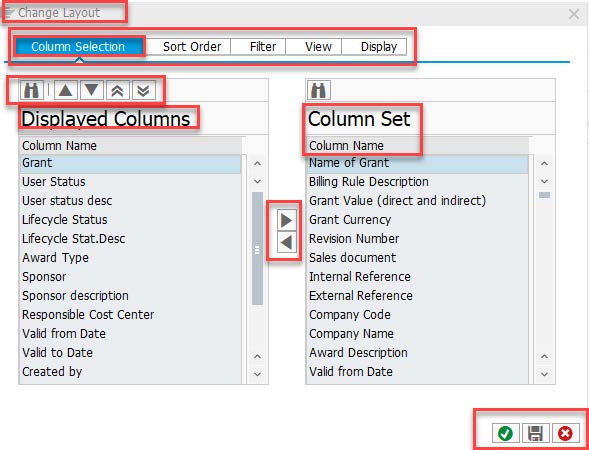
The Change Layout > Column Selection tab allows users to add or delete fields from the layout. By clicking on the Column Name in the Column Set section (right) the fields will be put into alphabetical order. Note that some blank fields may appear, so scroll up and down to see all fields. The green check mark will execute your changes. The disk will save your layout changes. The red X will cancel changes.
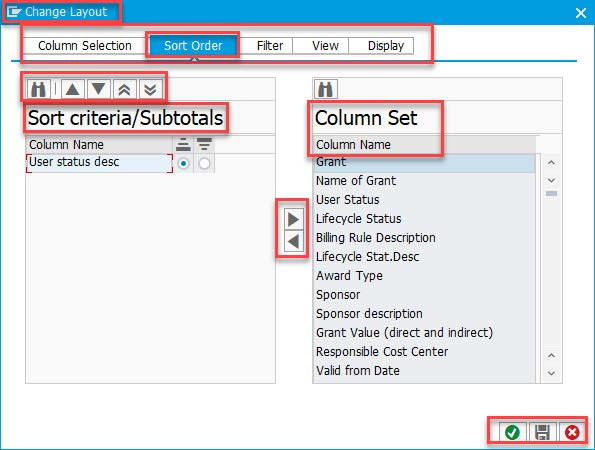
The Change Layout Sort Order tab allows users to sort by any columns they wish. Use the pyramid icons to select ascending or descending.
Change Layout > Sort Order Example 2 – Line-item Display
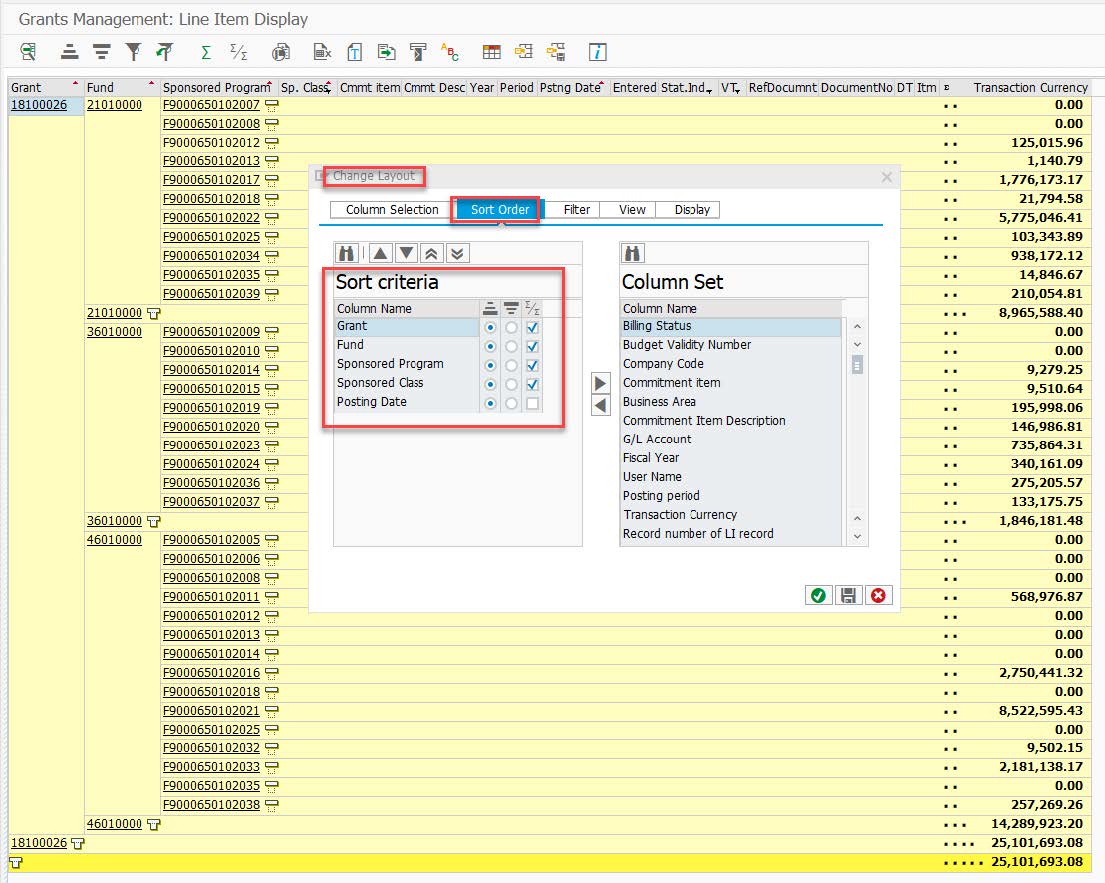
The Change Layout > Sort Order tab allows users to manage sorting by adding fields to sort by. If totals were included on the layout, users could also manage subtotals on this tab.
Set Filters
To check filters that have been set, or set your own, highlight the column you wish to filter and click on the filter tool  .
.
NOTE—the small black funnel beside the column title indicates that a filter has already been set on this field.
Grants Line-item Display Filter Icons
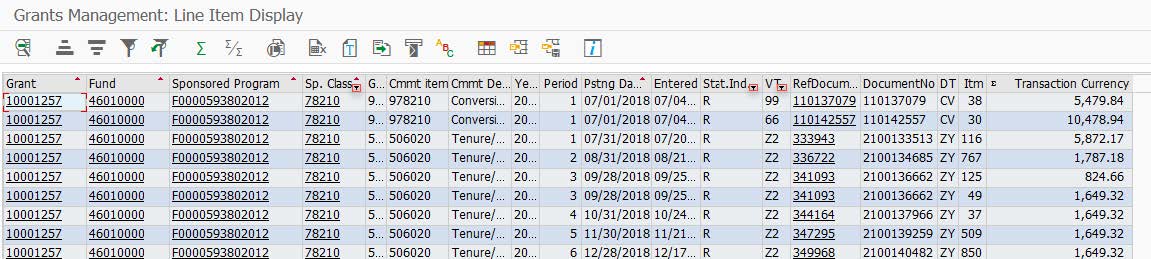
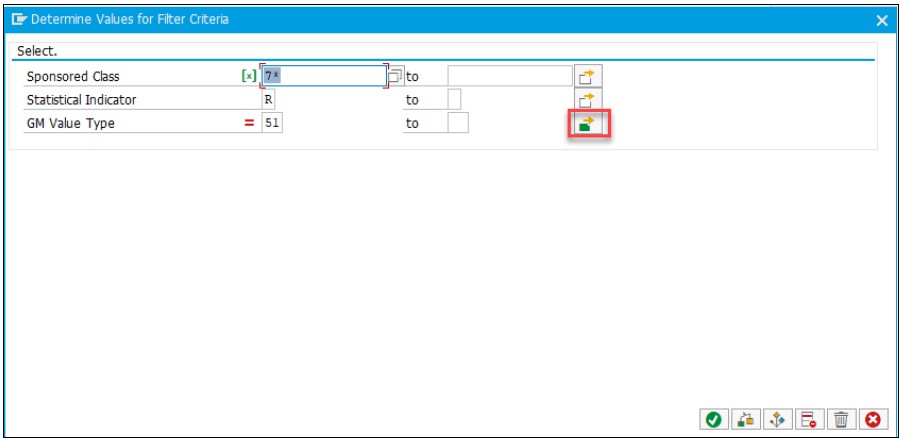
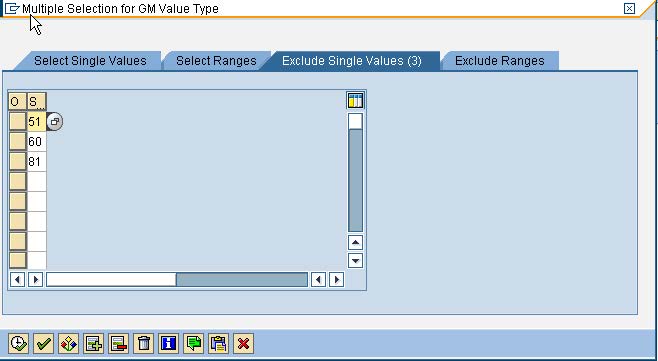
Click on the yellow arrow with green box to see the filters set on your column (GM Value Type for this sample). This will allow you to Select Single Values, Select Ranges, Exclude Single Values or Exclude Ranges.
Determine Values for Filter Criteria
Multiple Selection for GM Value Type
Export Data
Standard SAP transaction codes come with multiple ways to export data.

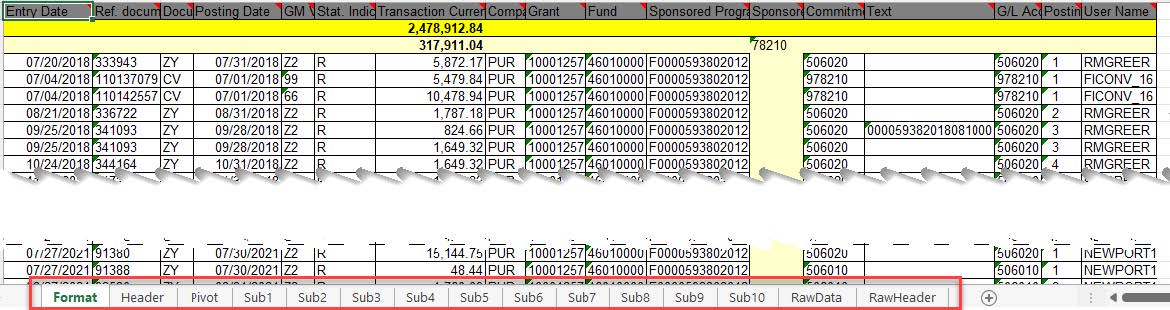
This icon is the same as using the menu List > Export > Spreadsheet. This method will keep totals and subtotals and include multiple tabs of data including a pivot table of the data and a RawData tab. Delete any unwanted tabs.
Appendix B – Common Fields Glossary
See Grants Management Master Data (Coming Soon!) for more details on Grant, Sponsored Program and Sponsored Class Fields.
|
Field Name |
Field Type |
Field Definition |
|
Commitment Item or G/L |
6 digits |
Represents budget classifications of revenue and expenditures in the FM and GM modules. Usually, one to one relationship with GL Account. |
|
Document Type Code |
2 digits |
Defines the types of transactions posted to a financial ledger. Examples: SA – Journal Voucher |
|
Entered On |
Date |
This is the date the transaction was entered into SAP. |
|
FI Document Number |
10 digits |
The FI Document Number is the document number used for looking up documents in SAP and WebNow (Perceptive Content). |
|
Fiscal Year |
4 digit code |
This field indicates the University’s fiscal year the transaction posted. For Purdue July 1 – June 30. |
|
Fund |
8 digits |
High level account for university level reporting of financial activity required based upon GASB or other external requirements. For grant sponsor funds 46010000. |
|
Header Text |
Char 255 |
Description of the purpose of the document at the document header level. |
|
Line Item Text |
Char 255 |
Description of what line item on document is doing. |
|
Period |
2 digit code |
This is the period during the fiscal year the transaction posted in the GM Module. 01 – July, 02 – August… |
|
Posting Date |
Date |
This is the date the transaction posted in the GM Module. |
|
Reference Document Number |
10 digits |
This is the originating encumbering document number and is shown on the encumbering posting line. |
|
Sponsored Class |
5 digits |
A group of Commitment Items to summarize grant and grant relevant revenue and expense by major sponsor categories. Revenue if first digit is 6 such as 64199 , and Expense if first digit is 7 such as 78310. |
|
Statistical Indicator |
|
Line Items in Funds Management and Grants Management documents can be statistical which means that they do not consume budget. Values |
|
Field Name Field Type Field Definition |
|||||
|
|
|
in the Grants Management module are Real (R) or Statistical (S). |
|||
|
User Name |
|
Purdue Career account of person approving transaction. |
|||
|
Value Type |
Char 60 |
Name indicating the type of transaction |
|||
|
|
Value Type (VT) |
Value Type Definition |
|
||
|
50 |
Purchase Requisitions |
||||
|
51 |
Purchase Orders |
||||
|
52 |
Business Trip Commitments |
||||
|
54 |
Liabilities |
||||
|
55 |
Assets (SD/AR) |
||||
|
57 |
Payments |
||||
|
60 |
Parked Documents |
||||
|
61 |
Down Payments |
||||
|
64 |
Funds transfers |
||||
|
65 |
Funds commitment |
||||
|
66 |
Transfer postings |
||||
|
80 |
Funds block |
||||
|
81 |
Funds reservation |
||||
|
82 |
Funds precommitment |
||||
|
83 |
Forecast of revenue |
||||
|
95 |
Secondary cost postings (CO) |
||||
|
99 |
Expenses/Revenues (Grant) |
||||
|
B1 |
Budget |
||||
|
R1 |
Released Budget |
||||
|
Z1 |
Fixed Assets |
||||
|
Z2 |
Payroll - Actuals |
||||
|
Z3 |
Payroll - Accruals |
||||
|
Z4 |
F&A |
||||
