YuJa Panorama FAQ
Updated 8/5/26
- What Accessibility Score is required for my course?
- What do each of the Accessibility Indicator Icons mean in Panorama?
- Do students see the Panorama Accessibility Indicator Icons?
- The Microsoft Accessibility Checker gave my document a score of 100% but when I add the same document into my Brightspace course, Panorama finds additional issues. Which checker is right?
- I have a duplicate file or files I do not want Panorama to scan, and I am unable to find the file or files in Course Admin –> Manage Files
- Can I turn off the confetti animation when I am remediating documents?
- How do I remediate PDFs in Panorama?
- My Course Accessibility Score is not changing even though I have fixed issues in my documents
What Accessibility Score is required for my course?
Always strive for a score of 100% – Once all your documents have a green indicator icon, keep working on these documents to keep improving their accessibility scores. For any compliance-related questions, please contact Purdue’s Office for Civil Rights.
What do each of the Accessibility Indicator Icons mean in Panorama?
Panorama uses color-coded icons featuring a person figure to indicate the accessibility score of course files and content. Here is a breakdown of what each icon means:
 –> Low Accessibility Score
 –> Medium Accessibility Score
 –> High Accessibility Score
Panorama may show some other icons:
 –> Blue circle icon: Accessibility icon (Student View only)
 –> Grey prohibition icon: Your institution has disabled the alternative formats for this document
 –> Purple circle icon: The file is being processed for accessibility
Do students see the Panorama Accessibility Indicator Icons?
Students will only see the generic blue Accessibility Indicator icon–> to the right of each document. When students click this icon, they will only see the Alternative Formats window. Students cannot see the Accessibility Indicator Icons that represent the accessibility scores of your documents.
The Microsoft Accessibility Checker gave my document a score of 100% but when I add the same document into my Brightspace course, Panorama finds additional issues. Which checker is right?
Panorama is much more robust and checks against a larger set of criteria than the Microsoft Accessibility Checkers. This larger set of criteria aligns more closely with WCAG 2.1 AA accessibility standards, which is what Purdue University must align with according to Title II of the Americans with Disabilities Act.
I have a duplicate file or files I do not want Panorama to scan, and I am unable to find the file or files in Course Admin –> Manage Files
- In Brightspace, from your Course Home, click “Course Tools” and then click “Panorama”
- In the Course Report, click “Files & Issues”
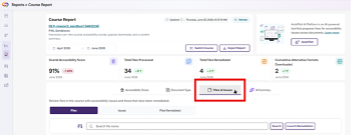
- Arrange the list of files by name by clicking “File Name”. This will arrange all of the files that Panorama is scanning alphabetically.
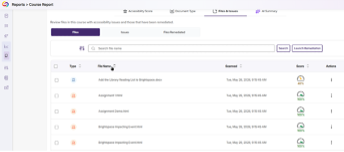
- For the file you wish to remove from this list, click the three dots to the right of the file (under the Actions column) and click “Remove”. If you need to remove a duplicate file of a file that you have already fixed, delete the duplicate file with the lower Accessibility Score.
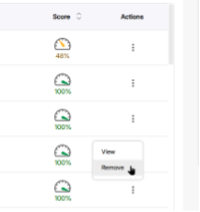
This will remove that file from the list of files that Panorama scans, and should then boost your overall accessibility score up.
Can I turn off the confetti animation when I am remediating documents?
You can turn the confetti animation off following these steps:
- In Brightspace, from the Course Home page, click “Course Tools” and then click “Panorama”
- On the left side of the screen, hover your mouse over the sidebar to bring up the menu and click “General Settings” under the “Configuration” button
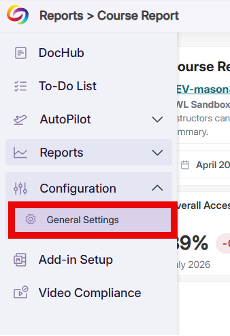
- Click “User Settings” and then click on the toggle to the right of “Animated Visuals”
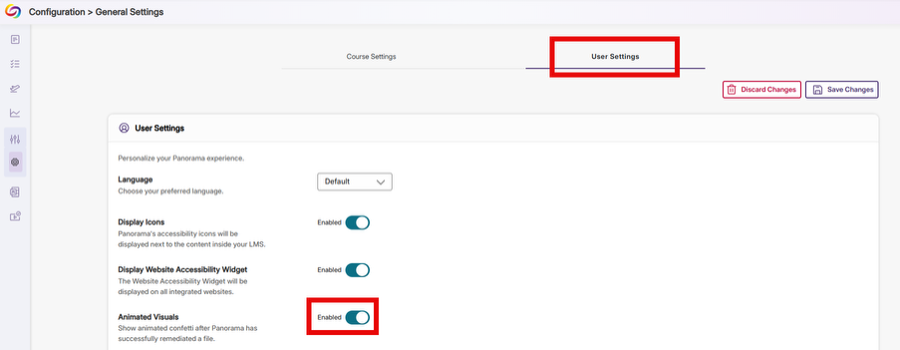
- Click “Save Changes”
How do I remediate PDFs in Panorama?
At this time, the University is researching how to best assist in PDF remediation. We would still recommend following the videos and step-by-step instructions in Panorama or following the instructions on Adobe’s Create and verify PDF accessibility webpage to remediate PDFs.
My Course Accessibility Score is not changing even though I have fixed issues in my documents
The main accessibility score on your Course Home page will only update once every 24 hours. To see the most up-to-date accessibility score, click “Course Tools” and then click “Panorama”. This will load your Course Report with accessibility score.