Simple Syllabus
Through a seamless integration with Brightspace, Simple Syllabus allows instructors to maintain a single, centralized version of their course syllabus while easily designating individual components as public-facing or student‑only. Based on these designations, Simple Syllabus automatically manages the public-facing and student-facing display of a course syllabus once it has been submitted by the instructor. Additionally, Simple Syllabus’ built-in accessibility checker helps ensure all content is accessible prior to publishing.
This webpage houses the technical support resources for Simple Syllabus. For information related to the Purdue syllabus template, policies, example language, etc., please visit the Purdue Syllabus Guidelines webpage.
Getting Started
Instructors
- Simple Syllabus Instructor Guide
- Simple Syllabus Workshop Recording (Video 49:44)
- Upcoming Workshops:
- Tuesday, January 5 @ 11 AM-12 NOON ET: Click Here to Register
General FAQ
What will happen to the syllabi I posted in Brightspace prior to Fall 2026?
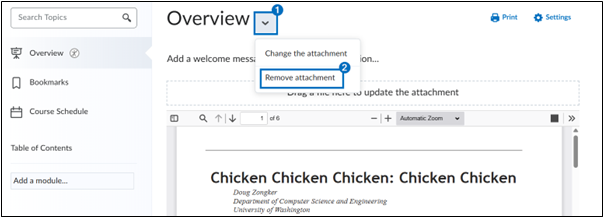
The former Syllabus area within Content has been renamed “Overview”. Simple Syllabus has been added to the course navigation bar as “Syllabus”. If you perform a course copy from a semester prior to Fall 2026, your former syllabus will appear in Overview. You will need to remove it from Overview and create it using Syllabus from the course navigation bar. To remove it:
- Click the drop-down icon to the right of the Overview heading
- Select Remove attachment
Do I need to upload my public-facing syllabus to Course Insights
No. Beginning Fall 2026, Simple Syllabus replaced the former Course Insights workflow. Submitting your syllabus in Simple Syllabus simultaneously publishes a student view and a public view of your syllabus.
What will happen to the syllabi I previously submitted to Course Insights
Course Insights will continue to serve as an archive for all syllabi posted Summer 2026 and prior.
What components of the syllabus are required to be public-facing?
The privacy toggle will automatically be set to “Public” for the six syllabus components the university has deemed required for public-facing syllabi. These include:
- Course Title and Number
- Course Description
- Course Learning Outcomes
- Learning Resources, Technology & Texts
- Assignments
- Grading Scale
Can I rename pre-populated components?
- No. To promote clarity and consistency across course syllabi, components pre-populated by the university cannot be renamed.
- For any additional components you add to the syllabus, you will have full control of the name, visibility, and privacy settings.
Is Simple Syllabus aligned with the ADA Title II accessibility requirements?
Yes. Simple Syllabus provides instructors with a built-in accessibility checker that reviews content accessibility as you work. Any issues detected will be indicated by the accessibility checker icon and will need to be corrected before the syllabus can be submitted.
Can colleges and/or departments add required language to the syllabus template for their unit?
No. At this time, any additional components or language required by individual units should be communicated directly to instructors for them to add to their syllabi. Once added, these components and/or language will be copied to subsequent syllabi but may be modified as needed.
Can colleges and/or departments use an approval process in Simple Syllabus to verify/approve all syllabi for their unit?
No. At this time, any verification or approval processes should be managed by individual units outside of Simple Syllabus.
Technical FAQ
Can I assign someone to create the course syllabus on my behalf?
- No. Only individuals listed as an instructor of record for the course can “Edit and Submit” the course syllabus.
- Individuals added to the course as an Instructor, TA, Grader, etc. via the Brightspace Enrollment Manager tool can “View” the course syllabus once submitted by an instructor of record.
What are the Visible/Invisible and Public/Private toggles for each component?
- Visible/Invisible: Controls whether a component is included (Visible) in a published version of your syllabus; or hidden and visible only to you in the template editor (Invisible).
- Public/Private: Controls whether the syllabus component is visible to both your students and the general public (Public); or visible only to your students and those with assigned access (Private). Several pre-populated components of the syllabus will be automatically designated as Public to comply with Indiana state law. These include:
- Course Number and Title
- Course Description
- Course Learning Outcomes
- Learning Resources, Technology & Texts
- Assignments
- Grading Scale
- All other pre-populated components will be marked Private.
- Toggles with a lock icon cannot be changed.

Can I import my Word or PDF syllabus document to Simple Syllabus?
No. A file cannot be imported into Simple Syllabus; however, text can be copied from a Word or PDF document and pasted into Simple Syllabus.
Can I remove pre-populated components I will not use?
- Yes. If the component is not “Required”, it can be removed in one of two ways:
- Option 1: Remove all text from the component’s content editor. Simple Syllabus will recognize there is no content and will not display the component in the published version of your syllabus.
- Option 2: Toggle the visibility slider for the component to Invisible.
- With either option, the component will remain visible to you in the editor but will not be included in your submitted syllabus.
Can I add a component to my syllabus
- Yes. Click +Add from the left menu, name the component as desired, and click Save. New components are automatically added to the bottom of your syllabus, but can be reordered (see below).
- You can establish whether the name of this component should be displayed as a header in your submitted syllabus, and modify the visibility and privacy settings.
Can I reorder components in the syllabus?
- Yes. Click Reorder from the left menu. Reordering components can be done in one of two ways:
- Option 1: Click and drag components to your desired order.
- Option 2: Click the up/down arrows to reorder components in your desired order.
Can I save my work without submitting my syllabus?
- Yes. As you make changes to a Content component, your information will be automatically saved – indicated with “saved” text appearing near the privacy slider. For components with a pencil/edit icon, click Save when you are finished.
- You are free to work, leave, and return as desired. Do not “submit” your syllabus until it is finalized. A submitted syllabus cannot be unpublished.
Can I preview the syllabus as my students will see it prior to submitting?
Yes. Click Preview at the bottom of the screen. This will open the student view in a new tab. When finished, close the tab to return to the editor.
Can I preview the syllabus as the public will see it prior to submitting?
No. The syllabus will need to be submitted before you can view it as the public will see it. There is not a feature equivalent to the student preview.
How do I submit/publish my syllabus?
- Click the Submit button at the bottom of the screen to publish your syllabus. The student-facing view will be made available in Brightspace. The public-facing view will be made available on Purdue’s Simple Syllabus website. No further action is required once you have submitted your syllabus.
- No further action is required once you have submitted your syllabus. You can return at any time throughout the semester to make changes to your syllabus and re-submit.
- In addition to Brightspace, instructors and students enrolled in the course can optionally access the course syllabus by logging into Purdue’s Simple Syllabus website.
How do I view my public-facing syllabus after I submit?
- Open an Incognito/Private window in your browser.
- Navigate to Purdue’s Simple Syllabus website.
- Search for your course.
Can I make changes to my syllabus after I submit?
Yes. You can return at any time throughout the semester to make changes to your syllabus and re-submit.
Does Simple Syllabus work with merged courses?
Yes. When creating your Brightspace course merge, the parent course you select in the Course Merge tool will be the syllabus visible to all students in all sections of the merged course.
- If a course has multiple sections with one instructor-of-record and the sections are merged in Brightspace, only one syllabus needs to be posted via Simple Syllabus.
- If a course has multiple sections with more than one instructor, then a public-facing syllabus for each instructor-of-record should be posted on Simple Syllabus. Instructors can access their individual section syllabi by logging into purdue.simplesyllabus.com.
Can I copy my syllabus forward semester-to-semester?
- Yes. The next semester you teach the course, your most recent syllabus for that course will automatically import. You can then choose how you would like to proceed:
- Update the imported content to reflect the current semester.
- Select a different syllabus to import.
- “Reset” your syllabus template to clear all content and restart with a blank version of the university’s template.
- PLEASE NOTE: The following policy components will not auto-import your changes:
- Accessibility
- Accommodations
- Mental Health/Wellness Statement
- Emergency Preparedness
- Student-Related Policies
- Grade Appeals Process
- Basic Needs Program
- Course Evaluation
Can other instructors see my course syllabus?
- Anyone you have added to your Brightspace course via the Enrollment Manager tool (i.e. Instructor, TA, Grader, etc.) will be able to “View” your student-facing syllabus once you have submitted it.
- All others will see only your public-facing syllabus.
What if I do not require students to purchase specific learning texts or materials?
The Learning, Resources, Technology & Texts component is required for public-facing syllabi. If you do not require a textbook, you can enter something such as “No textbooks required” or “No materials required” in the Title field to satisfy the requirement.
Can I copy my completed syllabus to another course I am instructor of record for?
- Yes. The process is separate from the Brightspace course copy process.
- Open the Brightspace course you would like to copy the syllabus into.
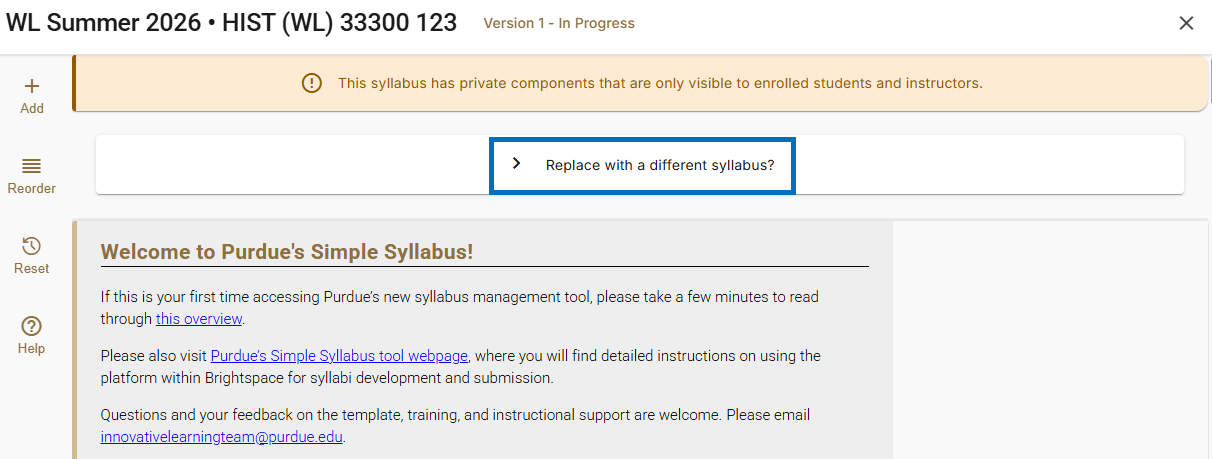
- Click Syllabus from the course navigation bar.
- Click “Replace with a different syllabus?”
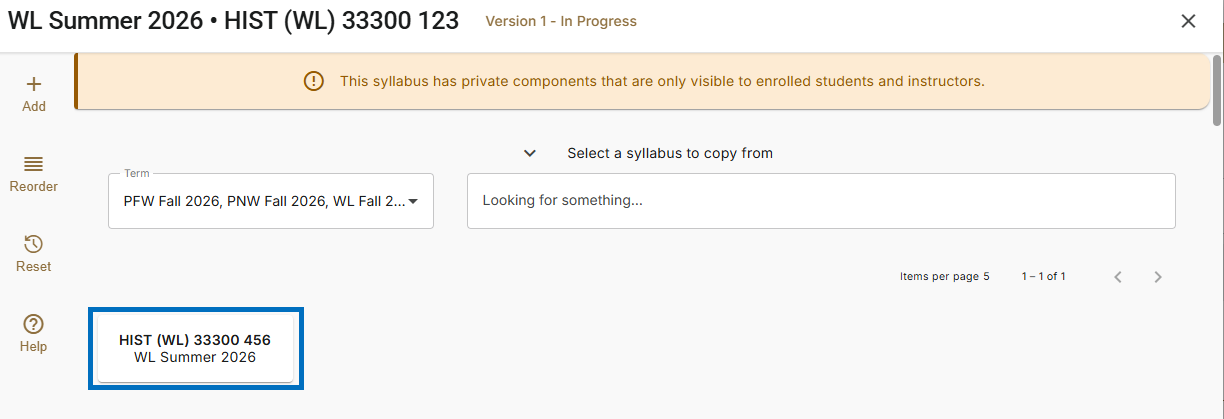
- Click the course syllabus you would like to copy contents from. The copy process will begin immediately.
- PLEASE NOTE: The following policy components will not auto-import your changes:
- Accessibility
- Accommodations
- Mental Health/Wellness Statement
- Emergency Preparedness
- Student-Related Policies
- Grade Appeals Process
- Basic Needs Program
- Course Evaluation
Troubleshooting FAQ
Why can’t I edit the syllabus for my course?
Only individuals listed as an instructor of record can “Edit and Submit” the course syllabus.
How do I modify auto-populated content?
- The following contents are auto-populated from other University systems (i.e. Brightspace, Banner, etc.). If you believe there are inaccuracies in the content, changes will need to be made in the source system – they cannot be made directly in Simple Syllabus. There is an established process for making such updates. Please reach out to your department head to initiate the process.
- Department Name
- Course Title
- Subject Name
- Course Number
- Term Name
- Course Description
- Prerequisites
- Course Learning Outcomes
- To remove/replace Meeting Information and Meeting Day(s) and Time(s):
- Click the text
- Click the Remove Block option at the top-right of the pop-up window
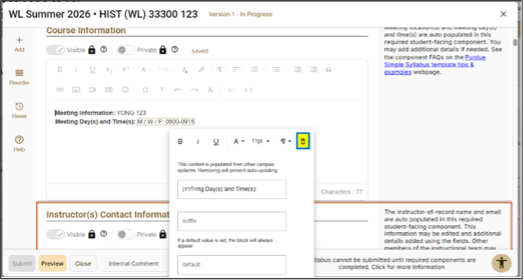
- Enter your desired text
Why is the Submit button greyed out and unclickable?
- It is possible not all requirements have been met. You will want to check that:
- All syllabus components marked “Required” have been completed. Any “Required” components not yet completed will be outlined with a red border.
- All accessibility issues have been resolved. Any unresolved issues will be indicated in the Accessibility checker icon.
Why do I receive an error message when I click Syllabus from a DEV or noncredit course?
Simple Syllabus is used only for academic courses. In a DEV or noncredit course, clicking Syllabus from the course navigation bar will result in a message stating the section could not be located. This is accurate and expected behavior.
How do I remove individuals from the Instructor(s) Contact Information component?
- The Instructor(s) Contact Information component auto-populates everyone listed as an instructor of record for the course. To hide individuals:
- Click the pencil/Edit icon to the left of their name and click Hide.
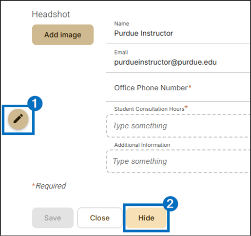
- Click the pencil/Edit icon to the left of their name and click Hide.
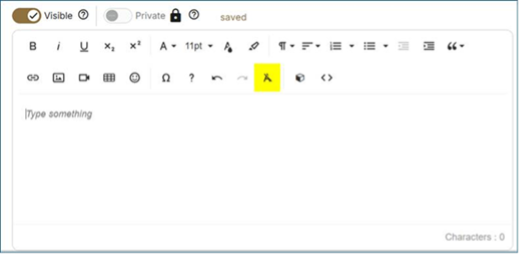
How do I match the font and font sizes of Simple Syllabus when copying/pasting content?
- The default font is Roboto. The default font size is 11pt.
- When pasting content, you can:
- Right-click in the editor and select “Paste as plaint text”
- Click in the editor and use the keyboard shortcut [ctrl + shift + V] (Windows) / [Option + Shift + Command + V] (Mac).
- Paste the text in the editor as normal, select all text, and then use the Clear Formatting option in the editor menu
Support and Information
Contact
- Purdue Information Technology
- Weblink: https://it.purdue.edu/help/index.php
- Email: it@purdue.edu
- Phone: 765-494-4000 (44000 when dialing from a campus phone)
Funding
Purdue University
Campus Availability
Purdue West Lafayette / Indianapolis
Purdue Northwest
Purdue Fort Wayne