Skip to content
Purdue Logo Innovative Learning
  • Contact Us
Search for:
  • Home
  • Programs
    • IMPACT
    • Teaching@Purdue
    • College Teaching Development Program
    • TLCoP
    • CoPILOT Program
    • Elevating Your Online Teaching Journey Workshops
    • SoTL Fellowship
    • Student Pedagogy Advocates
  • Services
    • Online Courses/Programs Development
    • Teaching & Learning Feedback
    • Instructional Data Processing (IDP)
    • Video Production
  • Events
  • Tools & Resources
    • Course Design & Development Process
    • Instructional Technology
    • Accessibility and ADA Title II
    • AI Resources for Teaching and Learning
    • Purdue Simple Syllabus Guidelines
    • IL Teaching Guides
      • Instructional Video
      • Hy-Flex and Resilient Pedagogy Resources
      • Tips for enhancing engagement
      • Student Toolkit
      • First Year Online
    • PoRTAL
    • Global Learning
    • Scholarship of Teaching and Learning
    • Teaching Excellence
    • Virtual Labs
    • Semester Resources
    • Learning Remotely
    • Intellectual Property Policy for Instruction
    • SEISMIC
    • Libraries Instructional Resources
    • Instructor Course Development Hub
  • About Us
    • What is IL?
    • IL Units
      • Center for Instructional Excellence Directory
      • Libraries and School of Information Studies Directory
      • Purdue Online Directory
  • News

Remediating Content Outside of Brightspace with DocHub

General Information About DocHub

The Panorama DocHub tool extends Panorama’s functionality beyond Brightspace, allowing users to access it without a Brightspace account. As a result, both students and staff who do not have Brightspace access can use the tool to remediate content.

DocHub provides users with intuitive folder structures for organization, powerful filtering capabilities, and the same comprehensive remediation guidance that Panorama provides, without needing access to Brightspace.

To log in to DocHub

  1. Navigate to https://purdue.panorama.yuja.com/login and select SAML-Single Sign on in the drop-down menu and click Sign In with SSO
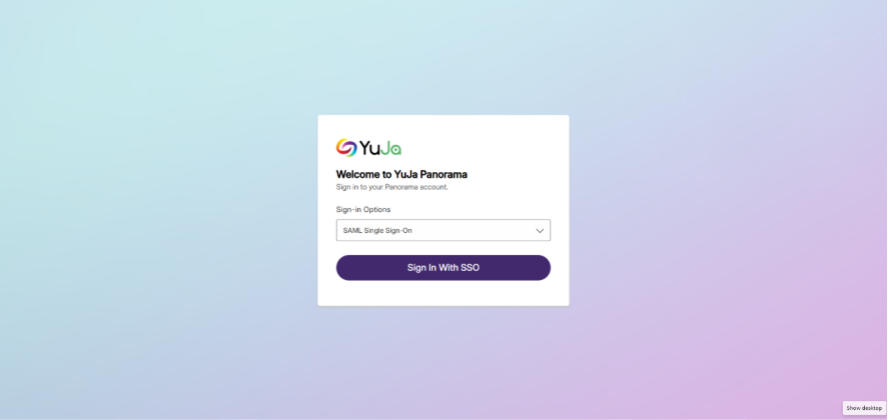
    Screenshot showing YuJa Panorama authentication page on a blue-to-pink gradient background. Centered white panel includes YuJa logo, welcome message, SAML single sign-on dropdown, and purple “Sign in With SSO” button.
  2. Log in with your Purdue credentials.
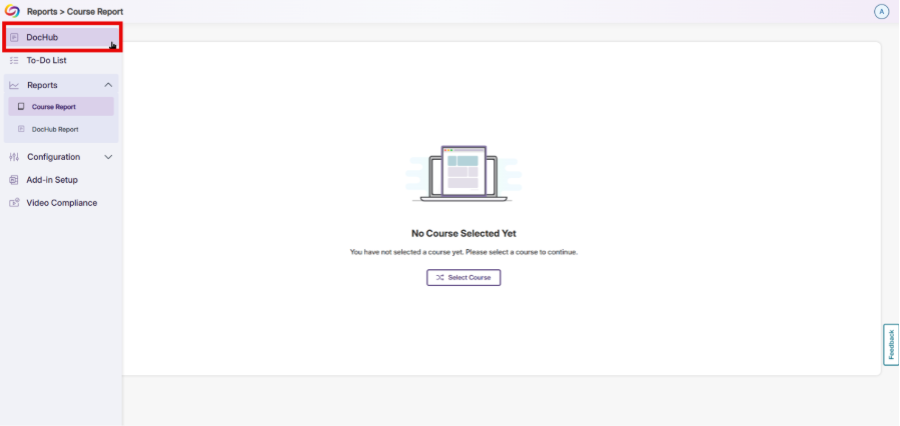
  3. If the Reports > Course Report page appears first, hover your mouse cursor over the left side of the screen and click DocHub at the top of the side menu.
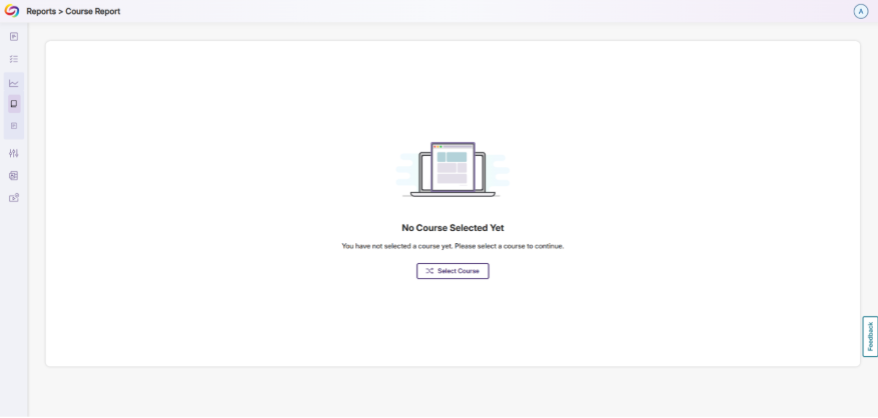
    Screenshot of a course report page showing an empty-state panel with message “No Course Selected.”

    Screenshot of a course-report dashboard with left navigation, breadcrumb “Reports > Course Report,” and menu options for To-Do List, Reports, Configuration, Add-on Setup, and Video Compliance. Main panel displays “No Course Selected,” prompts course selection, and includes “Select Course” button.

To Use DocHub

Adding Files/Folders into DocHub

  1. Once you are logged into DocHub, you will have options to Add a File or Add a Folder.
  2. Clicking Add File will allow you to choose a file from your computer to upload into DocHub. Once uploaded, the file will appear under Files.
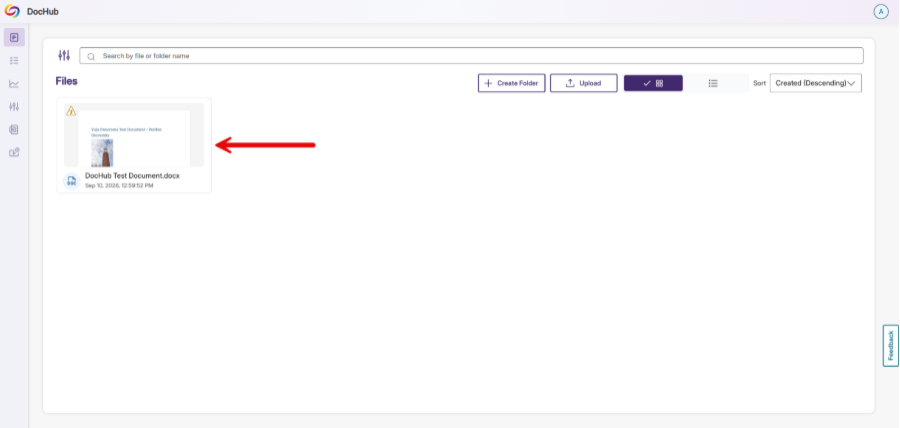
    Screenshot of DocHub Files page showing one document thumbnail labeled “DocHub Test Document.docx,” with a red arrow pointing toward it.

    You can switch from icon view to list view by clicking on the icons to the right of the Upload button.
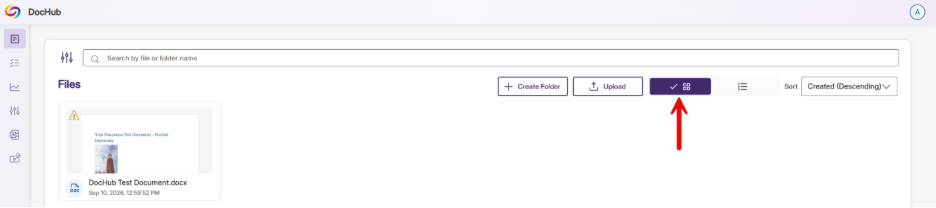

    Screenshot of DocHub Files page showing document-management controls and one uploaded file, “DocHub Test Document.docx.” Toolbar includes Create Folder,

    Screenshot of DocHub document-management interface showing a single listed file, “DocHub Test Document.docx.”
  3. Clicking Add Folder will allow you to create a folder in your DocHub. You can organize content in DocHub intuitively like you would with any folder organization structure (like in Windows, MacOS, or tools like SharePoint or Google Drive).
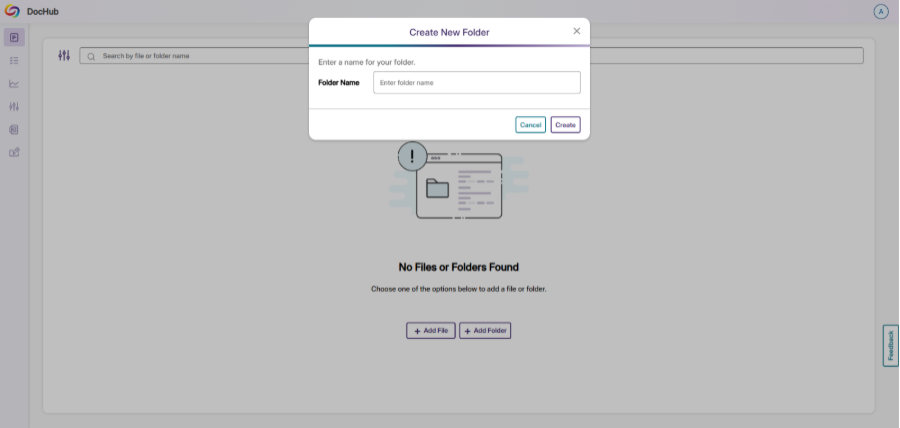
    Screenshot of DocHub file manager showing “Create New Folder” dialog for entering a folder name.
  4. To remediate a file that you have uploaded, click the accessibility indicator icon (in the top left corner of the file in icon view, or to the right of the filename in list view).
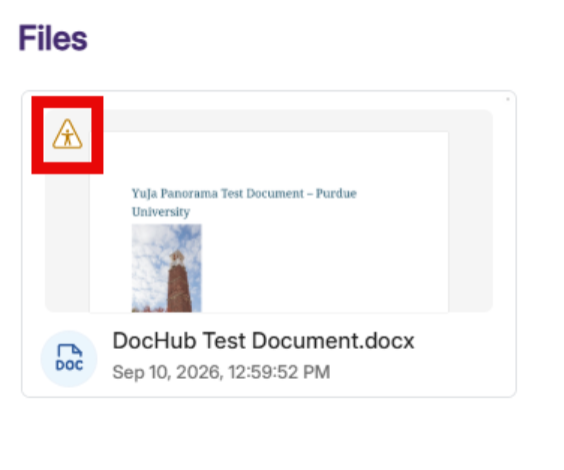
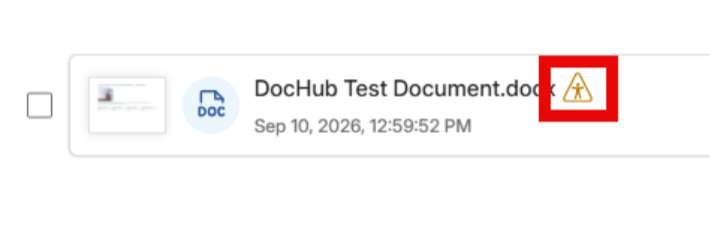
    Screenshot of a Files page displaying DOCX document “DocHub Test Document.docx,” with accessibility indicator icon highlighted in red
    Screenshot of a document file row showing checkbox, document icon, filename “DocHub Test Document.docx" with accessibility indicator icon highlighted in red
  5. Clicking the accessibility indicator icon will bring up the Accessibility Report for the file and will allow you to fix accessibilty issues exactly as you would in Panorama in Brightspace.
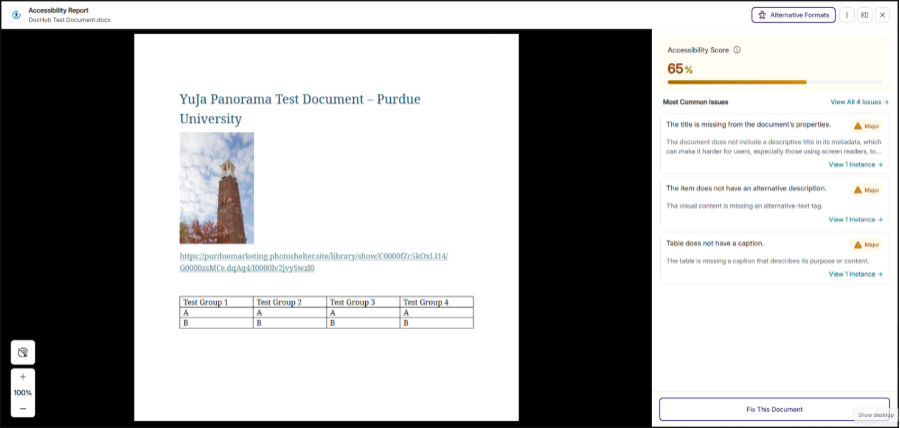
    Screenshot of Panorama displaying “Yulja Panorama Test Document – Purdue University,” with a document page containing a large photo, hyperlink, and four-column table. Right-side report shows 65% accessibility score, orange issue markers for missing title, tagging, alternative description, and table caption, plus purple “Fix This Document” button.

Downloading Alternative Formats in DocHub

Just like using Panorama in Brightspace, DocHub allows you to download alternative formats of your files.

Note: It is recommended that you fix all accessibility issues in your file before downloading alternative formats.

How to Download Alternative Formats in DocHub

  1. Hover your mouse cursor over the file and click View
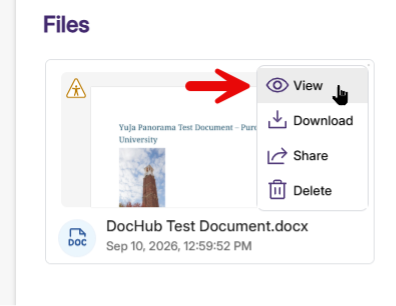
    Screenshot of a file-management interface showing “DocHub Test Document.docx” under a Files heading. Open menu offers View, Download, Share, and Delete, with a red arrow highlighting View and a document thumbnail labeled “YuJa Panorama Test Document – Purdue University.”
  2. The Accessibility Report will open. Click Alternative Formats in the top right of the screen.
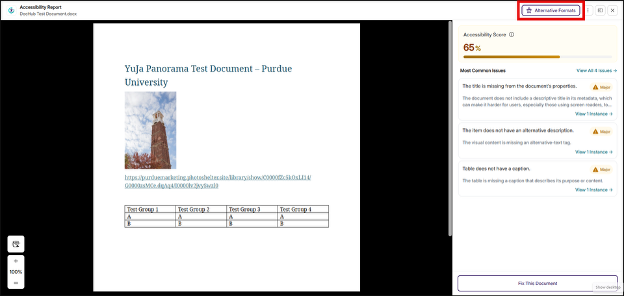
    Screenshot of the DocHub Accessibility Report displaying “YuJa Panorama Test Document – Purdue University”. The Alternative Formats button is highlighted in red in the top right of the screen.
  3. The Alternative Formats Menu will open. Hover your mouse cursor over the format you wish to download and click Download. If the only option available is Generate, click Generate to process that alternative format.
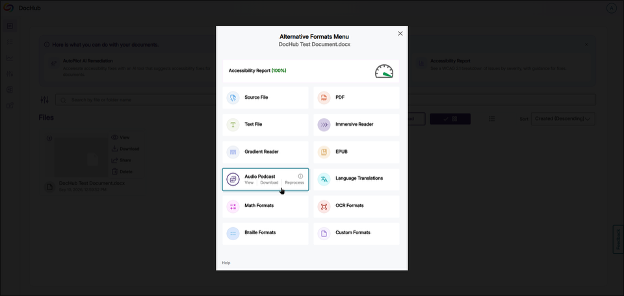
    Screenshot of the DocHub Alternative Formats Menu for “Text Document.docx,” offering accessibility and document-conversion options. Menu lists Source File, PDF, Text File, Immersive Reader, Braille Reader, EPUB, Audio Podcasts, Language Translation, Multi-Formats, OCR Formats, Outline Formats, and Custom Formats, with Audio Podcasts highlighted and Accessibility Report showing 100%.

Accessibility Resources

  • Instructional Material ADA Readiness
  • Accessibility Checklist
  • ADA Title II Compliance FAQs
  • Universal Design and Accessibility
  • Web and Content Accessibility
  • Video and Audio Accessibility

Purdue Logo

An equal access/equal opportunity university
Copyright Complaints

Trouble with this page?

Disability-related accessibility issue?

Please contact Purdue IT at it@purdue.edu.

Address

Purdue University Innovative Learning
Fourth Floor of Young Hall
West Lafayette, IN 47907

Contact Us

765-494-4600

Email Us

Follow Us

  • Facebook
  • Twitter
  • LinkedIn
  • Instagram
  • Youtube
  • snapchat

Last modified: September 11, 2026

Copyright © 2026 Purdue University. All Rights Reserved. Trademark Statement.
Accessibility | EA/EO University | Integrity Statement | Free Expression | DOE Degree Scorecards | Privacy Policy