Using Panorama’s Structural Remediation Feature to Fix Complex Accessibility and Structural Issues in Files
Panorama offers Structural Remediation as an option to fix complex accessibility issues in PDFs, as well as Word and PowerPoint documents. This feature is available in Panorama in Brightspace, as well as in DocHub outside of Brightspace.
A Note About Working with PDFs
Panorama allows you to work with PDF documents in a way that is similar to Adobe Acrobat Pro, including reviewing and editing tags and document structure. However, working with tags and other accessibility elements can be challenging, especially if you were not the original author of the document.
Whenever possible, it is recommended to use the document’s native file format, such as HTML, Microsoft Word, or Microsoft PowerPoint, rather than a PDF. Accessibility issues are often easier to identify and fix in these formats, making them more efficient to work with than PDFs.
Structural Remediation in Panorama Can Help to Do the Following:
- Add tags and a tag structure to PDFs
- Edit text that has been recognized through optical character recognition (OCR)
- Convert PDFs to Word documents for simpler remediation
- Highlight accessibility flags with Guided Remediation
How to Use Structural Remediation
- Once you have uploaded a PDF into your course, click the Accessibility Indicator Icon to the right of the file.

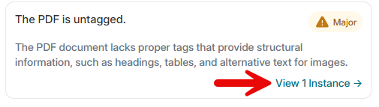
- If you have not done any work to remediate this PDF yet, you will likely see only one accessibility issue, that The PDF is untagged. If this is the case, click View 1 Instance.
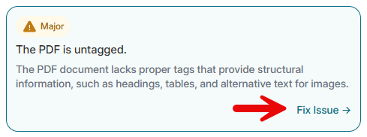
- Panorama will tell you that the PDF is untagged. Click Fix Issue.
- Panorama will give you two options to perform an OCR (optical character recognition) on your PDF. This will provide structure to your PDF and allow all text to be searchable, rather than being formatted as an image in its current form.
If your PDF contains a combination of images, text, math content, and more, select OCR Overlaid PDF. If the PDF is simply text, select OCR Reconstructed PDF. Then click Select Fix.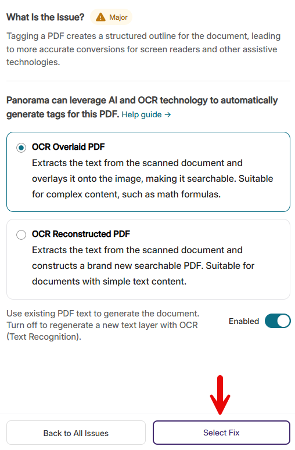
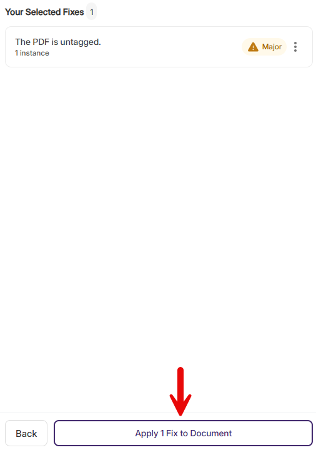
- Then click Apply 1 Fix to Document.
- Panorama will perform the OCR and then will display the remaining accessibility issues with your PDF. Click Fix This Document.
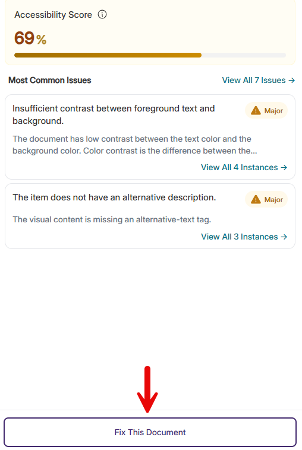
- Next, you will be given a few options. This might include AI Assisted Remediation With AutoPilot (currently not available for most users), Guided Remediation With Assistance (you can do this option last), and Launch Structural Remediation Advanced Editor. We will choose this last option.
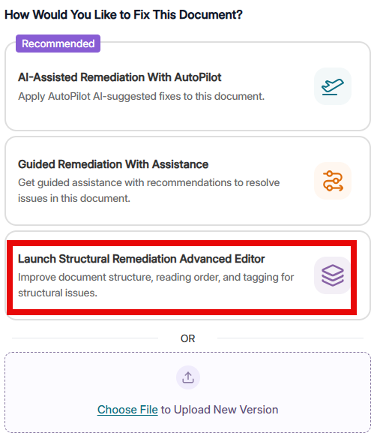
- This will open the Structural Remediation Editor. You will notice that this interface is very similar to editing a tag structure in Adobe Acrobat Pro.
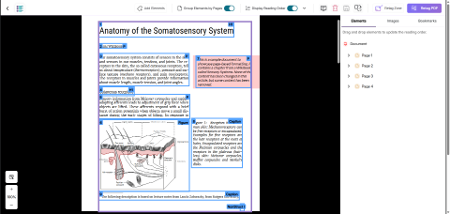
Features of the Structural Remediation Editor Explained
Top Menu Bar

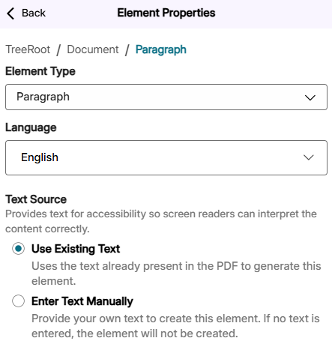
- Add Elements: Allows you to click and drag to highlight an area in your document that is not tagged. You then have options to define the element type, language, and an option to either use the existing text or to enter text manually if no text exists.
- Group Elements by Pages: Allows you to navigate through the tag tree in a slightly different manner.
- Display Reading Order: Toggles the numerical reading order to be displayed on each tagged item in the document preview.
- Preview Reading Order in Plain Text: Allows you to see the reading order for the document in plain text. This can be useful to better understand that the reading order is correct for screen readers.
- Discard Changes: Discards all changes that have been made in your current session of Structural Remediation
- Save Changes: Saves all changes you have made in your current session of Structural Remediation
- Rotate Pages: Allows you to rotate the orientation of any of the pages in the document
- AI Retag Zone: Allows you to group selected PDF elements and retag them automatically.
Right Side Panel
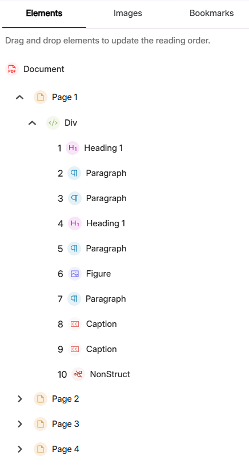
- Elements: Allows you to drag and drop each element to adjust the reading order. Also allows you to edit each element.
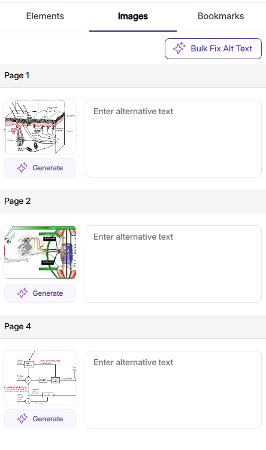
- Images: Allows you to add and edit alternative text for figures in your document
- Bookmarks: Allows you to add bookmarks within your document