Definitions
- CNC: Computer Numerical Control, refers to machines that are pre-programmed and controlled by computers, rather than manual control
- CAM: Computer-Aided Manufacturing, the software that allows you to program tool paths that control CNC machines. BIDC uses Fusion 360 for creating CAM.
- Toolpath: A pre-calculated path a tool will take to cut out a particular geometry.
- Cutting Presets: Each tool has all materials it can cut organized into categories
- N – Nonferrous, P – Steel, M – Stainless Steel, S – Superalloys, H – Hardened Materials
- See Material ISO grades to identify your material (anything from the stock room is usually aluminum N2 or mild steel P0)
- Chuck: The main work holding in the Bechtel Centers Lathes is a 3-jaw chuck.
- Stock: The raw circular material you will make your part out of.
- Speed: How fast the stock/chuck spins in RPM (think S for Spin).
- Feed: How fast the tool moves into the stock.
- Stepdown/Depth of Cut: The change in height that a tool will make to remove material.
- Stepover: Only applys to facing passes for lathe but is the amount the tool moves sideways to cut.
| Name | Icon | Purpose | Common Features |
|---|---|---|---|
| Tool |  | Select the cutting tools and the values it will run at. | Spindle Feed, Cutting Speed, Tool, Coolant. |
| Geometry |  | Define the operations boundaries in the Z axis. | Model Back, Tangential Extension. |
| Radii |  | Defines the operations boundaries to a radius. | Stock ID and OD, Model ID AND OD, Custom. |
| Passes |  | Allows for editing of the pass parameters used by the chosen tool. | Stepover, Stepdown, # of passes, equal depth of cuts. |
| Linking |  | Allows for editing of the pass parameters taken by the tool chosen. | Lead in and Lead out distances, angles. |
Work Coordinate System
Unlike the mills where probing has to be done to find the center of your stock and also identify where your stock is. We align our stock on a center line in the work holding installed in the lathe and rely on our work coordinate system that we set up to try to match it as best as possible in real life. Our work coordinate system is set up in the CAM and is placed on the front of the lathe chuck(work holding) with the z-axis as the center line. Lathes tools travel along a center line so we only need to worry about the amount of length our stock sticks out by to create our part then. Our tools will then be probed to know the exact position that our bits stick out in and to know when our bits will make contact with our stock.
Main Operations
Facing: A facing pass smooths and squares the end of the workpiece by moving an OD (outer diameter) turning tool across the surface perpendicular to the workpiece’s axis. For tool choice please view [LTG]

Facing Setup:
- Tool Selection: Select for each respective machine either a C insert or a V insert right-hand tool and set the feeds and speeds to their respective material preset.
Geometry and Offset Adjustments:
- For the geometry, it will be removing stock till the front of your model.
Additional Settings:
- [Multiple Depths] should be checked under the passes tab, and the stepover amount should be checked to ensure the expression is 0.9*tool_cornerRadius for proper facing passes, as this value will change between the C and V inserts.
- Calculated or manual number of stepovers can both be used, just ensure that the tool begins facing before the stock, or else a crash will occur.
Profile Roughing: The profile roughing pass shapes the workpiece along its contour, preparing it for a finishing pass by removing material in increments. This pass can be done on either the outer diameter (OD) or inner diameter (ID), depending on the required profile.

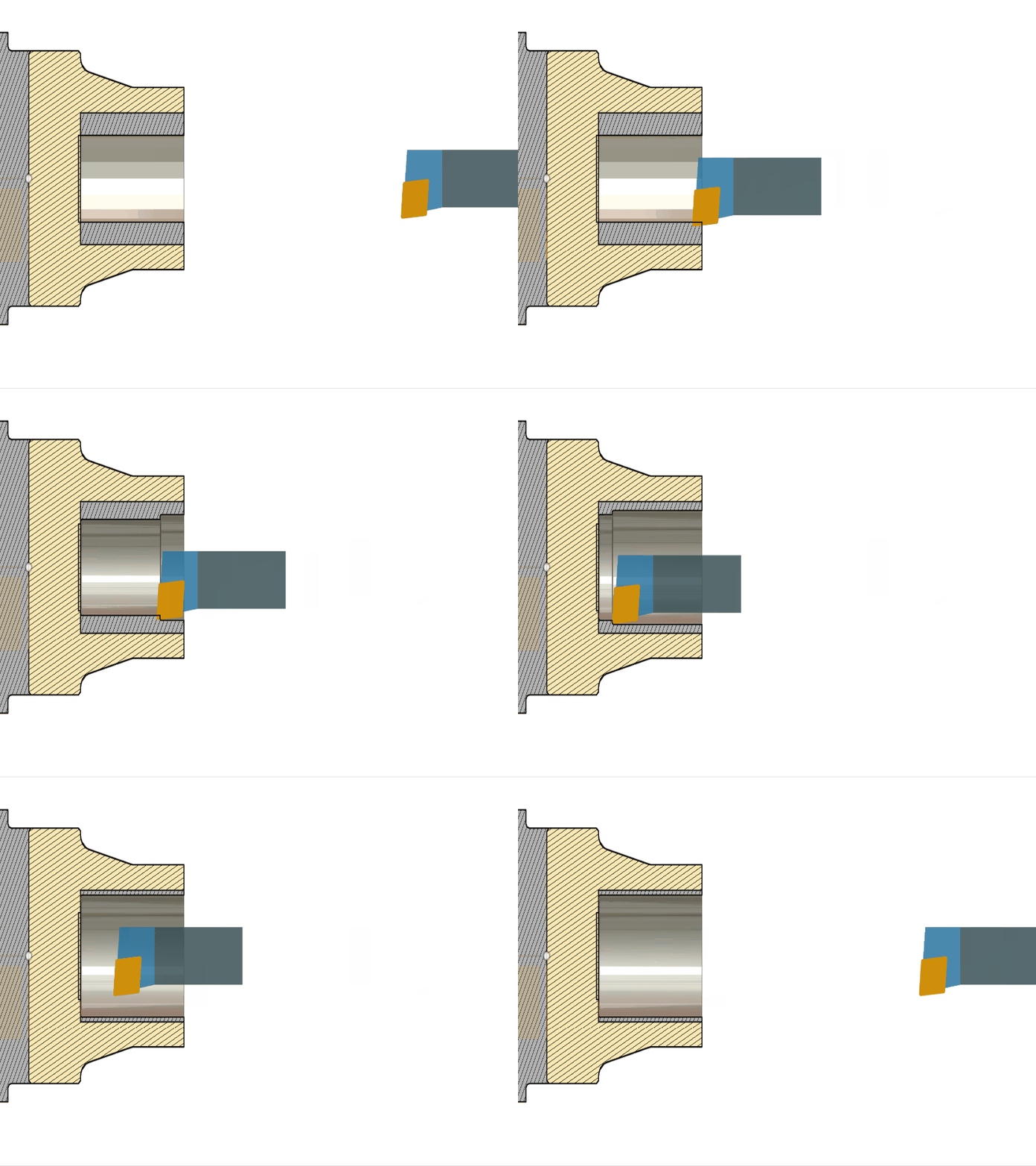
Roughing Setup:
- Tool Selection: Choose any OD or ID turning tool as required refer to [LTG]. If you’re using an ID tool, ensure there’s a pre-existing hole for the tool to enter, and adjust the Mode setting to Inside Profiling.
Geometry and Offset Adjustments:
- Overall Geometry: Ensure all of your desired geometry to be roughed is within the section, or if you plan to contain part of the tool path, adjust the offsets within the geometry and/or Radii to obtain final desired geometry.
Additional Settings:
- Grooving Operations: If deeper features require grooving operations, set Grooving to Don’t Allow Grooving to restrict the tool to contouring, not groove cutting. This configuration ensures cleaner profiling along deeper sections.
- Stock to Leave: Activate Stock to Leave to retain material for the finishing pass. Set X Stock to Leave to the minimum depth of cut, allowing for a smooth final contour, and set Z Stock to Leave to the facing depth of cut for uniform material removal during facing.
- Left-Handed Tool Setup: If using left-handed tools for back-turning operations, set the direction to Back to Front to ensure optimal stability and cut quality when working from the rear of the workpiece.
- Linking Adjustments: Resolving Linking Warnings: If a linking warning appears, adjust the Lead-Out settings. Disable Same as Lead-In and/or increase the Linear Lead-Out Angle to 90 degrees. These adjustments ensure smooth tool exit paths and prevent tool deflection at the end of the cut
Profile Finishing: A profile finishing pass refines the workpiece along its contour, creating a smooth, accurate surface that matches the desired final shape. This pass is suited for both outer diameter (OD) and inner diameter (ID) finishing operations.
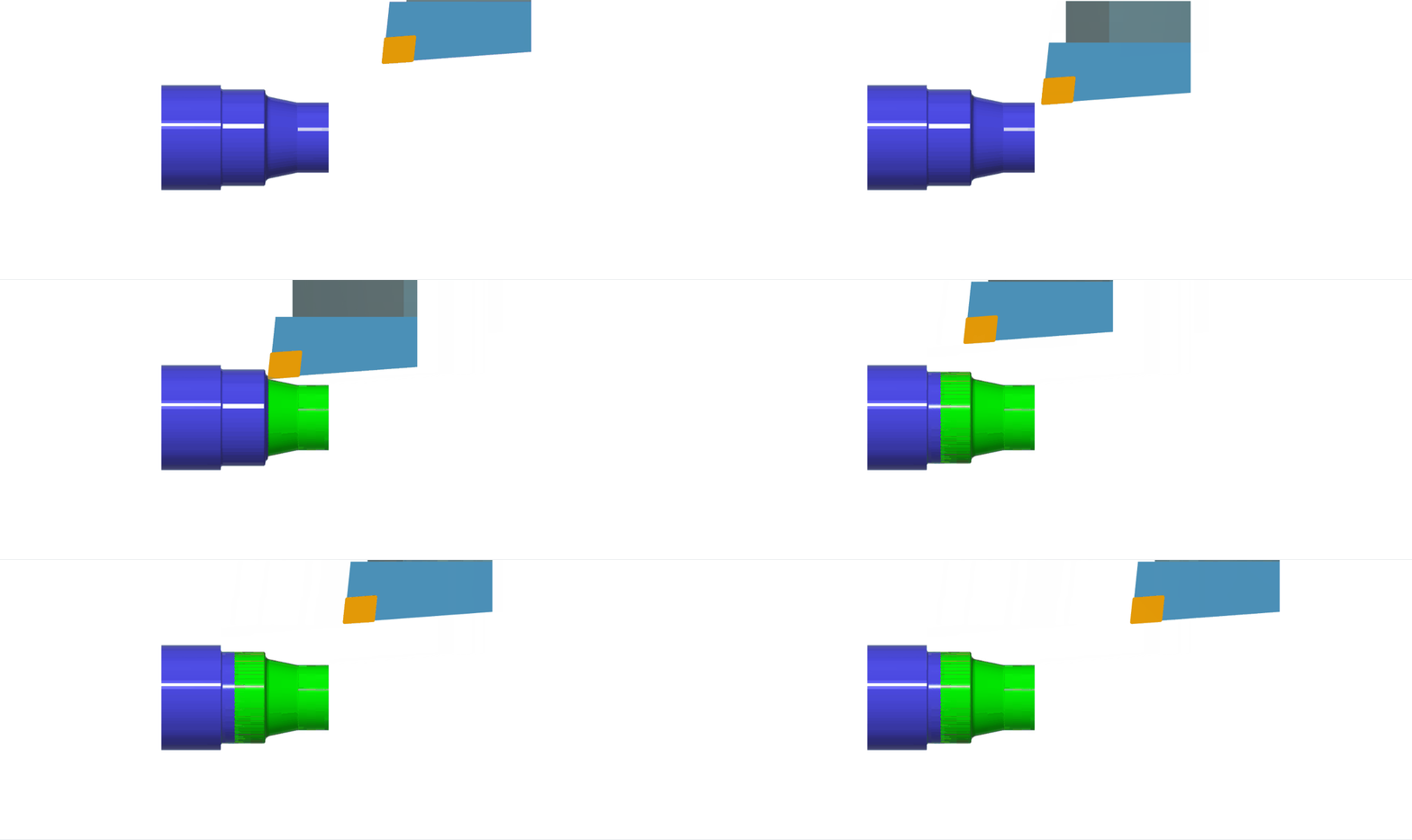
Finishing Setup:
- Tool Selection: Choose any OD or ID turning tool as required, refer to [LTG]. If you’re using an ID tool, ensure there’s a pre-existing hole larger than the selected tool for the tool to enter.
Geometry and Offset Adjustments:
- Overall Geometry: Ensure all of your desired geometry to be roughed is within the section, or if you plan to contain part of the tool path, adjust the offsets within the geometry and/or Radii to obtain the final desired geometry.
Additional Settings:
- Grooving Operations: If deeper features require grooving operations, set Grooving to Don’t Allow Grooving to restrict the tool to contouring, not groove cutting. This configuration ensures cleaner profiling along deeper sections.
- Left-Handed Tool Setup: If using left-handed tools for back-turning operations, set the direction to Back to Front to ensure optimal stability and cut quality when working from the rear of the workpiece.
- Linking Adjustments: Resolving Linking Warnings: If a linking warning appears, adjust the Lead-Out settings. Disable Same as Lead-In and/or increase the Linear Lead-Out Angle to 90 degrees. These adjustments ensure smooth tool exit paths and prevent tool deflection at the end of the cut
Drilling: Drilling operations on the lathe are essential for creating precise holes in the workpiece, with adjustments for depth, clearance, and counterboring. The following settings ensure accurate hole placement and consistent results.
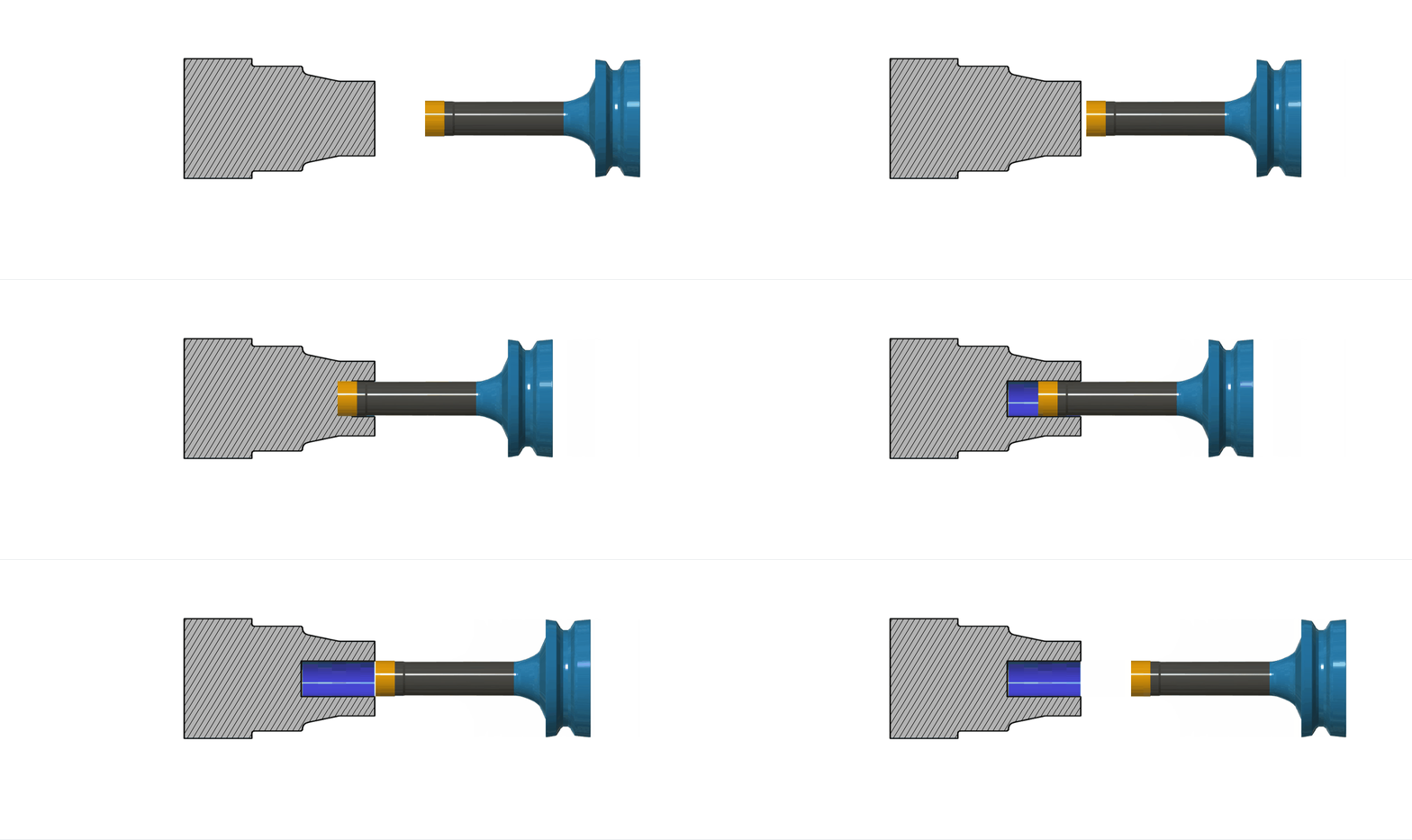
Setup:
- Tool Selection: Choose a drill with the desired diameter, and ensure that the desired depth can be reached on the lathe. There are multiple drill types on the lathe, so check the [LTG]to choose the best choice.
- Speed & Feed: Selection will be based upon the preset feeds and speeds using the ISO grid chart to correlate the proper material selection for the drill, along with the type of drill you are using.
Additional Settings:
- Tip Breakage: Under the [Heights] tap at the bottom, the drill tip through the bottom should be selected to ensure a proper hole is made. Any additional offset may be used to ensure that the hole is properly made.
- Cycle Type: Based on the type of drill, different cycle types under [Passes] may need to be considered. For a carbide Godrill, a rapid cycle is used for an HSS drill; a deep drilling cycle should be used.
Grooving and Part Off: Grooving operations are widely used across various applications, with the Bechtel Center frequently employing them for high-precision sealing involving O-rings, snap rings, and similar components. The part-off operation is a process that involves cutting off the stock completely or nearly cutting it off. This technique is utilized to remove a substantial amount of material, which allows for faster cutting on a separate machine.

Grooving Setup:
- Tool Selection: Choose the largest grooving bar that will allow you to create your geometry. Refer to our tool library and decide which sizing is correct. Make sure to check both the ST20 and ST20y libraries as they carry different-sized grooving bars. For ID grooving, consult a TA to ensure proper use.
- Speed & Feed: Selection will be based upon the preset feeds and speeds using the ISO grid chart to correlate the proper material to the proper feeds and speeds.
Geometry and Offset Adjustments:
- Groove Geometry: For each groove, maintain consistency by selecting one side of the outer diameter and repeating this process for each groove. After making your selections, choose the type of alignment you have established and specify where you want the tool to cut.
- Radii Adjustment: For safety, it’s important to verify your radii selections to ensure that your tool is cutting to the exact height dimensions of your groove, in case any tooling adjustments are necessary.
Additional Settings:
- ID Grooving: For any ID grooving operations, ensure that proper measures are taken with geometry and radii constraints to prevent tool crashes, as it’s much more possible due to clearances from different tooling.
Part Off Setup:
- Tool Selection: Choose the longest part off the bar that will allow you to cut off your part from the original stock. Refer to our tool library and decide which size is correct. Make sure to check both the ST20 and ST20y libraries as they carry different-sized bars.
- Speed & Feed: Selection will be based upon the preset feeds and speeds using the ISO grid chart to correlate the proper material to the proper feeds and speeds.
- NOTE: If parts off bars are not usable for the desired size, ask a TA for the next best method, over partial part off, or using a different type of Part off tool.
Geometry and Offset Adjustments:
- Part off Geometry: Ensure that the part off occurs at the very back of your part or where intended and does not part off into the chuck or the part.
- Radii Adjustment: For safety, it’s important to verify that your radii do not cause the tool to crash into the spinning part, as there is a limit for all of Bechtel’s part-off tools and how deep they can cut.
Additional Settings:
- Reduced Speeds: For all part offs, ensure that under the [Passes] tab that reduced feeds and speeds are selected, and ensure that the feed rate is a 25% reduction from the normal feed rate. along with enabling rapid retract.