Skip to content
Purdue Logo Innovative Learning
  • Contact Us
Search for:
  • Home
  • Programs
    • IMPACT
    • Teaching@Purdue
    • College Teaching Development Program
    • TLCoP
    • CoPILOT Program
    • Elevating Your Online Teaching Journey Workshops
    • SoTL Fellowship
    • Student Pedagogy Advocates
  • Services
    • Online Courses/Programs Development
    • Teaching & Learning Feedback
    • Instructional Data Processing (IDP)
    • Video Production
  • Events
  • Tools & Resources
    • Course Design & Development Process
    • Instructional Technology
    • Accessibility and ADA Title II
    • AI Resources for Teaching and Learning
    • Purdue Simple Syllabus Guidelines
    • IL Teaching Guides
      • Instructional Video
      • Hy-Flex and Resilient Pedagogy Resources
      • Tips for enhancing engagement
      • Student Toolkit
      • First Year Online
    • PoRTAL
    • Global Learning
    • Scholarship of Teaching and Learning
    • Teaching Excellence
    • Virtual Labs
    • Semester Resources
    • Learning Remotely
    • Intellectual Property Policy for Instruction
    • SEISMIC
    • Libraries Instructional Resources
    • Instructor Course Development Hub
  • About Us
    • What is IL?
    • IL Units
      • Center for Instructional Excellence Directory
      • Libraries and School of Information Studies Directory
      • Purdue Online Directory
  • News

How to Reprocess a Course in Panorama

Oftentimes, reprocessing a course through the Panorama Course Settings can alleviate many score fluctuation issues, as well as provide you with the most accurate and up to date Accessibility Score.

To reprocess a course in Panorama:

  1. Click Course Tools and then click Panorama
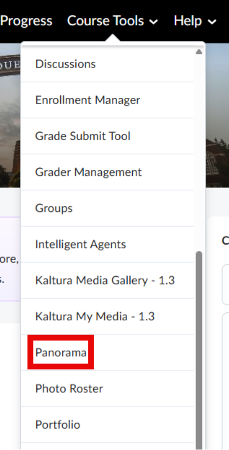
    Screenshot showing the Brightspace Course Tools menu. Menu lists Discussions, Enrollment Manager, Grade Submit Tool, Grader Management, Groups, Intelligent Agents, Kaltura tools, Panorama highlighted in red, Photo Roster, and Portfolio.
  2. Hover your mouse cursor on the left side of the screen and select General Settings under the Configuration category.
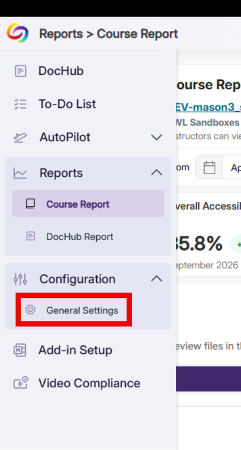

    Screenshot of the Panorama dashboard showing navigation sidebar and partially visible report metrics. Reports > Course Report is selected, while Configuration > General Settings is emphasized with a red outline; sidebar also lists DocHub, To-Do List, AutoPilot, Add-in Setup, and Video Compliance.Screenshot of a settings navigation bar with “Course Settings” selected and “User Settings” unselected. A purple underline marks active tab, while a red outline highlights “Course Settings.”
  3. This will bring up General Settings. Make sure the Course Settings tab is selected

    Screenshot of a settings navigation bar with “Course Settings” selected and “User Settings” unselected. A purple underline marks active tab, while a red outline highlights “Course Settings.”
  4. Scroll down to the bottom of the page until you see Reprocess Course. Click Reprocess Course.
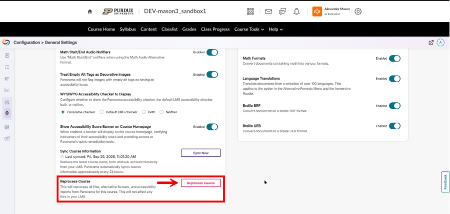
    Screenshot of the Panorama Course Settings page. Left panel lists accessibility options, with “Reprocess Course” highlighted by a red box and arrow
  5. Panorama will ask you to type the word “Reprocess” for safety reasons. Panorama will then allow you to click Reprocess.
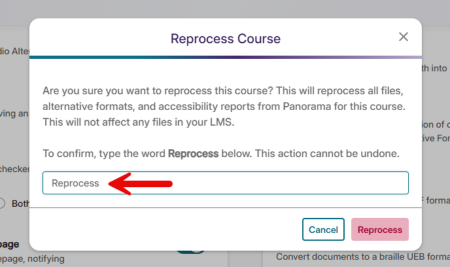
    Screenshot of “Reprocess Course” confirmation dialog for reprocessing course files and accessibility reports without affecting LMS files. Dialog instructs user to type “Reprocess,” includes Cancel and Reprocess buttons, and shows red arrow pointing toward confirmation field.
  6. Panorama will rescan all documents within the course. This will not undo any work that has already been done to remediate files in your course.

Accessibility Resources

  • Instructional Material ADA Readiness
  • Accessibility Checklist
  • ADA Title II Compliance FAQs
  • Universal Design and Accessibility
  • Web and Content Accessibility
  • Video and Audio Accessibility

Purdue Logo

An equal access/equal opportunity university
Copyright Complaints

Trouble with this page?

Disability-related accessibility issue?

Please contact Purdue IT at it@purdue.edu.

Address

Purdue University Innovative Learning
Fourth Floor of Young Hall
West Lafayette, IN 47907

Contact Us

765-494-4600

Email Us

Follow Us

  • Facebook
  • Twitter
  • LinkedIn
  • Instagram
  • Youtube
  • snapchat

Last modified: October 1, 2026

Copyright © 2026 Purdue University. All Rights Reserved. Trademark Statement.
Accessibility | EA/EO University | Integrity Statement | Free Expression | DOE Degree Scorecards | Privacy Policy