YuJa Panorama Instructor Guide: Reporting
Panorama offers a robust set of reporting features to keep track of the accessibility of your course content.
Instructors will only be able to see the course or courses for which they are listed as the instructor. Students will not have access to reports.
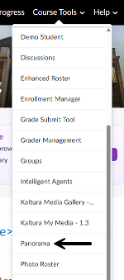
- To access instructor reporting tools, click “Course Tools” in the top navigation bar of Brightspace and then click “Panorama”.
This will bring up the Course Report for your course.
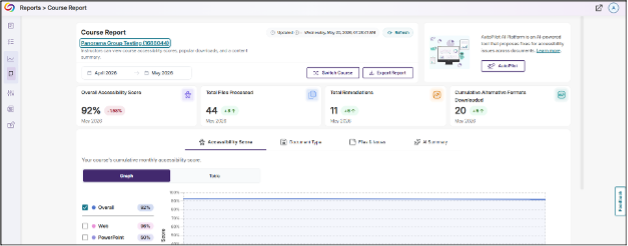
This screen will display the following reports for your selected course:
- Overall accessibility score: The average of all files that Panorama scans
- The number of files scanned
- The number of files that have been remediated
- The number of alternative formats that have been generated by any user within the course
- A visual reporting section which includes:
- Accessibility Score: A representation of how the accessibility score has changed over time, with options to filter by overall score or by file type.
- Document Type: What types of documents Panorama has scanned, as well as the different alternative formats generated by students.
- Files & Issues: A comprehensive list of all files that Panorama has scanned. This can be filtered by file type, specific score, or highest/lowest score first. This is an easy way to work on all the documents in your course without navigating through modules. You can also filter this section by Issue Type or by files remediated. Additional filter options are available within each of these filter sections.