iClicker Cloud
iClicker Cloud is an interactive classroom response system that can track attendance using GPS technology, ask target (heat map) questions, administer quizzes, and analyze student performance using a web browser. Students participate using mobile devices, laptops, and iClicker remotes.
Getting Started
Instructor Guides
- November 9, 2023: iClicker Cloud Getting Started (59:56)
- Getting Started Checklist
- Manage Course Settings
- What You Can Do on the Instructor Website
- Prepare for a New Term in iClicker Cloud
- Create a Course
- Geolocation Tips
Important Login Instructions
Instructors
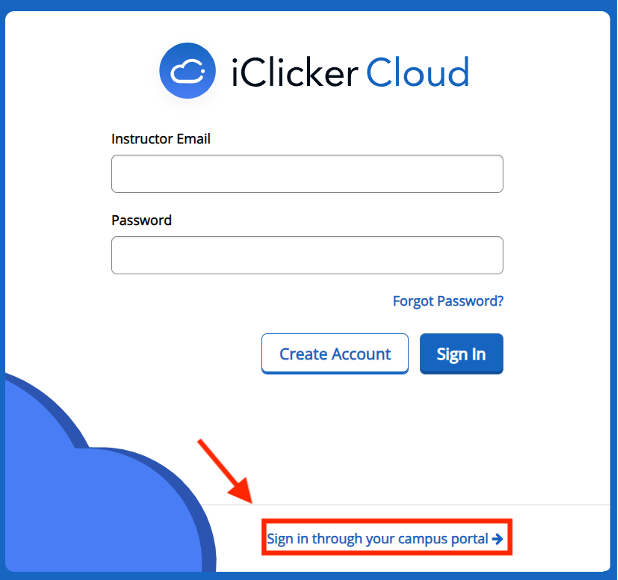
Instructors should go to https://instructor.iclicker.com and click on “Sign in through your campus portal” link at the bottom of the screen and log in with their Purdue Career Account login and password, even if no previous account with iClicker Cloud has been created.
Students
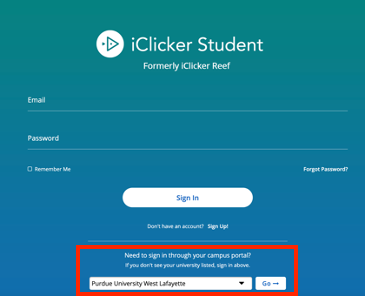
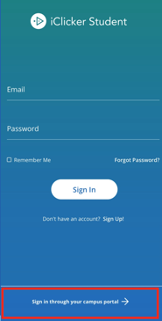
Students will login at https://student.iclicker.com by clicking on “Sign in through your campus portal” link at the bottom of the screen, and then log in with their Purdue Career Account login and password. Students cannot search for classes to join; they must use the emailed link or join code provided by their instructor.
Desktop View
Mobile View
iClicker Cloud Desktop Software in the Classroom
The iClicker Cloud desktop software is installed on all of the instructor stations in the centrally supported classrooms.
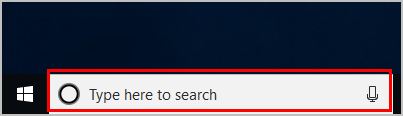
Once you’ve logged into the instructor station, type “iclicker cloud” into the search bar and it will pop up as the first option. When launched from there, a shortcut will be added to your desktop. Please note: When you go to run the iClicker Cloud desktop software, if it asks you to do an upgrade, please select the “Remind me later” option.
Be sure to log into the iClicker Cloud desktop software by using the “Sign in through your campus portal” link that you will see in the lower right hand corner of the screen. You may have to scroll down when it launches to see the sign in area. From there, choose “Purdue University West Lafayette” and then enter your Purdue login and password with Duo authentication.
Support and Information
Contact
- Purdue Information Technology
- Weblink: https://it.purdue.edu/help/index.php
- Email: it@purdue.edu
- Phone: 765-494-4000 (44000 when dialing from a campus phone)
Funding
West Lafayette Central Campus