YuJa Panorama Student Guide
Updated 8/5/2026
YuJa Panorama is a digital accessibility tool that is integrated directly within Brightspace. It is designed to help instructors identify and address accessibility issues in course content more efficiently, supporting the creation of accessible learning experiences for all students.
Students will now see indicator icons to the right of all Microsoft Word, Microsoft PowerPoint, Microsoft Excel, and PDF files that are uploaded to Brightspace courses:

Click the indicator icon to bring up the Alternative Formats Menu:
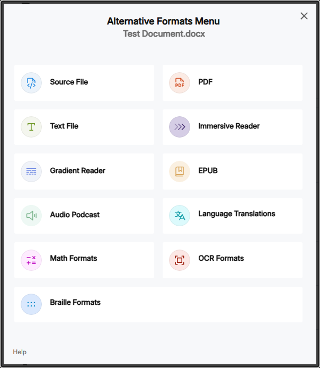
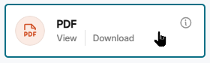
Hovering over each option will offer the ability to view or download the file in the desired format.
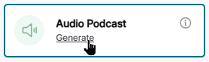
Note: Click “Generate” if the file format desired has not been generated yet:
Alternative Formats Defined:
- Source File: View the document in its original format, suitable for download viewing.
- PDF: View the document in PDF format, suitable for both online and download viewing.
- Text File: View the document in a pure text format without any formatting styles, suitable for both online and download viewing.
- Immersive Reader: Allows for customizations to text preferences, grammar options, and reading preferences while following along with the audio playback.
- Gradient Reader: Enhances visual word recognition when reading by providing a guiding color gradient.
- EPUB: View the document in the ebook format, suitable for any ebook reader application.
- Audio Podcast: Audio playback for documents, suitable for both online and download listening.
- Language Translation: Translate a document automatically to over 100 languages, which can be downloaded
- Math Formats: Convert documents containing math equations into LaTeX, Math Text (i.e. numbers and symbols to words), or MP3 files.
- Latex: Convert documents into LaTeX document format.
- Math Text: Convert documents into printed English, including numbers and symbols.
- Math Audio: Convert documents to MP3.
- MathML: Extract mathematical equations from documents and convert them into HTML files.
- OCR Formats: Convert images with text into machine-encoded text that can be searched and read by screen readers.
- OCR Overlaid Tagged PDF: Generate a tagged PDF that allows for selectable text overlaid on the original scanned document or image.
- OCR Reconstructed DOCX: Generate a brand new DOCX file from scanned documents or images.
- OCR Reconstructed Tagged PDF: Generate a brand new tagged PDF from the scanned document or image.
- OCR Reconstructed HTML: Generate a brand new HTML file from scanned documents or images.
- OCR Text: Recommended for those who’d like plain text, the OCR tool will extract and display text within images and GIFs as a TXT file.\
- OCR Audio: Extract text within images and GIFs into an MP3 text-to-speech audio player.
- OCR Semantic Text: Converts scanned text into readable, structured text while preserving context and layout.
- OCR Semantic Audio: Transforms scanned text into audio with natural intonation and emphasis, enhancing listening comprehension.
- Braille: View the document in the braille grade 2 format, suitable for download viewing (a braille reader is required).