Useful Editorial Resources
Appendix C
Appendix C to Purdue Editorial Style Guide | Back to main guide
Purdue OWL
Purdue’s renowned writing resource offers tools and support to assist clients in their development as writers.
Data Digest
Dashboards within Data Digest provide information about student enrollment, graduation and retention rates, and more.
Accessibility guidelines
To meet federal accessibility compliance standards, websites and online documents must include plain language and alt text for images.
Trademarks guide
Refer to this resource for guidance on when to incorporate trademark symbols in print and digital projects.
Purdue directory
Use Purdue’s online directory to confirm the spelling of names and titles.
Named professorships
The provost’s office maintains the official record of distinguished and named professorship titles.
Notable rankings
Purdue Brand Studio regularly updates the university’s notable rankings.
Watch out for these tricky words and phrases when you write and edit.
What’s a letter or two?
Advise, advice. Advise is the verb; advice is the noun.
Affect, effect. Generally, affect is the verb; effect is the noun: “The letter did not affect the outcome.” “The letter had a significant effect.” But effect is also a verb meaning “to bring about”: “It is almost impossible to effect change.” And affect is also a noun referring to emotions.
Aid, aide. Aid is assistance. An aide is a person who serves as an assistant.
Farther, further. The traditional distinction is to use farther for physical distance: “We drove farther north to see the autumn foliage.” Further is used for a figurative distance: “Let’s examine this further.”
Hangar, hanger. Hangars are large buildings, especially those where aircraft are kept at an airport. A hanger is used for clothes.
Principle, principal. A guiding rule or basic truth is a principle: “It’s the principle of the thing.” The first, dominant or leading thing is principal: “Patricia Washington is the principal investigator.”
Who, whom. A tough one, but generally you’re safe to use whom to refer to someone who has been the object of an action: “A 19-year-old woman, to whom the room was rented, left the window open.” Who is the word when the somebody has been the actor: “A 19-year-old woman, who rented the room, left the window open.”
The same, yet different
Already, all ready. The first refers to time: “The movie has already started.” The second refers to preparation: “Are the actors all ready?”
Alternate, alternative. Alternate implies a substitute for another: “We took the alternate route.” It can also mean every other: “alternate Saturdays.” Alternative implies availability as another possibility: “alternative fuel sources.”
Altogether, all together. Altogether means “wholly” or “entirely”: “That story is altogether false.” All together refers to a unity of time or place: “The family will be all together at Thanksgiving.”
Averse, adverse. If you don’t like something, you are averse (or opposed) to it. Adverse is an adjective meaning “unfavorable”: “adverse weather, adverse conditions.”
Between, among. The maxim that between introduces two items and among introduces more than two covers most questions about how to use these words: “The choice is between fish and tofu.” “The grants were divided among the agriculture, engineering and education professors.”
Compose, comprise. Compose means to create or put together: “The United States is composed of 50 states.” Comprise means to contain, to include all or embrace. It is best used only in the active voice, followed by a direct object: “The United States comprises 50 states.”
Forego, forgo. To forego is to go before. The word appears most commonly in the phrase “foregone conclusion.” To forgo, by contrast, is to do without or renounce: “They decided to forgo that opportunity.”
Hone, home in. Hone means “to sharpen.” Home in refers to what homing pigeons do; the meaning is “to come closer and closer to a target.”
Imply, infer. The speaker implies. The hearer infers. You may also infer general principles from a sample.
Less, fewer. If you can separate items in the quantities being compared, use fewer: “The Buckeyes are inferior to the Boilermakers because they have fewer good players.” If not, use less: “The Buckeyes are inferior to the Boilers because they have less experience.”
Precede, proceed. To precede is to happen before. To proceed is to go on, whether beginning, continuing or resuming.
What comes next?
Compare. To compare with is to discern both similarities and differences between things. To compare to is to liken things or to note primarily similarities between them.
Couple of. You need the of.
Different from. Things and people are different from each other. They are never different than one another.
Make the right choice
Annual. Don’t use “first” with it. If it’s the first time, it’s not annual yet. You could use “inaugural” for the first event.
Bi-, semi-. Because these prefixes are often confused, writers should be explicit about meaning. Generally, bi- means two. “Biweekly” means every two weeks. Semi- means half. “Semiweekly” means twice a week. “Semiannual” means twice a year, a synonym for biannual. Do not confuse it with “biennial,” which means every two years.
Due to, owing to, because of. We prefer the last.
Either. It means “one or the other,” not both. Wrong: “There were lions on either side of the door.” Right: “There were lions on each side of the door.”
Historic, historical. A historic event is an important occurrence, one that stands out in history. Any occurrence in the past is a historical event.
i.e., e.g. The first is the abbreviation for “id est” (“that is”); the second is the abbreviation for “exempli gratia” (“for example”). The English equivalents are preferable in our writing. Always put a comma after them.
In advance of, prior to. Use “before”; it sounds more natural.
Persuade, convince. Persuade is associated with actions: “He persuaded him to buy a suit.” Convince is associated with beliefs or understandings: “She convinced the auditor of her honesty.”
That, which. That tends to restrict the reader’s thought and direct it the way you want it to go; which is nonrestrictive, introducing a bit of subsidiary information. For instance: “The lawn mower that is in the garage needs sharpening” (meaning we have more than one lawn mower, and the one in the garage needs sharpening). “Which” clauses take commas, signaling that they are not essential to the meaning of the sentence: “The lawn mower, which is in the garage, needs sharpening” (meaning our one lawn mower needs sharpening, and it’s in the garage).
Words ending in -ward. Generally no hyphen and no s. Examples: afterward, backward, downward, forward, inward, onward, outward, skyward, toward, upward.
Interested in more tricky word combinations? Check out the Chicago Manual of Style’s glossary of problematic words and phrases. (If you have trouble accessing the Chicago Manual of Style, navigate to CMoS 5.254 from this university resource and use your Purdue login credentials.)
If you ever work in Word with sources or someone who isn’t familiar with Word’s Track Changes feature, and you get a document back that you know changed in some way, this resource shows how you can use Word’s Compare Docs feature to generate a tracked changes version of the file and see exactly what changed. It can be a really helpful tool to avoid having to scan two documents side by side and try to figure out for yourself what changed.
Make sure you have an original copy of the file saved somewhere you can easily access it.
Save a copy of the revised file in a location it can easily be accessed.
Open Word. Go to the Review tab in the ribbon.
Under the Review tab, go to Compare and select Compare Documents.

This opens a dialog box where you can choose the original document and the revised document you want to compare it to.
Select the appropriate files. You can also change the author’s name to reflect the person who made the changes by typing a name in the second “Label changes with” box.
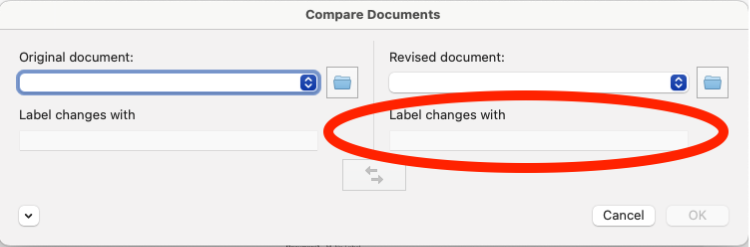
If a dialog box pops up saying that one or more of the documents contains tracked changes, it’s best to say yes to proceeding with the comparison. The Yes button is not the most obvious button to press, however.
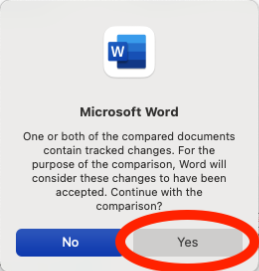
And that’s it! Word will generate a file tracking the changes between the two documents you’ve selected.
Version history of a Word document
Sometimes, depending on the file and how it’s been saved, it’s possible to review the version history of the file. (This works best in Teams.)
To review the version history of a file in Word, click on the File drop-down menu and select “Browse Version History.” It’s also possible to find the version history under the document name at the top in the middle of the application window.
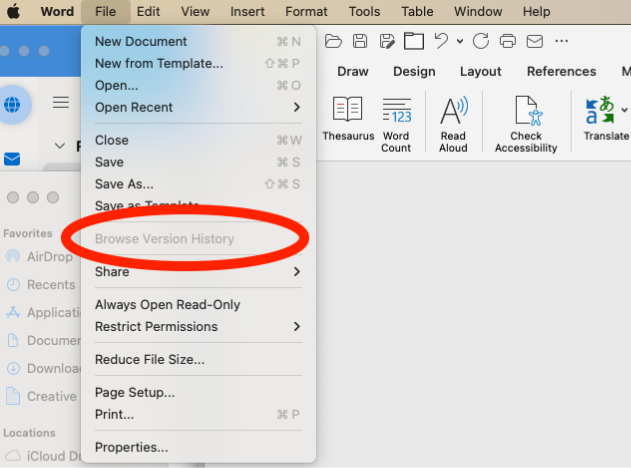
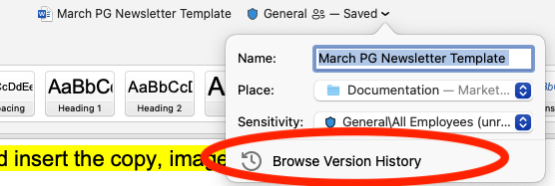
Selecting either of these options will give you a list of the recent file versions. Word allows you to open the previous versions, as well as create comparison docs between versions.
Start by opening Adobe Acrobat Pro. If a file is not open, look for the Suggested tools section on the homepage. An option to compare files may be available there.
If not, click on All tools. Search for “Compare files” or scroll through the tools to the Share and review section. The Compare files option should be listed there.
Select the two files you wish to compare. One will be labeled as the “old file” and the other will be the “new file.”
If design changes are not an important part of the review process at this time, consider selecting the Compare text only option before clicking on the Compare button.
Acrobat generates a new document starting with a summary of the changes noted between the two files. Specific changes between the two PDFs will be shown and explained on each page of the file with a list on the right side of the screen.
Further instructions for comparing PDFs are available on Adobe’s website.
What is alt text?
Alt text, short for alternative text, is a written description of an image embedded in digital content. It communicates the image’s meaning in words and becomes part of the readable copy for people who cannot access the visual.
Who uses it
People who are blind or have low vision often rely on assistive technology to navigate the web. Screen readers are software programs that convert on-screen content into speech or braille. For these users, alt text is how images become accessible.
How it works in practice
When a screen reader encounters an image, it announces it and reads the alt text aloud. If no alt text is provided, the software may skip the image or read a file name instead. In either case, information is lost.
When is alt text needed?
Add alt text when an image conveys meaning, context or data. Editorial photographs, charts, diagrams and infographics usually require it. If an image is purely decorative and adds no informational value, it should be marked as decorative so assistive technology ignores it.
What makes alt text effective?
Effective alt text reflects the purpose of the image in that specific piece. It captures what a reader needs to understand, not every visual detail. A useful rule of thumb is to describe the image as you would to a colleague over the phone, focusing only on what matters in that context.
The editor’s role
Alt text is part of the editorial review and should be considered alongside captions, headings and body copy. It is the editor’s responsibility to catch gaps, question vague descriptions and ensure alignment with the content. Collaborating with writers, designers and developers ensures the final piece communicates clearly for all readers.
Alt text guidance
Ask yourself:
- Is the alt text descriptive, yet short?
- What does this image communicate to the user?
- If text is included in the image, is it included in the alt text?
Examples of alt text:
Noncompliant description: “Picture of students”
Compliant description: “Students walking and laughing together in the library.”
Noncompliant alt text for informational graphic: “Bar chart of enrollment”
Compliant alt text for informational graphic: “Enrollment at Purdue increased from 40,000 in 2020 to 45,000 in 2025.”
Additional resources:
Purdue’s Digital Accessibility Guide: https://www.purdue.edu/enrollmentmanagement/communication/accessibility/#images
Chicago Manual of Style: https://www-chicagomanualofstyle-org.ezproxy.lib.purdue.edu/book/ed18/part1/ch03/psec028.html
Section508.gov: https://www.section508.gov/create/alternative-text/
Best practices and examples: https://kdesign.co/blog/how-to-write-alt-text/
Harvard’s Digital Accessibility Services: https://accessibility.huit.harvard.edu/describe-content-images
AI prompts to generate alt text
Here are some sample AI prompts for generating alt text:
All-purpose prompt: Generate concise, accurate alt text for this image. Describe only the essential information needed to understand the image in context, not every visual detail. Keep it under 125 characters, avoid phrases like “image of,” and do not repeat information already provided in surrounding text. Focus on the purpose of the image and what a viewer needs to know. End with a period. Caption: (insert caption if there is one)
Chart or graph prompt: Generate alt text for this chart/graph. Summarize the key takeaway or trend rather than describing every visual element. Include the type of chart, the main data point or comparison, and the overall conclusion. Keep it concise and avoid duplicating information already stated in the text. End with a period. Caption: (insert caption if there is one)
Graphic prompt: Generate concise, accurate alt text for this image for accessibility purposes. Describe the information a reader needs to understand the image’s purpose and meaning, not every visual detail. Prefer describing what the image communicates rather than what it looks like. Keep the alt text under 125 characters whenever possible. Avoid phrases such as “image of,” “photo of,” “graphic showing,” or similar constructions. Do not repeat information likely provided in surrounding text.
If the image contains embedded text, graphics, charts, badges, awards, rankings, book covers, promotional elements, statistics or other informational content, identify the key message being communicated and summarize that message rather than describing the design, layout, colors, typography or placement.
If the image combines a photograph with informational graphics or text, determine which element carries the primary meaning. Describe the primary subject first and include secondary details only if they are necessary for understanding the image’s purpose.
Do not transcribe all visible text. Include wording from the image only when the exact text is essential to the meaning.
Caption: (insert caption if there is one)
Optional addition: Before writing alt text, identify the image’s primary communicative purpose in one short phrase, then write alt text that conveys that purpose.
Logo or illustration prompt: Write alt text for this [logo/illustration/icon]. State what it represents and any essential text it contains. Keep it short, avoid decorative details, and end with a period.
Shortcuts for em dashes
To type an em dash on a PC, hold down the Alt key and type 0151 (but you have to have the number pad, not the numbers above the QWERTY keyboard to do this).
On a Mac, it’s Option + Shift + [hyphen]
If you’re in Word and you type a character followed by two hyphens (no spaces) and then start another character, Word should automatically create the em dash. (If you add the spaces around the dash while typing, Word generates the en dash instead. Purdue follows Associated Press style and does not use the en dash in communications.)
Shortcuts for curly quotes and apostrophes
To type curly quotes on a PC, hold down the Alt key and type the following numbers depending on which mark you want (you have to have the number pad, not the numbers above the QWERTY keyboard to do this):
- Alt + 0147 for a double open quote mark
- Alt + 0148 for a double close quote mark
- Alt + 0146 for an apostrophe
- Alt + 0145 for a single open quote mark (do not confuse this with the apostrophe)
On a Mac:
- Option + [ for a double open quote mark
- Option + Shift + [ for a double close quote mark
- Option + Shift + ] for an apostrophe
- Option + ] for a single open quote mark
What character is this?
Not sure if you’ve used an en dash when you should have used an em dash? Use this website to check your characters: https://www.babelstone.co.uk/Unicode/whatisit.html. Simply copy and paste a character into the search bar at the top of the page and review the identifying character information.