FAQ’s
General
What is the PUID?
The Purdue University Identification (PUID) is a 10-digit number unique to each individual that is designed to:
- Correctly and consistently establish an individual’s distinct identity for University business.
- Have value only in the Purdue University system.
- Serve as one piece of identification. In addition, other means of authentication, such as a PIN, date of birth or other information may be required.
- Allow an individual to access information or services when used with additional information.
- Remain the same even when an individual’s relationship with Purdue changes over time.
Once I am in the system, how long until I get my ID?
Mobile Credentials are available Please note that ID card information is processed on a daily basis and our office requires one to three business days to receive information after it is originally submitted to our system. Our office is unable to produce ID cards before they are in our system.
What if I have an error with my name, PUID number or card type?
Any informational or processing errors — such as an incorrect spelling, PUID number or card type — must be corrected within the source system. Students refer to The Office of the Registrar, Employees refer to their Business Office. *Please note that ID card information is processed on a daily basis and our office requires one to three business days to receive information after it was originally submitted to our system. Our office is unable to produce ID cards before they are in our system.
What if I have a name change and/or ID number change?
Students that have a name or ID number that has changed, you will need to go to the Registrar’s Office in Stewart Center. After changing your name at the registrar, please bring your current ID card to the ID Card Operations in Stewart Center. If you do not have your current card or if the ID rules (see above) were not followed, you will be charged a fee to replace the card. If the current ID card is turned in and the ID rules were followed, the card will be replaced free of charge.
Faculty/Staff with name changes will need to report the change to their Business Office. Once the Business Office completes the change in the source system, the ID Card Operations will be able to print the staff a new ID card.
What services does using the Purdue ID card provide?
The Purdue ID, physical or mobile, functions as your key to many facilities and services on campus, including building access, library services, meals, Dining Dollars, Retail Dining Memberships, and Recreational Sports. (Functionality may vary depending on your location and permissions.)
What are the Purdue ID Card rules?
This card is your official University ID and should be carried at all times. It’s the property of Purdue University and the policies and procedures of the University govern its use.
The Purdue ID card is a photo card and is to be used only by the person to whom it is issued. It is not to be loaned to any other person for use and is subject to confiscation if found in the possession of another person.
DO NOT mutilate the card, punch holes in it or change any of the information on the ID. Any of these misuses will result in a fee to replace the ID.
This card is NOT TRANSFERABLE.
The University is not responsible for any loss or expenses resulting from the loss, theft or misuse of this card.
If found, please return the card to the ID Card Operations.
What do I do with my Purdue ID Card when I leave the University?
Employees:
Return their Purdue ID Card to their departments.
Departments:
Return all Purdue ID Cards to the ID Card Operations in Stewart Center. Please include a note with the card as to why it is being returned.
I have a question not answered on this site?
Contact the ID Card Operations at 765-494-7570 or email askbursar@purdue.edu. Business hours are Monday-Friday from 8am-5pm.
Submit Photo
Where is the online photo submission application?
Please visit the Photo Submission tab at the top of the screen.
Who is eligible to use the online photo submission application?
Individuals with an active career account, 2-Factor authentication and PUID number who do not have a current photo on file.
What are the requirements for the photo submitted?
A recent, color photo of yourself, without filters.
Photo must be straight-on and eyes looking directly at the camera (no profile or angled pictures). Feel free to smile!
This picture is for identification purposes. The picture must clearly identify your person. No sunglasses, camera flash reflections, red-eye, lens flares, filters, animals, props, additional persons and jewelry or garments that obstruct a clear view of the face.
No hats or other head articles that obstruct your face or hair except for religious or medical purposes.
The photo must be from the top of shoulders to top of head with some blank space above the head and top edge of the photo (similar to a passport photo).
JPEG, PNG or GIF format only with a resolution between 500×500 and 4000×4000 pixels. This ensures your photo is of high quality and can be easily processed for the Purdue ID.
All photos are subject to approval.
Do I need to notify the ID Card Operations once I upload my photo?
No. The application will automatically notify our office that a photo has been received. All communications regarding the status of your Purdue ID will be sent to your Purdue email account. Check there to verify the status of your Purdue ID.
How will I know if my photo was accepted?
All communications regarding the status of your Purdue ID will be sent to your Purdue email account. If accepted, you will receive a verification email.
If your photo was not approved, you will receive an email stating Your Photo was Not Approved- Action Required including the reason the photo could not be accepted. You can then submit a new photo that meets all requirements at the same online address. The new photo will upload over the current photo posted and our office will receive automatic notification that a new photo has been submitted. Once the new photo is reviewed, you will receive email communications verifying the status for that photo.
Can I get a photo ID if I don’t submit a photo online?
Yes, you can have your photo taken in person in our office, Stewart Center, Room 194 during normal business hours.
Can I change my picture later?
The photo submission site cannot be used for replacement IDs. Please visit our office, Stewart Center, Room 194 to update your photo.
What if I don’t have a government-issued photo ID?
You can prove your identity with TWO of the following:
Concise class schedule with name and PUID number (electronic or printed)
Bursar bill with name and PUID number (electronic or printed)
Piece of mail with name and address
Paycheck stub with name and address
Credit or debit card
Certified copy of your birth certificate
Social Security card
A picture ID from another school or university
What do you do with my photo?
The photo you select is not just for your Purdue ID but is used in your academic profile and on class rosters, so select the best photo to represent you as a member of the University.
My Purdue ID
Mobile Credentials
Mobile Credentials-Student
Can I get Mobile Credentials if I have not submitted my photo?
No, the first step to installing Mobile Credentials is downloading the eAccounts App and submitting a photo. Once the photo is approved, you will be able to install the Mobile Credentials.
Can I still get a physical ID if my phone does not meet the requirements?
Physical cards are available only for students without a smartphone or with an incompatible device.
What does ‘Mobile First’ mean in the context of the mobile credentials system?
‘Mobile First’ is a strategy used by many universities. And at Purdue, all incoming new students will be issued a Purdue Mobile ID, and not a physical card, which will become their primary identification on campus. Physical ID cards, meantime, will be provided as an alternative to students who do not have a smartphone device or if theirs is not compatible with Purdue’s mobile credentials system.
Who is eligible for mobile credentials
Whether you’re part of West Lafayette, Purdue Online, Polytechnic, or Purdue in Indianapolis, your Purdue Mobile ID is your official form of identification.
As a Mobile First community, all incoming students will receive a Purdue Mobile ID as their primary identification.
What if I am away from campus for the semester and I don’t want my Purdue Mobile ID Card on my device? Can I delete and re-add it later?
Yes, you can remove your credential from Apple Wallet and re-add it when you return.*
To remove your Purdue Mobile ID, navigate to the Wallet app, tap (…) in the lower right corner of your card and select Remove Card.
To remove your Apple Watch credential, navigate to the Watch app on your Phone, scroll to the bottom and select Wallet & Apple Pay. Tap on your Purdue Mobile ID, scroll to the bottom and select Remove Card.
*To add credentials back onto your device, you must meet eligibility requirements and not have exceeded the device limit for your Purdue ID.
Mobile Credentials-Faculty, Staff and Visiting Scholars
Will faculty/staff or visiting scholars be required to have a Purdue Mobile ID?
No, it is an option.
Will you charge for the Purdue Mobile ID?
No, there is no cost for a Purdue Mobile ID
Can a faculty /staff or visiting scholar still get a physical ID, either new or replacement?
Yes
Will I get a tech allowance if I download mobile credentials to my phone?
No, this will not qualify as a reason for a Tech Allowance, staff should check with their department on their departmental procedures and allowances.
Can a faculty/staff or visiting scholar have BOTH a physical ID and a Purdue Mobile ID?
Yes, but all standard terms and conditions apply.
Will my Purdue Mobile ID work everywhere I use it in my building?
We know that currently the Mobile ID does not work in all areas across campus, and staff will need to check with their department.
Mobile Credentials- Installation
How do I change or recover my school login password?
Instructions can be found https://www.itap.purdue.edu/services/passwords.html
How do I activate and install 2-Factor Authentication?
Instructions can be found at https://it.purdue.edu/login/index.php
How do I update information on my Purdue Mobile ID Card?
Name information on the Purdue Mobile ID Card comes to us from the university’s core business systems and needs to be updated there. Students should contact the Registrar’s Office. Faculty and staff should contact their HR representative to request updates. Once changes are completed, the updates will sync to the Purdue Mobile ID Card on your phone within 48 hours.
How many devices can I add?
You can add either one iPhone and one Apple Watch, or one Android phone on your account at a time. See the ‘Securing My Account’ section below if you have lost a device and need to deactivate your credential.
Mobile Credentials- Your Device
Apple
Can I use Mobile ID if my phone’s battery is dead?
If you have any of the iPhone XS, XS Max or XR models, yes. Express Mode with power reserve is available for up to five hours when your phone needs to be charged. (For more details, see https://support.apple.com/en-us/HT208965.) iPhone models (iPhone 8 and earlier) do not offer this feature.
My country does not support Apple Wallet, what should I do?
Reset your region to the U.S. by following these instructions.
How do I add my Purdue Mobile ID Card to my new iPhone or Apple Watch?
First remove the pass from your old device from Apple Wallet. Once removed, go to the e-accounts app on your new iPhone and follow the steps to add to Apple Wallet.
Why can’t I double-tap the side button with my phone locked to see my balances in Apple Pay?
How do I check my iPhone device software version?
On your device, go to Settings>General>Software Updates.
If your device is running iOS 12.2 or later, you’re ready to use the Mobile ID.
If not, tap Download>Install. You may need to enter your passcode to start the update.
Once the download is complete, follow the instructions on your phone to finish upgrading to the latest version of iOS.
How do I check my Apple Watch device and/or software version?
Apple Watch software version can be found at https://support.apple.com/en-us/HT204641
What if I have questions about my Apple ID or iCloud?
Information can be found at https://support.apple.com/apple-id or https://support.apple.com/icloud
Can I delete my Purdue Mobile ID Card from Apple Wallet through the Transact eAccounts mobile app?
Yes, but we recommend using the Remove Card option directly from Apple Wallet.
From iPhone:
Navigate to the Wallet app.
Tap (…) in the lower right corner of your card.
Scroll to the bottom and select Remove Card.
Eligible cardholders who have not exceeded their device limit can add their Mobile ID back at any time.
From Apple Watch:
Navigate to the Watch app on your iPhone.
Scroll down and select Wallet & Apply Pay.
Tap on Transact Mobile Credential.
Scroll to the bottom and select Remove Card.
Eligible cardholders who have not exceeded their device limit can add their Purdue Mobile ID Card back at any time.
From Transact eAccounts:
Open the Transact eAccounts Mobile App on your phone.
Tap Continue to Sign In and login with BoilerKey.
Approve the multi-factor authentication request.
Click on your photo in the upper left corner.
Under Campus ID, click the icon in the upper right corner of your Purdue Mobile ID Card display.
Tap Add or Remove Campus ID from Wallet at the bottom of the back of your Purdue Mobile ID Card display.
Select device(s) to remove from your card.
Tap Remove in the pop-up box.
Google Wallet
Can I use Mobile ID if my phone’s battery is dead?
No, Android phones using Google Wallet will not continue to work once the battery is dead.
How do I verify and/or update my Android phone device version and software?
From your device tap: Settings>About Phone>Software Information
To update, from your device tap: Settings >General >Software Update >Download >Install >Passcode may be required. Your device will display the estimated download time.
My country does not support Google Wallet, what should I do?
Reset your region to the U.S. by following these instructions.
Google Wallet
https://support.google.com/paymentscenter/answer/9037801?hl=en
Can I delete my Purdue Mobile ID Card from Google Wallet through the Transact eAccounts mobile app?
Yes, but we recommend the Remove Card option directly from Google Wallet.
From Google Pay:
Open Google Pay.
Select your Campus ID from the available cards.
Touch the three dots in the upper right corner of the screen.
Select Remove ID.
Confirm Remove ID selection.
From Transact eAccounts:
Open the Transact eAccounts Mobile App on your phone.
Tap Continue to Sign In and login with BoilerKey.
Approve the multi-factor authentication request.
Click on your photo in the upper left corner.
Under Campus ID, click the icon in the upper right corner of your Purdue Mobile ID Card display.
Tap Add or Remove Campus ID from Wallet at the bottom of the back of your Purdue Mobile ID Card display.
Select device(s) to remove from your card.
Tap Remove in the pop-up box.
Tap on the Remove Card notification at the top of the screen or go to Google Pay and tap Remove Card displayed under your Purdue Mobile ID Card.
Tap Remove in the pop-up box and the card will be removed from your Google Pay.
Samsung Wallet
Can I use Mobile ID if my phone’s battery is dead?
For eligible Samsung Galaxy phones and watches, yes. Users can make up to 15 transactions within 24 hours after their phone or watch powers off due to low battery.
Can I delete my Purdue Mobile ID Card from Google Wallet through the Transact eAccounts mobile app?
Yes, but we recommend the Remove Card Option directly from Samsung Wallet.
From a Samsung Galaxy Phone :
- Open the Samsung Wallet app.
- Select Quick access and tap on your Mobile ID card.
- Tap (…) in the upper right corner.
- Select Delete.
- Eligible cardholders who have not exceeded their device limit can add their Mobile ID back at any time.
From a Samsung Galaxy Watch:
The Student ID should now be successfully removed from your Galaxy Watch
Open Galaxy Wearable app.
Tap Watch settings.
Tap Student ID.
Tap the Ellipsis/More Options icon “-” button in the top right corner.
Tap Delete.
Tap Delete once more to confirm.
Verify with PIN or Fingerprint.
Confirmed with “Student ID Deleted”.
Mobile Credentials- Managing Your Accounts
Where can I use my Purdue Mobile ID for Meal Plans, Dining Dollars, and Retail Dining Memberships?
Why are my account balance(s) not displaying?
Mobile Credentials will only display your Dining Dollars or Retail Dining Membership Balance. If your account balances are $0, they will not display until funds are added.
Dining Dollars will not be loaded until the start of your Housing Contract. See University Residences and Purdue Dining & Culinary for more details.
For questions regarding your Retail Dining Membership account, please contact Purdue Food Company.
To see your meal plan balance, refer to the Transact eAccounts App.
My balance is different on my device than in Transact eAccounts?
Confirm your device is not in Airplane Mode or experiencing any other service interruption. Updates cannot be made when there is no connecting service to sync data between Transact eAccounts and your device. The Transact eAccounts app will display the most current information.
I am graduating or leaving the University. What will happen to my Mobile ID?
As with your physical Purdue ID, your Purdue Mobile ID Card will become inactive when you no longer meet eligibility requirements. If you transfer to another participating program or department at Purdue University, your credentials will stay active and update accordingly.
Mobile Credentials- eAccounts-Mobile App Features
I already have the Transact eAccounts mobile app installed. Do I need to update?
Yes, you will need to install the updated version of the Transact eAccounts mobile app.
How do I update the Transact eAccounts mobile app?
On your device, visit the App Store or Google Play Store and search Transact eAccounts. The store will prompt you to install any required updates.
How do I reactivate my credential if I find my lost device?
To reactivate a found device that was suspended, perform the following steps:
In the Transact eAccounts App:
- Click the settings gear in the upper right corner.
- Select the Card Management option.
- Choose the credential you want to reactivate and toggle it on.
- You will receive a confirmation email. Only the selected card will be reactivated.
In the Transact eAccounts Web Version:
- Select Card Services
- Select Activate Card
- Select the credential to reactivate
- You will receive a confirmation email. Only the selected card will be reactivated.
How do I reactivate my credential if I find my lost device?
In the Transact eAccounts App:
- Click the settings gear in the upper right corner.
- Select the Card Management option.
- Choose the credential you want to reactivate and toggle it on.
- You will receive a confirmation email. Only the selected card will be reactivated.
In the Transact eAccounts Web Version:
You will receive a confirmation email. Only the selected card will be reactivated.
Select Card Services
Select Activate Card
Select the credential to reactivate
How do I Deactivate / Activate my credentials in eAccounts?
How to Deactivate Card
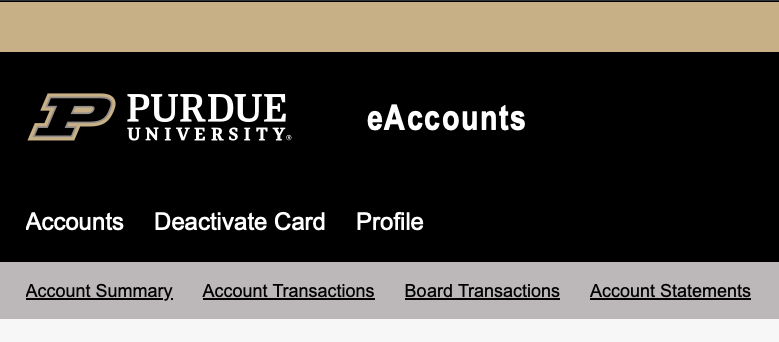
Step 1 Select Deactivate Card
Step 2: Select the account(s) you want to disable
- If you have multiple available you will need to disable all of them
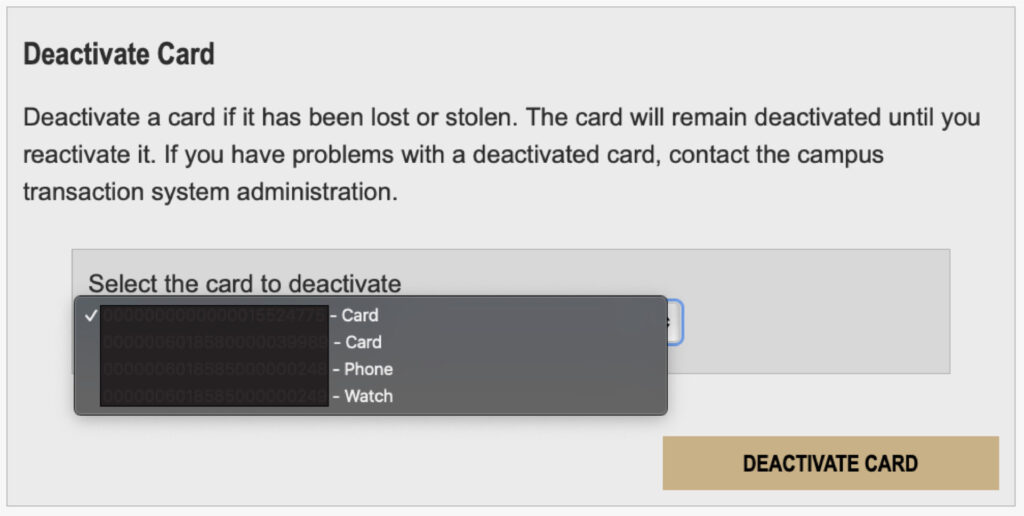
Step 3: Select DEACTIVATE CARD
How to Reactivate Card
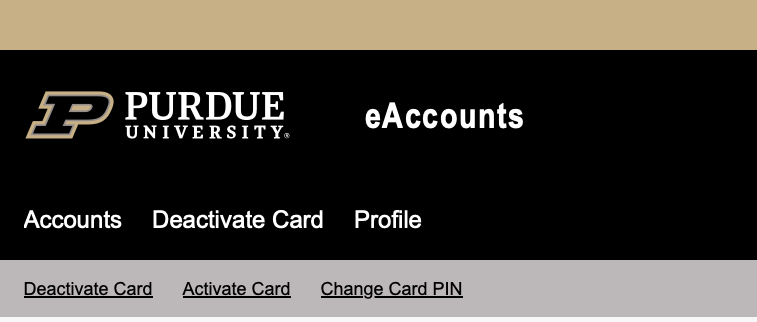
Step 1: Choose Deactivate Card
Step 2: Choose Activate Card
Step 3: Select the account(s) you want to reactivate
- If you have multiple you will need to reactivate all of them
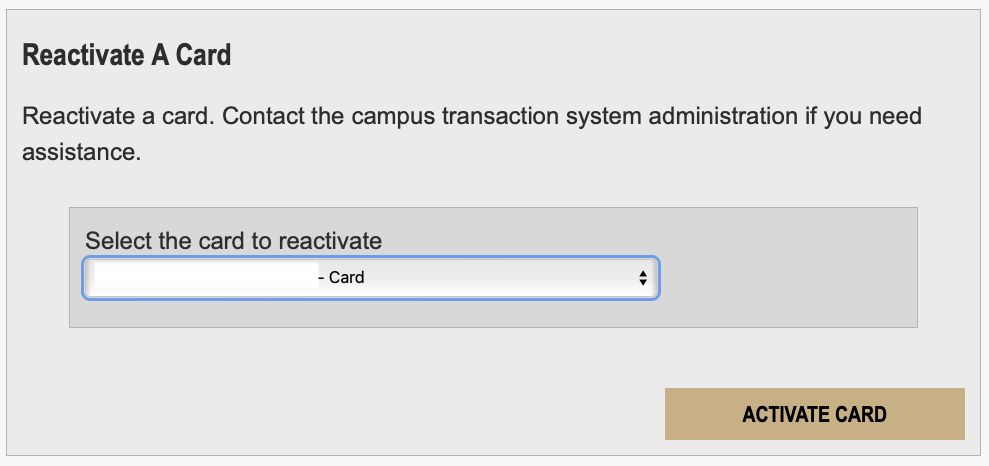
Step 4: Select ACTIVATE CARD
How do I change my PIN in eAccounts?
Change Card PIN
Step 1: Choose Deactivate Card
Step 2: Choose Change Card Pin
Step 3: Enter current Pin and select new Pin
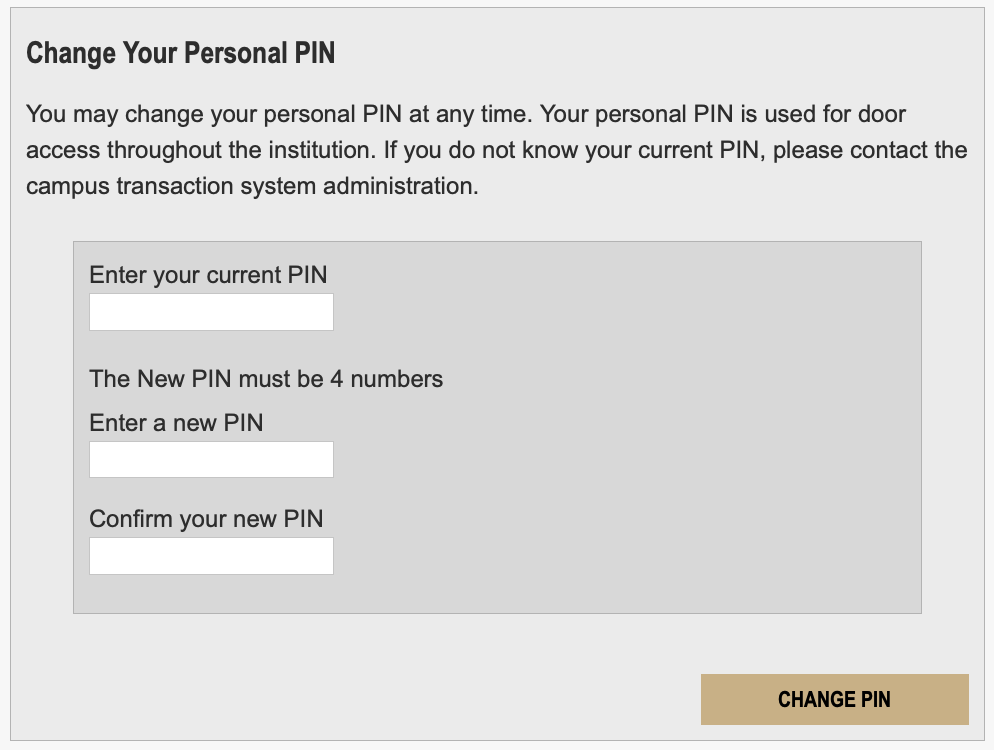
Step 4: Choose CHANGE PIN
Purdue ID Card
Who gets a Purdue ID card?
All persons affiliated with the University as a student, faculty member, staff member or affiliate will be assigned a PUID number upon joining the University community and then be eligible for an ID card.
Purdue ID Card – How to get a card
Where do I get my Purdue ID card?
Please visit the Purdue ID Card Operations, Stewart Center, Room 194 during business hours, Monday – Friday, 8:00am to 4:30pm.
Faculty and staff:
Faculty and Staff members are eligible upon receiving their Purdue email address and/or their PUID number through the onboarding process
You can obtain your PUID number by contacting your business office or department, or by logging onto Employee Self Service (ESS). Once you are logged into ESS, click on Personal Information, then click on Additional Personal Data.
Visiting scholars:
International visiting scholars must have a completed SEVIS form from the Office of International Students and Scholars, located in Young Hall 5th floor. A Certificate of Eligibility for Exchange Visitor Status (also known as a J-1 or DS-2019) must be provided along with your current passport.
Domestic visiting scholars:
Domestic visiting scholars must have an appointment letter on departmental letterhead that is signed by the department head, Dean and the Executive Vice President for Academic Affairs (or their designee) stating the term of their stay at Purdue. You will also need to provide a government-issued photo identification card such as a driver´s license or passport.
Official University retirees:
Retirees from the West Lafayette campus must show their official retiree letter and provide their current ID card to trade for a retiree ID card.
*Please note that ID card information is processed on a daily basis and our office requires one to three business days to receive information after it is originally submitted to the Purdue system. Our office is unable to produce ID cards before they are in our system.
Can I have my Purdue ID card mailed to me?
Sorry, but no Purdue ID cards can be mailed. You are required to show an official government-issued photo ID when you pick up your card.
Can anyone pick up my Purdue ID card for me?
Only the cardholder can pick up their Purdue ID card. You will be required to show a government-issued photo ID when you pick it up.
eAccounts
eAccounts – General
I used my credit card at a participating retail location when I meant to use my Dining Dollars or Retail Dining Membership on my Purdue Mobile ID Card. What can I do to correct my payment source?
Return to the location of the sale and request the store issue a credit card refund, then process the transaction against your Dining Dollars or Retail Dining Membership on your Purdue Mobile ID Card.
Why do I have a negative balance on my Dining Dollars or Retail Dining Membership account?
A negative balance can occur if you make a transaction when a retail device is offline. When the device comes back online and the transaction is posted, you will see a negative balance if there are not enough funds in your account to cover the transaction.
How can I review transaction history for Dining Dollars or Retail Dining Membership?
You can verify 12 months of transaction activity online by logging into eAccounts using your career account login and Duo 2-Factor authentication..
Transaction History
Step 1: Choose Account Transactions
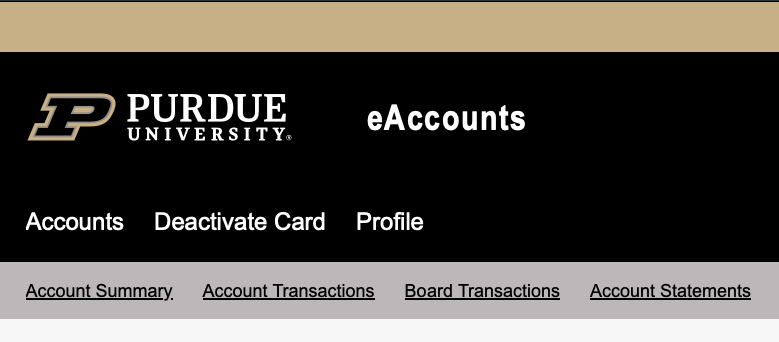
Step 2: Search or Refine
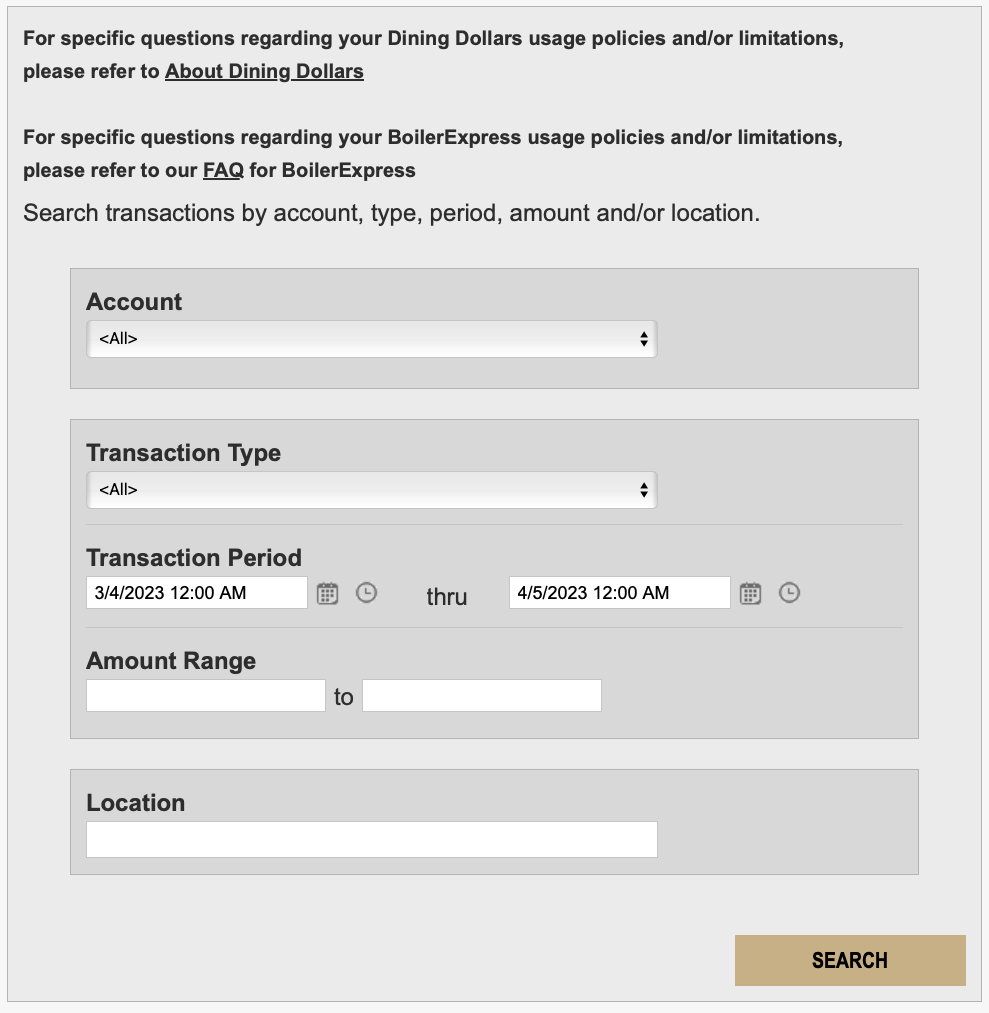
Step 3: Select Account
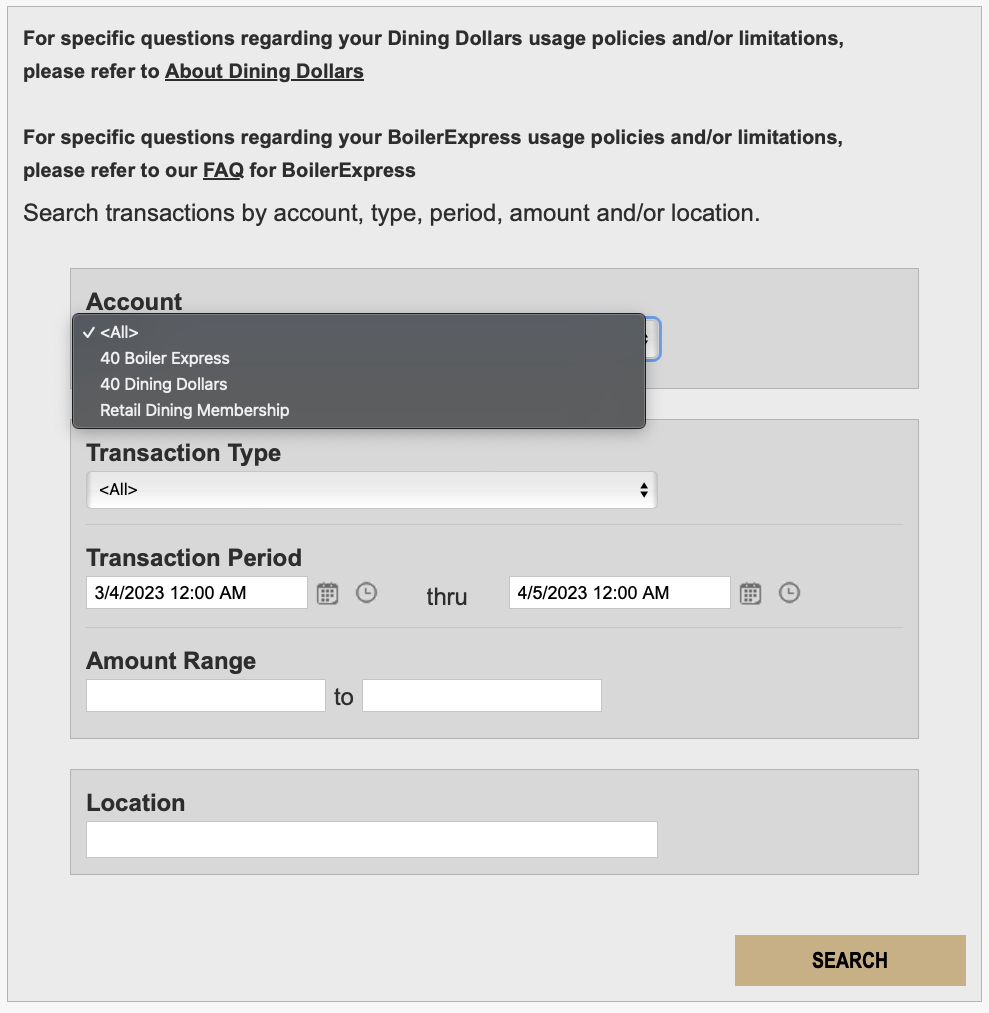
Step 4: Select Transaction Type
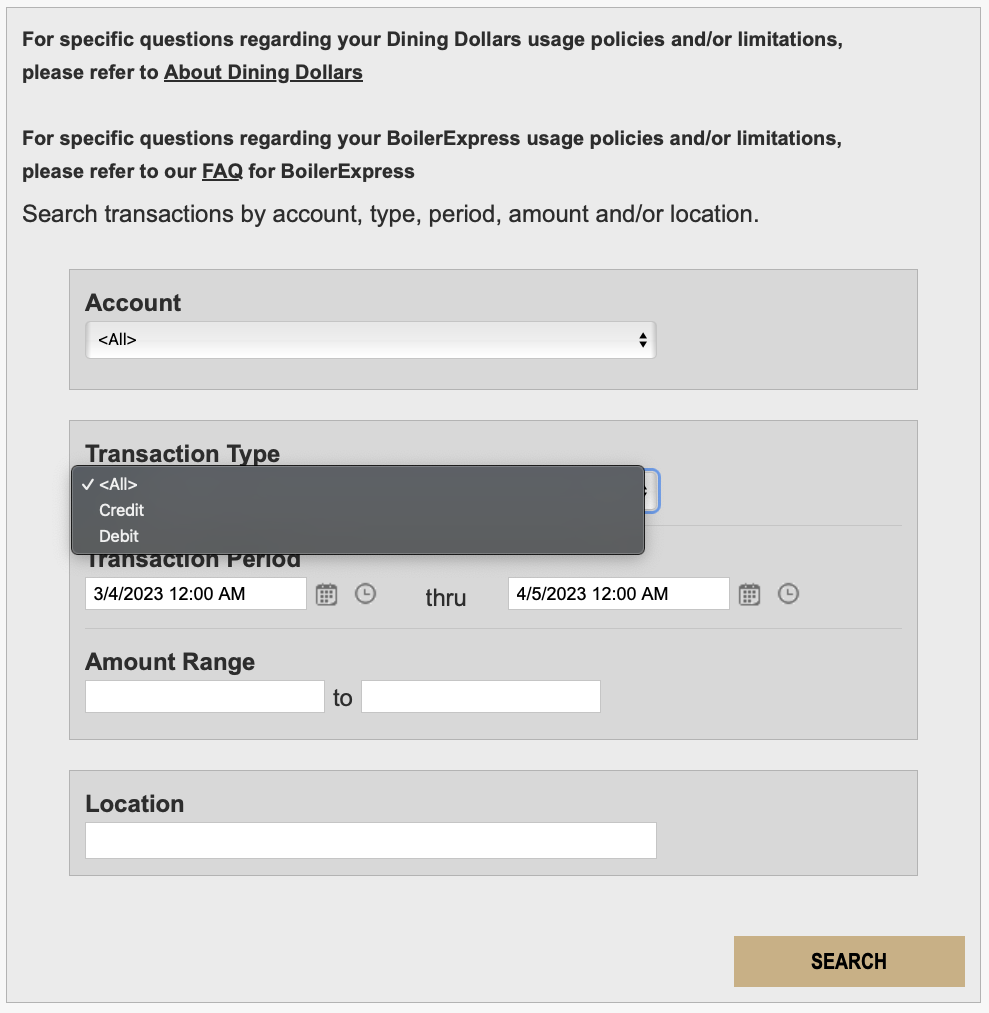
*YOU CAN ALSO SET A TIME RANGE UNDER TRANSACTION PERIOD OR SELECT A LOCATION
Preferred Name
What is a preferred name?
Many individuals on campus have expressed a desire to be known by a name different than their legal name. This different name would be a preferred name.
How do I change my preferred name?
Students can change their preferred name via the myPurdue portal. Please note:
- It may take up to three business days for the update to appear.
- You will need to take your current ID to Purdue ID Card Operations and trade it in for a new ID with the preferred name.
- There will be a replacement fee charged.
Faculty and staff can change their preferred name at Purdue ID Card Operations.
Where else does my preferred name appear?
The legal name will continue to be used in business processes that require use of the legal name, such as for payroll records and student transcripts.
Who can get their preferred name on their Purdue ID card?
Faculty, staff, retiree and student cardholders may have an appropriate preferred name used on their Purdue ID cards.
How do I get my preferred name on my Purdue ID card?
Students, staff and faculty can come to Purdue ID Card Operations and request a replacement Purdue ID card with their preferred name printed on the card. There is a replacement fee. Our staff will determine if the preferred name is in our system and meets our guidelines. Customers can choose to get a new photo or use the same photo on file. All customers must surrender their current Purdue ID card.
Are there limitations on the preferred name?
The individual is free to determine the preferred name they want to use in the University’s information systems. Establishing a preferred name in Banner does not automatically give one the right to put the name on the Purdue ID card.
Your Purdue-issued ID card is your official University ID and is the property of Purdue University. Purdue reserves the right to decline the ID holder’s request to print a preferred name on the Purdue ID card if the name is deemed inappropriate. Inappropriate preferred names include but are not limited to those that avoid legal obligation, misrepresent, harass or threaten. In most cases, a preferred name should not be a message, company or group name, especially if it is for promotional purposes.
What can I do if a preferred name is deemed inappropriate?
Individuals with preferred names deemed inappropriate can:
- Obtain a Purdue ID card with just their legal name.
- Change their preferred name in Banner and return later to our office for a Purdue ID card with revised appropriate preferred name.
- Appeal the decision.
How does the appeal process work?
To appeal the decision of the Purdue ID Card Operations staff, please send us an email stating your request to appeal the decision. Please explain your position as completely as possible on why you believe the preferred name is appropriate.
Purdue ID Card Operations administrators will contact the Registrar’s Office, Human Resources or Purdue Trademarks and Licensing to discuss the appeal and then contact the cardholder with a final decision. These offices have the ultimate authority in determining the appropriateness of preferred names. An email response will be sent to inform the cardholder of the decision within 30 days of the request. At that point, the decision will be considered final. If the request has been approved, the Purdue ID Card Operations staff must issue a Purdue ID card with the approved preferred name.
Will my legal name also appear on the card?
The legal name will be printed on the reverse side of the Purdue ID card.
Is there a charge to get my preferred name on my Purdue ID card?
No. When you surrender your current card, you can receive a new card containing your preferred name at no charge