
Registration Workflow for Faculty
Notifications:
A daily email digest is generated each morning and is sent to all approvers that have outstanding items in the Registration Workflow System that require attention.
- NOTE: Beginning with the Fall 2023 term, Purdue eliminated WF, WU and WN grades. As such, beginning with the Fall 2023 term, faculty receive emails for add changes only and no longer receive emails for drop requests to indicate if a student is dropping with a W or WF/WN/WU. Faculty will receive an email when a student drops a course with a W for informational purposes only and no further action will be needed from them.
Navigation & Filtering:
Reviewers can follow the link included in their digest email or navigate to the Registration Workflow System link in the Faculty Tools card in the myPurdue portal.
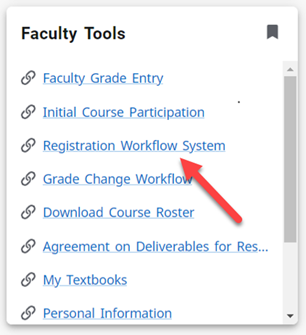
Once faculty have entered the Registration Workflow System, they will see a queue of active requests that require their attention.
Faculty can adjust the filtering criteria and click on “Search” to re-filter their queue results. Faculty will want to pay special attention to what Term is being used to filter their result.
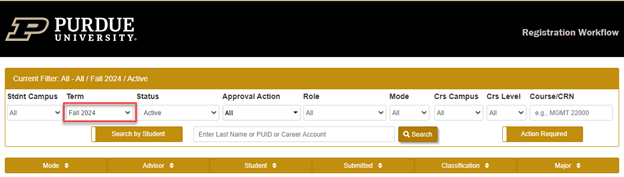
The Term will be set to the future-most active term by default, so when multiple terms are active for registration, faculty may need to adjust the Term accordingly to view the requests awaiting action from them.
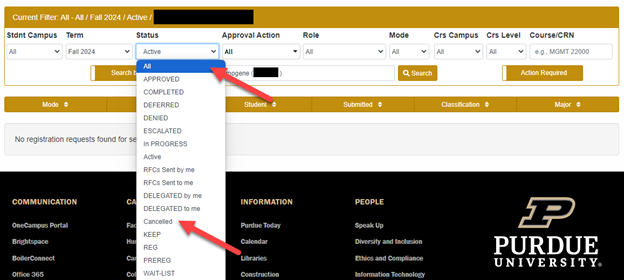
- NOTE: If their queue has no results, even after adjusting the Term appropriately, Faculty may assume that no further action is needed. If they wish to verify, Faculty can refilter their queue by Status and change it from Active (default) to “All” to see if the request was approved/denied by another party on their behalf (typically a Departmental Designee from their department), or to “Canceled” to see if the request was canceled by the Student or the Registration Workflow system after a registration deadline has passed.
To search for a specific student request, Faculty can enter a name, PUID or Purdue career account alias in the main search bar, pick one of the populated student names and clicking “Search”.

Taking Action:
During the Extended Add period (typically after Week 1 for a full term course), there will be multiple approvals required in order to allow the student into a course. The screen shot below provides an example of what an add request looks like that requires approval.
Approving/Denying an Add after Week 1 for full term course -
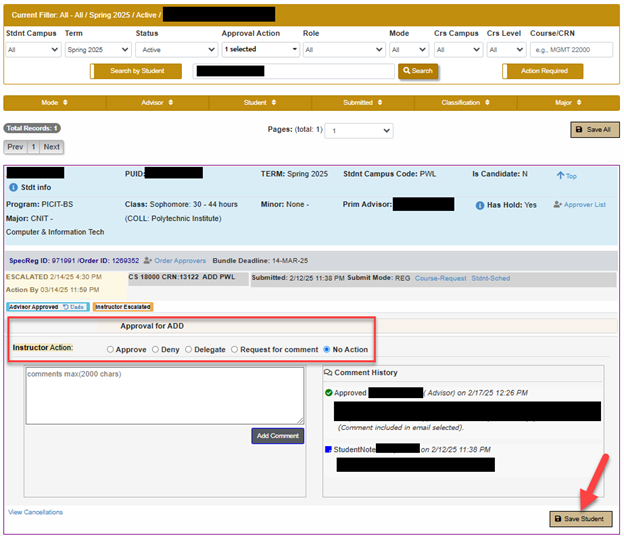
Faculty will only see their actionable items, but for each item, they will see the other approvers needed in order for the request to be complete. The role of the approver is shown to the left of the available action buttons. Faculty can choose their action, then click Save Student to enter their decision into the system.
- All of these actions are requested in parallel, but changes to the student’s registration will not be processed until the final decision-maker has approved the request.
- If any one of the approvers denies the request, the student registration activity will not be processed, even if all others approve.
- Green indicates the request is Active and no action has been entered, yellow indicates no action has been entered but the request has been Escalated (after awaiting action for 2+ business days) and blue indicates the request has been Approved.
- As decision-makers enter their decisions, they will be recorded in the Comment History section where any activity related to the request is documented. In the above example, the Advisor has already approved, but the request is still pending Instructor action.
- A single Denial will change the status of the request to “Denied”, stopping any further action and nesting the approval decisions up to that point in the “Click to View Approval Statuses” pop up with the denial highlighted in red.
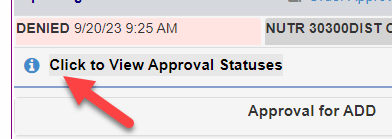
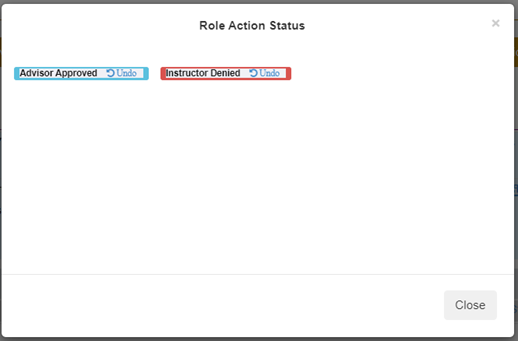
- In the above example, although the Advisor approved the request, the Instructor denied it, so nothing was processed.
-
Undoing an Action:
If no registration change has occurred yet due to an approval decision (typically for a denial), there will be an undo button next to the previous decision in the “Click to View Approval Statuses” pop-up as seen in the above screenshot. Click the undo button and that will change the status back to Active so that a different decision can be entered. If an approver that denied a request later decides to undo their denial and approve the request, the existing approvals of all other approvers will allow the student to get into the course if the action is reversed.
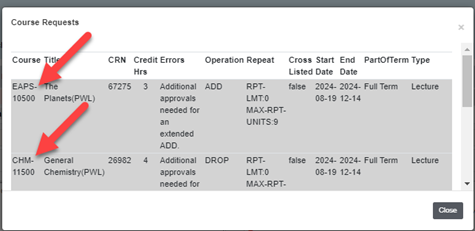
NOTE: Unless faculty member is sure that the request is independent from any other request or the denial was very recent, it is often best practice to have the student submit a new request after undoing a denial in case other requests are tied to the transaction. To see if there are multiple requests tied into one transaction, faculty can click on “Course-Request” for the request details pop-up.
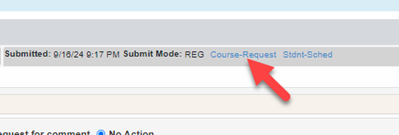
In the pop-up there will be a row of details for each part of the request. If there are multiple rows for different courses, it indicates that the student has bundled multiple requests into a single transaction and it may be safer for student to resubmit a new request after faculty member has undone a denial rather than approving the same old, reactivated request.
Faculty or other campus partners with questions regarding the Registration Workflow may contact the internal Registration Support email at regsupport@purdue.edu or the general Registrar’s Records & Registration office at registrar@purdue.edu or 765-494-6165.
