
Registration Workflow for Advisors
Introduction
The Registration Workflow is the system that organizes requests when a student wants to make a registration change in Scheduling Assistant that requires approval by one or more campus decision-makers and applies those approved requests to the student’s registration as appropriate.
Notifications
A daily email digest is generated each morning and is sent to all approvers that have outstanding items in the Registration Workflow System that require attention.
Navigation & Filtering Results
OPENING THE REGISTRATION WORKFLOW
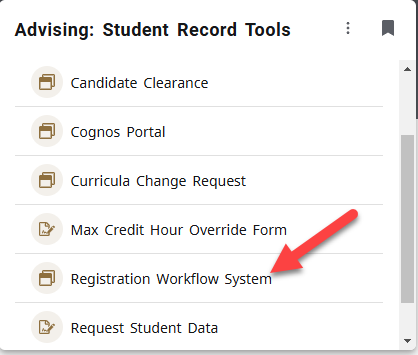
Reviewers can follow the link included in their notification email or navigate to the Registration Workflow System link in the Advising: Student Record Tools card in their myPurdue.
Once Advisors have entered the Registration Workflow System, they will see a queue of active requests that require their attention. Advisors can adjust the filtering criteria for their queue and click on “Search” to re-filter their results.
FILTERING YOUR QUEUE
TERM: Advisors will want to pay special attention to what Term is being used to filter their results.
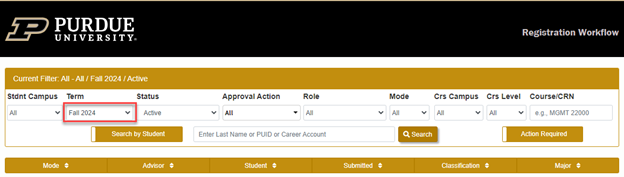
The Term will default to the future-most active term, so when multiple terms are active, Advisors may need to adjust the Term accordingly to view the requests awaiting action from them.
- NOTE: If the default Active queue has no results, even after adjusting the Campus and Term appropriately, Advisors may assume that no further action is needed. If they wish to verify, Advisors can refilter their queue by Status and change it from Active (default) to “All” to see if the request was approved/denied by another party on their behalf (typically a Reg Program Agent “backup advisor”), or to “Canceled” to see if the request was canceled by the Student or the Registration Workflow system after a deadline has passed.
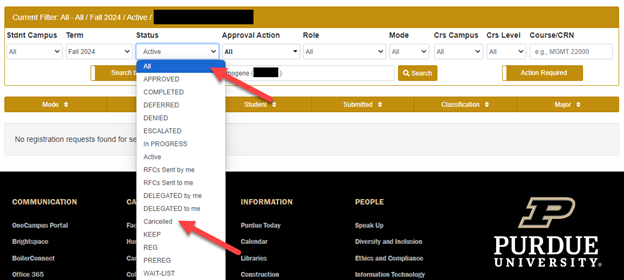
COMMON REQUEST STATUSES TO FILTER BY
ACTIVE (default): Requests still pending and awaiting action.
ALL: All requests an Advisor has some sort of approval authority for (excluding Canceled requests). This is best for getting the entire picture of a student’s request and troubleshooting.
APPROVED: Fully approved requests.
DENIED: Requests denied by one or more approvers.
ESCALATED: Requests that have been awaiting action for 2 business days (typically triggered at approximately 4:00 PM on the 2nd business day). Escalated Advisor requests notify the student’s program’s Registration Program Agent (RPA) who act as a “backup advisor” and can take action on advisors’ behalf if the department has assigned someone this role.
RFCs Sent by / to me: Requests for “Request For Comment” sent by / to an Advisor for more information regarding a request by / to another decision-maker.
DELEGATED by / to me: Requests for which the approval authority has been given by / to an Advisor by / to another decision-maker.
REG / WAITLIST / PREREG: Filter requests by which Submit Mode they were submitted in.
- REG: “Registration mode” when student submits a request for a needed override approval to get into an available seat.
- WAITLIST: “Waitlist mode” when student submits a request for a needed override while on a waitlist for a section with no seat currently available. NOTE: Only an option If a course’s department has enabled the Waitlisting feature.
- PREREG: “Pre-Registration mode” when student submits a request for a needed override during the Pre-Registration “batch” registration process on their Course Request Form (CRF).
FILTER FOR A SPECIFIC STUDENT
To search for a specific student request, Advisors can enter a last name, PUID or Purdue career account alias in the main search bar, pick one of the populated student names, then clicking “Search”.

ADVISOR-SPECIFIC APPROVAL ACTIONS TO FILTER BY
To filter for certain types of requests, you can select the Approval Action drop-down and check the box for 1 or more specific actions to filter by or leave it as the default “All”.
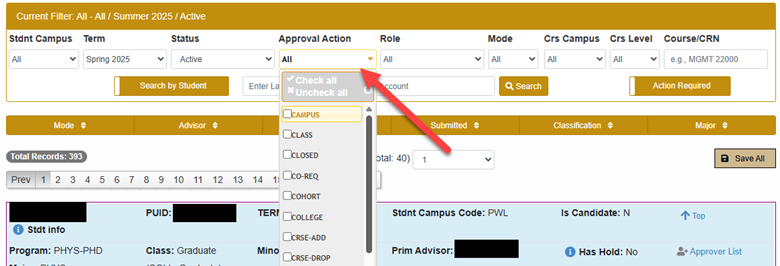
ALL (default): All approval request actions.
GRADE MODE (Pass/Not Pass, Honors, Audit): Requests to change the grade mode of a course. NOTE: Honors grade mode may also require Honors Coordinator approval and Audit grade mode also requires Dept Designee approval.
MAX CR: Requests to increase a student’s maximum number of credits beyond the default.
CRS-ADD: “Extended Add” requests to add a course that require Advisor & Instructor approval per the Drop/Add Refund & Deadline Calendar (typically after Week 1 for standard Full Term courses).
CRS-DROP: “Extended Drop” requests to drop a course that requires Advisor approval to drop a course that will be recorded with a W on a student’s transcript per the Drop/Add Refund & Deadline Calendar (typically after Week 2 for standard Full Term courses).
VAR-CREDIT: Requests to adjust the number of credits for a Variable Credit course during the “Extended Add” period. NOTE: Also requires Instructor approval.
VAR-TITLE: Requests to create a new section/CRN for a Variable Title course. NOTE: Also requires Instructor, Dept Designee and Registrar Classroom Scheduling approval.
SURFACING REQUESTS THAT DO NOT NEED ADVISOR APPROVAL
To surface requests in your queue for your advisees even if they do not directly need advisor action, the “Action Required” switch can be toggled to “Show All”.
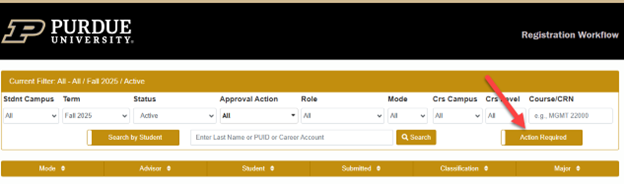
This can be helpful to see if an approved request is still pending an attached override approval from a Dept Designee.
SORTING:
After filtering your queue as desired, the results may be sorted with the criteria on the bar above it. Click once to sort in ascending order, again for descending and again to return to default.
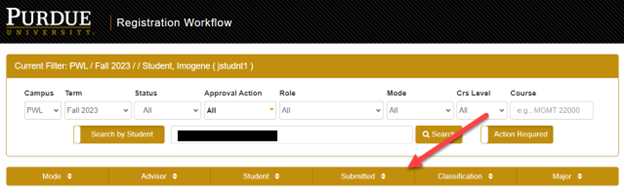
MODE: Sort by Submit Mode (REG / PREREG / WAITLIST).
ADVISOR: Sort by Primary Advisor.
STUDENT (default): Sort by Student last name.
SUBMITTED: Sort by the time student submitted the request.
CLASSIFICATION: Sort by student Classification (Freshman, Sophomore, etc.).
MAJOR: Sort by student Major.
Requests
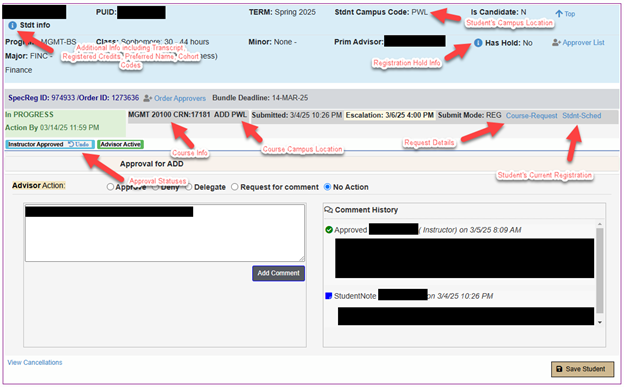
A request block is created for each student with actionable items in an Advisor’s queue along with student status information in the top section regarding identifying information, curricula, term, campus and candidacy status. There are also useful data and links to additional detailed info as indicated below.
Taking Action
The lower portion of the request block presents information regarding what the student is requesting and radio buttons for available actions for the Advisor. After choosing an action button, clicking “Save Student” saves the approval decision for the request.
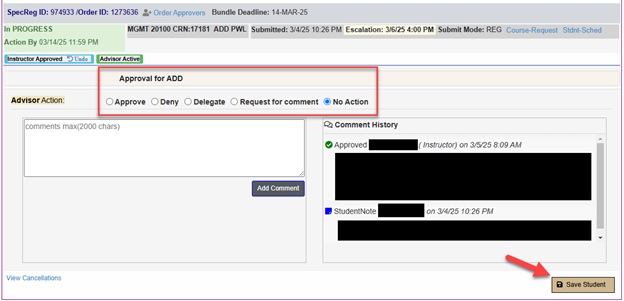
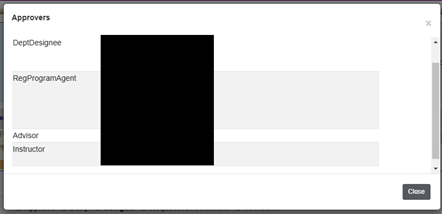
Advisors will only see their actionable items, but for each item, they will see the other approvers needed in order for the request to be complete. The role of the approver is shown to the left of the available action buttons.
- All of these actions are requested in parallel, but changes to the student’s registration will not be processed until the final decision-maker has approved the request.
- If any one of the approvers denies the request, the student registration activity will not be processed, even if all others approve.
- Green indicates the request is Active and no action has been entered, yellow indicates no action has been entered but the request has been Escalated (after awaiting action for 2+ business days) and blue indicates the request has been Approved.
- As decision-makers enter their decisions, they will be recorded in the Comment History section where any activity related to the request is documented. In the above example, the Instructor has already approved, but the request is still pending Advisor action.
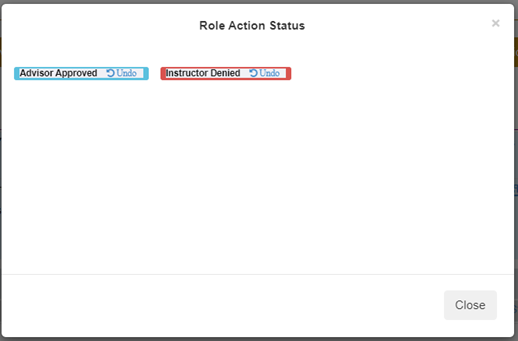
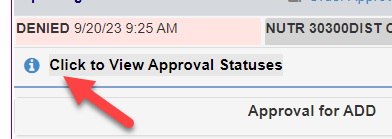
- A single Denial will change the status of the request to “Denied”, stopping any further action and nesting the approval decisions up to that point in the “Click to View Approval Statuses” pop up with the denial highlighted in red.
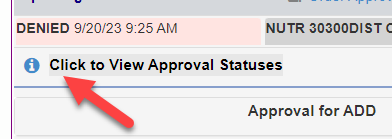
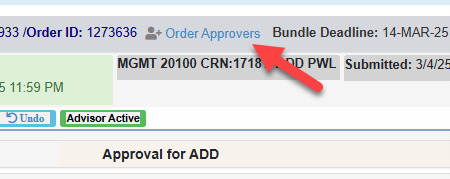
Click on “Order Approvers” to see a list of all the approvers who can take action on their respective parts of the request.
AVAILABLE ACTIONS
APPROVE / DENY
Select the Approve / Deny button and select a pre-populated reason from the drop-down menu or add a custom comment in the text box below, then Save Student. To include the custom comment with the confirmation email sent to the student, you can check the “Include comment in student email” box.
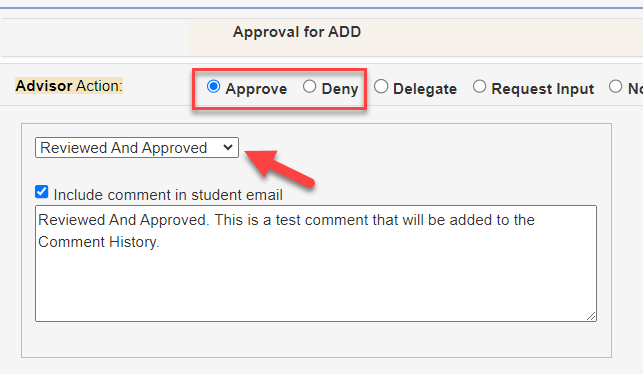
- NOTE: Once a request is denied, the same request cannot be re-requested within the same Submit Mode (REG / PREREG / WAITLIST) for the remainder of the Term.
Approving a Max Credit override will also have a field to indicate how many credits the Advisor wishes to approve the student to register for. The default max credits are typically 18 for Fall/Spring, 9 for Summer and 3 for Winter.
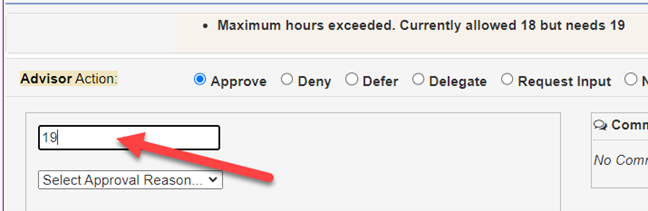
- NOTE: Per university policy, Winter Session is strictly capped at 3 credits, so any MAX CR overrides for Winter Session should be denied.
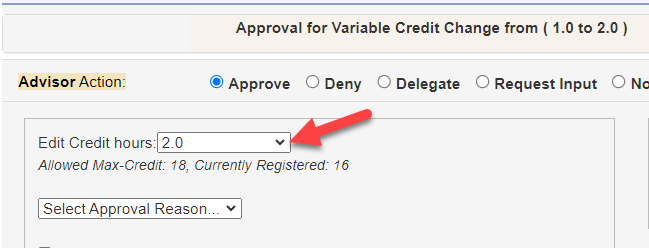
Approving a Variable Credit modification will also have a field to indicate how many credits the student is approved for within the allowable limit per catalog rules.
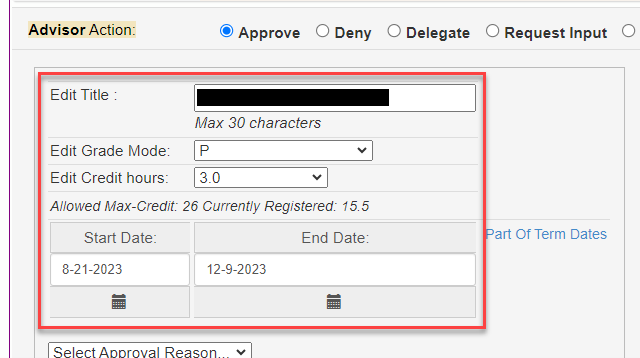
Approving a Variable Title request will also display information regarding the Title, Grade Mode, Credits and course dates needed for approval.
DELEGATE
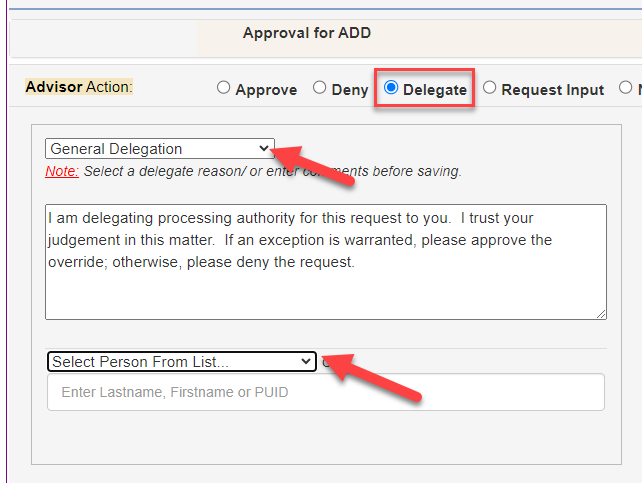
To delegate decision-making authority for a single request to another party, select the Delegate button, select a reason/custom comment, choose the other party from the drop-down menu or the manual search field, then Save Student. An email (separate from the daily digest email) will be sent to the party delegated to.
REQUEST FOR COMMENT
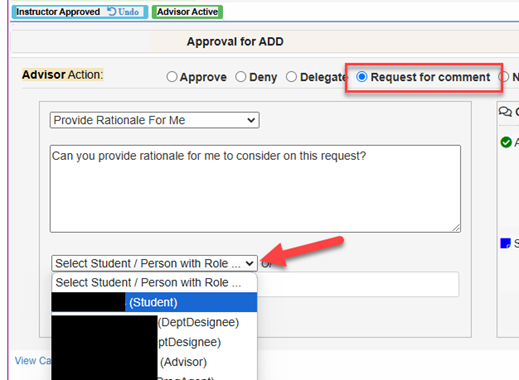
To request information from another party regarding the request, select Request For Comment, select a reason/custom comment, choose the party from the drop-down menu or the manual search field, then Save Student. If Requesting Comment from the Student, the student gets an email prompting them to enter a reply in their Scheduling Assistant that will be recorded in the Comment History.
REPLYING TO A REQUEST FOR COMMENT REQUEST
To reply to a Request for Comment, leave the “No Action” button selected, add a response in the text box, then click “Add Comment” to record the response in the Comment History where the requestor can review it.
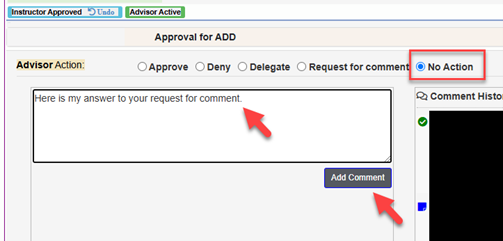
NOTE: The Registration Workflow is a Campus Partner-facing system that students do not have access to. If you wish to use the system to request comment from the student, be sure to pick the “Request For Comment” action and not just “Add Comment”. Comments added just with “Add Comment” are not visible to the student like they are for Campus Partners.
UNDOING AN ACTION
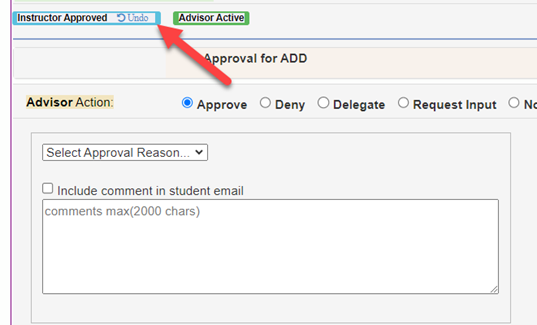
If an actionable item is still Active and no registration change has yet been processed because of an approval, the “Undo” button next to action status can be clicked to undo the previous decision.
If a request is no longer active, click "Click to View Approval Statuses."
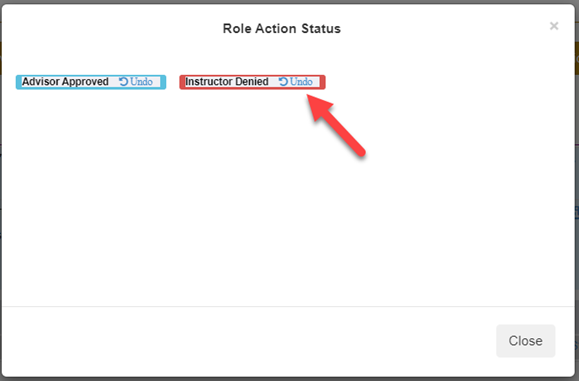
Click the undo button and that will change the status back to Active so that a different decision can be entered. If an approver that denied a request later decides to undo their denial and approve the request, the existing approvals of all other approvers will allow the request to process if the action is reversed.
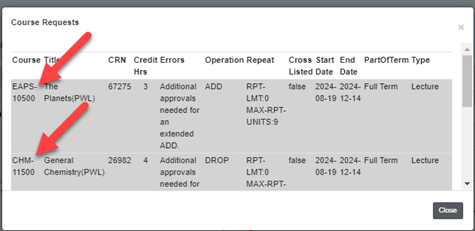
- NOTE: If undoing a denial, be cautious before approving the same re-activated request, especially if the request is not very recent and the student or other approvers may no longer be expecting a request to be pushed through. Also be mindful of if the request is “bundled” with other requests that may unexpectedly process if the same re-activated request is approved. You can see if a request is “bundled” with other requests in a single transaction in the “Course-Request” pop up.
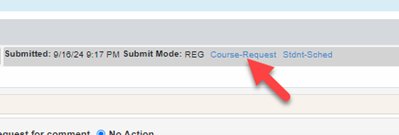
In the pop-up there will be a row of details for each part of the request. If there are multiple rows for different courses, it indicates that the student has bundled multiple requests into a single transaction and it may be safer for student to resubmit a new request after an approver has undone a denial rather than approving the same old, reactivated request.
Advisors or other internal campus partners with questions regarding the Registration Workflow may contact Registration Support at regsupport@purdue.edu or the general Registrar Records & Registration office at registrar@purdue.edu or 765-494-6165.
Variable Title-specific inquiries can directed to the Registrar Classroom Scheduling team at classroomsched@purdue.edu and Pre-Registration-specific inquiries can be directed to the Pre-Registration team at preregistration@purdue.edu.
