How to Create Your BEP in WordPress
Any questions about filling out your BEP on WordPress can be directed to Brylie Gineris (brylie@purdue.edu) and Jacinda Shirley (jshirle@purdue.edu).
An in-depth video tutorial is available below. You can pause, rewind, or adjust the playback speed to 0.5x as needed for easier viewing.


Access & Login
- Go to the BEP site login URL: https://www.purdue.edu/operations/emergency-preparedness/wp-admin/
- Sign in with your Purdue Career Account credentials.
- If shown “pending approval,” you’ll receive an approval email. After approval, return to the same login URL and sign in again. (Logins are approved manually Monday-Friday 8 a.m. to 5 p.m.)
If you can’t sign in or don’t see “Posts,” email Brylie and Jacinda.
Start From the Correct Template
- In the left sidebar, click Posts → All Posts.
- Locate the BEP Template for your campus (e.g., Indianapolis BEP Template or West Lafayette BEP Template).
- Hover the template title and click Duplicate This.
- You’ll be taken to your new draft. You cannot edit the original template.
Fill Out the BEP Content
Fill in the following BEP information. You can click into the placeholder text and type your information directly.
Make sure to add alt text to all images uploaded into your BEP
- Replace “West Lafayette/Indianapolis BEP Template” at the top of the page with your building abbreviation.
- Title Section
- Building Abbreviation
- Building Name
- Building Address
- Hyperlink the address to Google Earth
- Highlight the address
- Click the link icon in the pop-up toolbar
- Paste the Google Earth link to the address into the pop up
- Hit “Enter”
- Hyperlink the address to Google Earth
- BEP Revision Date
- Building Emergency Contacts
- Building Deputy or Manager
- Safety Manager, if applicable
- Facility Manager, if applicable
- List any other contacts if applicable
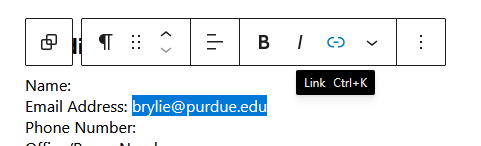
*When adding email addresses, make sure to hyperlink them. To do this, highlight the email address and click the link icon in the toolbar.
- Life Safety Equipment
- AEDS
- Location 1
- Location 2, if applicable
- AEDS
- Emergency Evacuation
- Instructions
- EAA Primary Location
- EAA Secondary Location, if applicable
- Shelter in Place
- Building Information for First Responders
- Building Description
- Building Departments
- Building Critical Operations
- Building Alarms
- Building Safety Committee
Submit for Review
- Click Submit for Review.
- Send one email to brylie@purdue.edu, jshirle@purdue.edu, and jfhowells@purdue.edu with:
- Building name + abbreviation
- Campus
Sample Email:
Subject: BEP Submitted for Review – [Campus] – [Building Name] ([Abbrev])
Hi team,
I’ve submitted the BEP for [Building Name] ([Abbrev]) on the [Campus] campus.
Thank you,
[Insert Name Here]
After You Submit
- Reviewers will check formatting, completeness, and compliance.
- You’ll receive edit requests via email if changes are needed.
- Once approved, the BEP will be published by the admin team.
Troubleshooting
- I don’t see “Duplicate This.”
Make sure you’re hovering the correct campus template. If still missing, contact Brylie/Jacinda. - I can’t upload images / I only see my own media.
That’s expected—developers see only media they upload. - I’m blocked Submitting for Review
Make sure all images contain alt text. Make sure any image placeholders that you don’t need have been deleted. - Alt Text is required?
Yes. WordPress will prevent submission if Alt Text is missing on new uploads.