join the discord!

The Office of Future Engineers and the Purdue Student Engineering Foundation have teamed up to create a great way to connect with current and admitted Purdue Engineering students: a Discord server! It’s free and designed to be a space for prospective, admitted and current students to come together and get to know each other. Ask questions you’ve wanted to know about Purdue, find a roommate, learn more about our majors and programs, and meet your potential classmates!
Not sure what Discord is? No problem! We have a handy, step-by-step guide available for you right here on this page to walk you through how to sign up.
Discord Sign Up Instructions
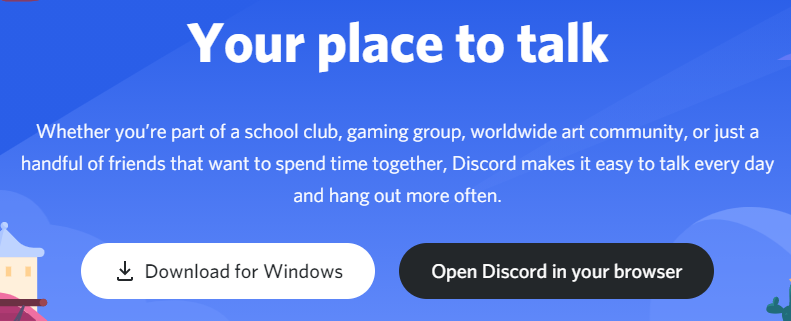
STEP 1: DOWNLOAD THE DISCORD APP OR OPEN IT IN YOUR BROWSER
Discord has apps for both Android and iOS, as well as desktop applications for Windows and Mac. Go to their website at https://discord.com to get started!
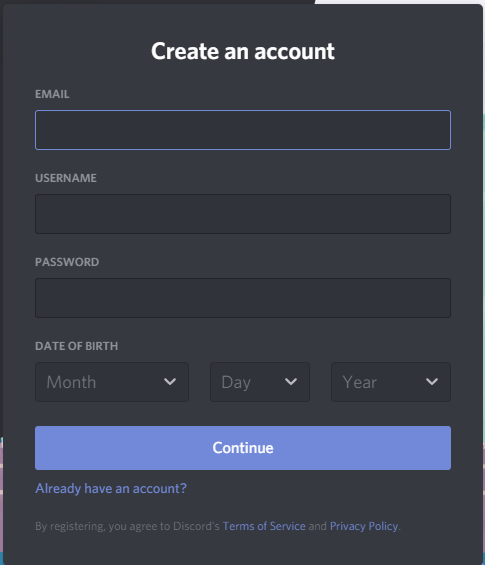
STEP 2: CREATE A DISCORD ACCOUNT (IF YOU DON’T ALREADY HAVE ONE)
If you haven’t created a Discord account before, you’ll need to sign up on their website. If you already have an account, you can skip on to Step 3.
STEP 3: JOIN OUR SERVER
Join our server via the DISCORD INVITEDisc LINK or copy and paste it into discord by hitting the plus button on the left.
STEP 4: UPDATE YOUR PROFILE
Open the member list on the right-hand side of the screen:

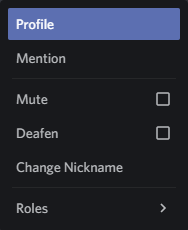
Change your nickname to your first and last name by right clicking your name on the members list and selecting ‘Change Nickname.’
STEP 5: VERIFY YOUR ACCOUNT (IF YOU CREATED A NEW ACCOUNT IN STEP 2)
Once you’ve finished creating your account, you’ll need to verify your email address with Discord. Follow the instructions you receive:

STEP 6: GET STARTED WITH DISCORD!
Explore what’s already been posted in the text channels listed on the left-hand side of our server.
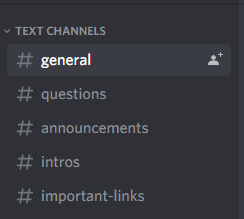
Post your messages and questions in the appropriate channel to join the conversation!
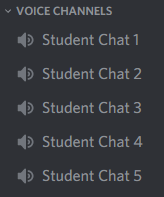
If you would like to talk to a PSEFer during their office hours, which you can see in the important links channel, join an available student chat room and send a message to the person you want to speak to by clicking their name on the member list.
NEED HELP?
If you are looking for information on how to use Discord or manage your account, Discord has an in-depth knowledgebase to learn more about using their platform.
If you are having difficulty joining our Discord server or are encountering any problems with other users or conversations, feel free to contact Ayrton Desai at desai216@purdue.edu.