
Checking on VSTAR Students in the Batch Scheduling Dashboard
Because batch scheduling runs nightly simulations, results may change daily. Advisors
should check this regularly once simulations begin each semester.
Login to UniTime and Select Online Scheduling Dashboard. Ensure you are in the correct term and role.

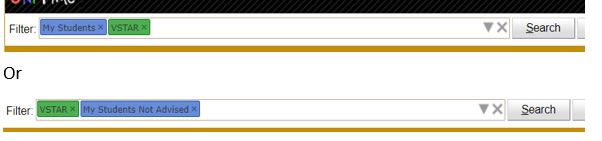
In the filter, type in My Students, VSTAR. You can also select the down triangle to search
additional or different criteria. Selecting is another good filter My Students Not Advised.
Click on the Students tab.
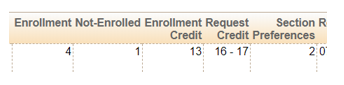
Looking at this example, the student requested 16-17 credits, but will only get 13. The student will enroll in four courses, but not enroll in one.
Click on the student and List of Classes to learn more information and where the conflict is. You can also click on Advisor Recommendations to see if there was any deviation from your advising session.

